Training Manual Template 2026: Format + Examples
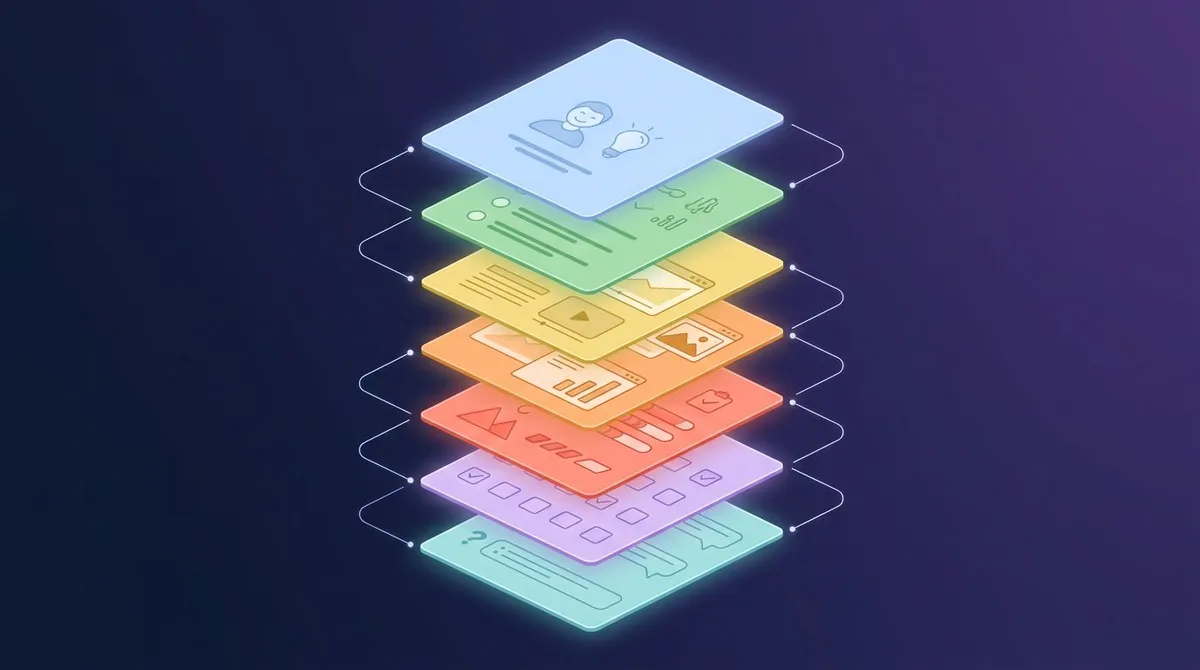
A training manual template is a reusable outline for teaching one role or process. A good one has six parts: a welcome, clear learning goals, short modules with numbered steps, practice exercises, sign-off checklists, and an FAQ. Add a version log so the manual stays current after launch.
That is the short answer. The rest of this guide gives you a copyable template, section-by-section writing tips, two worked training manual examples, and a simple way to keep screenshots current. It is written for HR, ops, and team leads who need new hires to get up to speed without a senior person on call all day.
If your goal is to document one repeatable task rather than train a whole role, a standard operating procedure template is the better fit. A training manual often links to several SOPs. It adds the context, practice, and checks that turn a list of steps into real skill.
What a training manual must include
Most training manuals fail for one of two reasons. They are either a wall of policy text nobody finishes, or a folder of loose screenshots with no order. The fix is a fixed structure that every manual in your company follows.
Here is what every employee training manual needs:
- Welcome and scope. Who the manual is for, what it covers, and what it skips.
- Learning objectives. Three to seven things the trainee can do at the end.
- Modules. One module per task or topic, each with numbered steps and visuals.
- Exercises. Practice tasks that mirror real work.
- Checklists. Sign-off lists a manager ticks off when the trainee shows each skill.
- FAQ and troubleshooting. The questions new hires ask in week one.
- Revision log. Owner, version, and last-reviewed date.
The last item is the one teams skip. It is also why so many manuals are wrong six months after launch.
Training manual vs SOP vs employee handbook
These three documents get mixed up all the time. The table below shows how they differ.
| Document | Answers | Typical length | Who reads it |
|---|---|---|---|
| Employee handbook | "What are the rules here?" | 20 to 60 pages | Every employee |
| Training manual | "How do I do this job well?" | 10 to 40 pages per role | New hires in one role |
| SOP | "How do I do this one task?" | 1 to 5 pages | Anyone doing the task |
| Quick reference card | "What was that step again?" | 1 page | Trained staff |
A training manual can include parts of the others. For example, your onboarding documentation might link to the handbook for leave policy and to three SOPs for daily tasks. The manual itself stays focused on building skill.
How to create a training manual in 6 steps
A template gives you structure. It does not tell you what to put inside. This six-step method fills that gap, and it works whether you use Word, Google Docs, Notion, or a wiki.
1. Define the role and the finish line
Write one sentence: "After this manual, a new [role] can [outcome] without help." For example: "After this manual, a new support agent can close a billing ticket without help."
That sentence sets the scope. Anything that does not serve it goes to a separate doc.
2. List the real tasks
Sit with the person who does the job best. Ask them to walk through a normal week. Write down every task, how often it happens, and what breaks when it goes wrong.
Sort the list by two things: how often the task happens and how costly a mistake is. Frequent or risky tasks get their own module. Rare, low-risk tasks go into the FAQ.
3. Turn tasks into learning objectives
Each objective should start with a verb you can check. "Submit an expense report with a receipt attached" is testable. "Understand expenses" is not.
Aim for three to seven objectives. More than that is usually two manuals pretending to be one.
4. Draft one module per objective
Each module follows the same pattern: why it matters, the steps, a screenshot or photo per step, and one common mistake. Keep steps to one action each. "Open Settings, pick Billing, and export the CSV" is three steps, not one.
This is where most time goes. Capture your visuals while you draft, not afterward. It is much faster to grab a screenshot while you are on that screen than to retrace every click later.
5. Pilot it with a real new hire
Give the draft to someone who has never done the job. Watch them use it. Do not help unless they are stuck for more than a minute.
Every spot where they pause, ask a question, or click the wrong thing is a gap in the manual. Fix those, then test once more.
6. Publish, assign an owner, and set a review date
Put the manual where people already work: the team wiki, a shared drive, or your LMS. Name one owner. Set the first review date before you publish. We cover the review cycle in detail below.
For a broader view of how manuals fit with SOPs, checklists, and process maps, see this process documentation guide.
The training manual template (copy and paste)
Copy the template below into Word, Google Docs, Notion, or any wiki. The brackets are prompts. Replace them, then delete any section that does not apply.
# [Role or Process] Training Manual

Version: [1.0]   Owner: [job title, not a name]
Last reviewed: [YYYY-MM-DD]   Next review: [YYYY-MM-DD]

## 1. Welcome
Welcome to [team]. This manual teaches you how to [outcome].
It takes about [X hours] over [X days].
Who this is for: [role, level, location]
Not covered here: [topics] (see [link to handbook or SOP])
Who to ask: [buddy or trainer role] in [channel]

## 2. Learning objectives
By the end of this manual you can:
1. [Verb + task + standard]
2. [Verb + task + standard]
3. [Verb + task + standard]

## 3. Before you start
- Accounts you need: [tool 1], [tool 2]
- Access requested by: [role] on day [X]
- Words to know: [term] means [plain definition]

## 4. Module [N]: [Task name]
Why it matters: [one or two sentences on the result or the risk]
How often: [daily / weekly / as needed]
Time to complete: [X minutes]

Steps:
1. [One action]. [Screenshot with marker 1]
2. [One action]. [Screenshot with marker 2]
3. [One action]. [Screenshot with marker 3]
You are done when: [what the trainee should see]

Common mistake: [what goes wrong]. Fix: [how to avoid it]
Related SOP: [link]

## 5. Practice exercises
Exercise [N]: [Realistic scenario]
Your task: [what to do, in the test or sandbox system]
Check your work: [expected result]

## 6. Sign-off checklist
| Skill | Shown on (date) | Trainer initials |
|---|---|---|
| [Objective 1] | | |
| [Objective 2] | | |
| [Objective 3] | | |

## 7. FAQ and troubleshooting
Q: [Question new hires ask in week one]
A: [Short answer + link]

## 8. Revision log
| Version | Date | What changed | Changed by |
|---|---|---|---|
| 1.0 | [date] | First release | [role] |
Repeat section 4 once per module. Most role-based manuals end up with four to eight modules. If you pass twelve, split the manual in two.
Want the same template as a Word file? Paste it into a blank document, style the headings, and save it as a Word template (.dotx). Microsoft's guide to creating a template in Word shows how. Microsoft also keeps a gallery of ready-made training materials if you prefer a designed starting point.
Section-by-section guidance
A template only helps if each section does its job. Here is what good looks like in each part.
Welcome and scope
Keep it under 150 words. New hires skim this page, so lead with the three facts they want: how long training takes, who to ask, and what they will be able to do at the end.
List what is out of scope. That line saves you from a manual that tries to cover the whole company.
Learning objectives
Write objectives your trainer can observe. "Process a refund under $200 in under five minutes" beats "Know the refund policy". Each objective should map to one module and one line on the sign-off checklist.
Modules
Modules are the core of any training manual. Keep each one short enough to finish in one sitting, ideally 10 to 20 minutes. Short, learner-paced chunks are easier to absorb than one long block, and the research on this is solid (more on that below).
Start every module with "why it matters". People follow steps more carefully when they know what breaks if they skip one.
Exercises
Good exercises copy real work. If the job is answering tickets, give the trainee three real (anonymized) tickets. If it is running a report, give them last month's data and ask for the number you would expect.
Always say what "correct" looks like, so the trainee can check their own work.
Checklists
The sign-off checklist turns training into something you can track. A manager watches the trainee do each task once, then initials and dates the line. HR gets a record. The trainee gets a clear finish line.
FAQ and troubleshooting
Collect questions during the pilot and the first few cohorts. Keep answers to two or three sentences with a link to the full SOP. When the same question shows up three times, it probably belongs in a module instead.
Training manual examples: two excerpts
Templates make more sense with real content inside. Here are two short excerpts written with the template above.
Example 1: Software training module
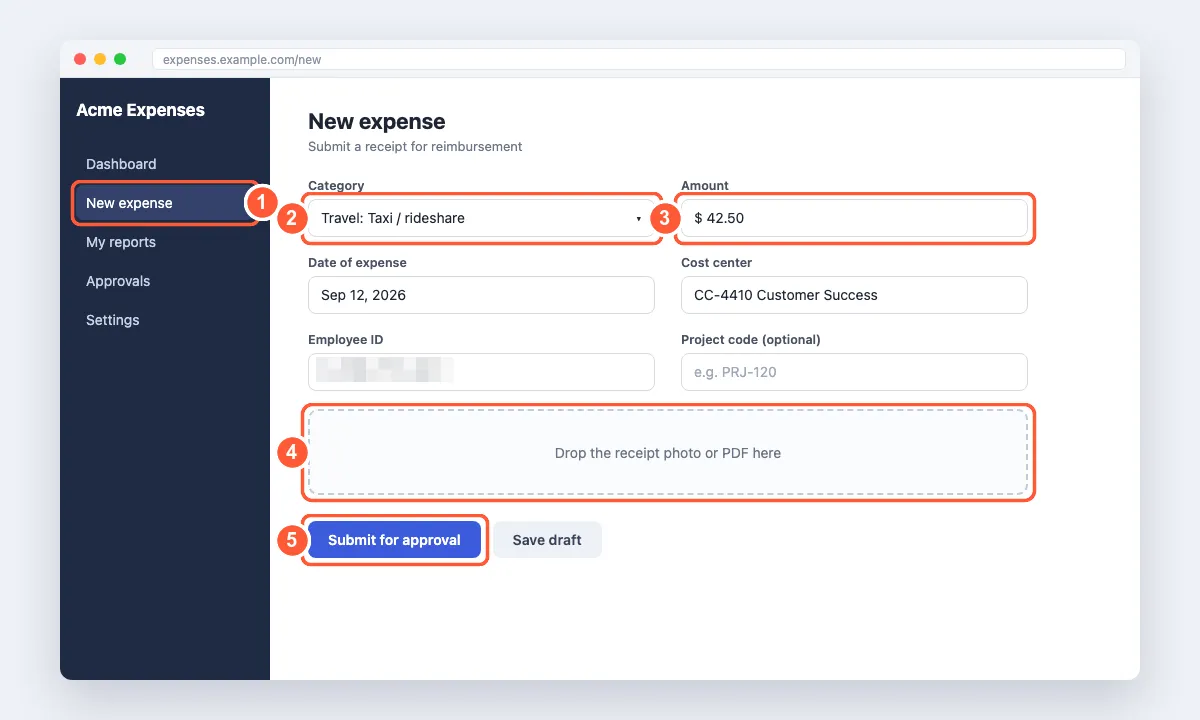
This excerpt comes from a finance onboarding manual. The trainee learns to file an expense in a web app.
Module 3: Submit an expense
Why it matters: Expenses filed without a receipt are rejected. That delays your refund by a full pay cycle.
How often: As needed. Time: 3 minutes.
- Click New expense in the left menu.
- Pick the Category that matches your receipt.
- Enter the Amount exactly as printed on the receipt.
- Drag the receipt photo or PDF into the upload box.
- Click Submit for approval.
You are done when: the expense shows "Pending" under My reports.
Common mistake: Saving a draft instead of submitting. Drafts are not sent to your manager.
Each step has a matching number on the screenshot. The trainee reads step 3, looks for marker 3, and knows where to click. Private data, like the employee ID here, is pixelated before the image goes into the manual.
Example 2: Frontline training module
Not every manual is about software. This one comes from a café opening manual.
Module 1: Open the store
Why it matters: The first customers arrive at 7:00. Missing the espresso machine warm-up means a 20-minute queue.
Time: 25 minutes. Start at 6:30.
- Disarm the alarm with your personal code.
- Turn on the espresso machine. It needs 20 minutes to heat.
- Count the till float and record it on the opening sheet.
- Check the fridge log. Temperature must read 5°C or lower.
- Unlock the front door at 6:58.
You are done when: the opening sheet is signed and the first shot pulls in 25 to 30 seconds.
The format is identical. Only the visuals change: photos of the alarm panel and fridge display instead of screenshots. Using one structure across every role means trainees learn the format once.

Tired of plain screenshots? Try ScreenSnap Pro.
Beautiful backgrounds, pro annotations, GIF recording, and instant cloud sharing, all in one app. Pay $34 once, own it forever.
See pricing and featuresUse screenshots and GIFs for software steps
Most roles now involve some software. That makes your training manual a screenshot-heavy document, whether you plan for it or not. Here is a workflow that keeps those visuals clear and quick to update.
- One screenshot per step. A single image that covers five steps forces the reader to hunt. One image per action keeps each step obvious.
- Crop to what matters. Capture the region around the button or field, not the whole monitor. A cropped image stays readable on a laptop and in print.
- Number the markers to match the steps. Put a numbered circle on the exact spot to click, and use the same number as the written step. This is the single biggest clarity win.
- Hide private data. Pixelate names, emails, IDs, and customer records before you paste the image. This guide on how to redact text in screenshots safely explains which methods truly remove the data.
- Use a GIF for motion. Drag-and-drop, hover menus, and multi-step flows are hard to show in a still image. A 5 to 10 second GIF loops in the doc and needs no video player.
- Write alt text. Describe what the image shows and which step it belongs to. It helps screen reader users and makes images searchable.
For a deeper walkthrough of this process, see how to create step-by-step instructions with screenshots. If your manual covers technical tools, the technical documentation screenshots guide covers sizing and consistency rules in more depth.
Tools for the screenshot workflow
You can do all of this with built-in tools and patience. The slow part is usually the numbering. Placing and aligning numbered circles by hand across 40 screenshots adds up.
A dedicated capture tool speeds that loop up. ScreenSnap Pro runs on Mac and Windows and includes 17 annotation tools, among them a counter tool that drops numbered markers in order. It also has arrows, highlighters, blur, and pixelate. It records GIFs straight from the screen, and cloud upload gives you a share link to paste into a wiki. It costs $34 as a one-time purchase, with no subscription.
If you only need to mark up a few images, the free image annotation tool lets you add arrows, boxes, circles, text, and highlights in your browser, then download the result as a PNG.
For motion steps, these guides cover GIF capture on each platform: recording GIFs on Mac and recording your screen as a GIF on Windows.
Why visuals make training stick
"Add screenshots" is common advice. Here is why it works, based on research rather than opinion.
Richard Mayer, an educational psychologist at UC Santa Barbara, has tested this for decades. In a summary of his research for the American Psychological Association's Division 2, he reports that people learn more deeply from words and graphics than from words alone. Across 13 experimental comparisons, the median effect size was 1.35. That is a large effect by social science standards.
Three more findings from the same summary map onto training manuals:
- Signaling works. Cues that highlight what matters, like headings and highlights, helped in 26 of 28 tests. Numbered markers and boxes are signals.
- Keep text next to the image. Placing words near the matching graphic helped in 9 of 9 tests. Put each step directly above its screenshot, not in a separate appendix.
- Break it into segments. Learner-paced chunks beat one continuous lesson in 7 of 7 tests. Short modules put this into practice.
Two caveats. These studies measured understanding and transfer, not minutes saved. And they mostly used students, not employees. Still, the direction is clear: steps paired with the right visual are easier to follow and remember.
Memory also fades fast without review. A 2015 replication of Ebbinghaus's forgetting curve found that most forgetting happens within the first day after learning. That is why a manual beats a one-time training session. Trainees can return to the exact step they forgot on day three.
The business case matters too. Gallup reports that only 12% of employees strongly agree their company does a great job onboarding new hires. A clear, visual manual is one of the cheapest ways to improve on that.
Print vs digital vs video training manuals
Format depends on where the work happens. A warehouse picker and a support agent need different things.
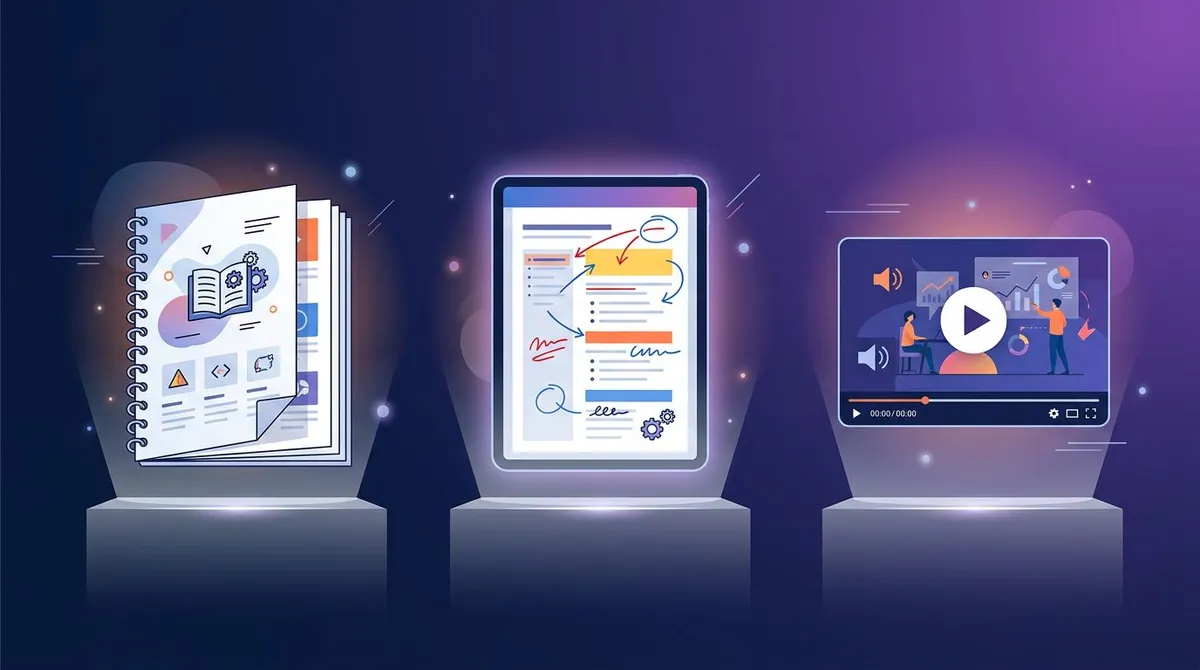
| Factor | Digital doc | Video | |
|---|---|---|---|
| Best for | Frontline, floor, and field work | Software tasks, office roles | Physical skills, demos, soft skills |
| Search | None | Full text search | Weak without chapters |
| Update cost | High (reprint, recall old copies) | Low (edit one file) | High (re-record) |
| Works offline | Yes | If exported to PDF | If downloaded |
| Skim a single step | Easy | Easy | Hard |
| Sign-off tracking | Paper checklist | Form or LMS | LMS quiz |
Print still wins where screens are not handy: kitchens, warehouses, and job sites. Keep printed manuals short and laminate the checklists. Always mark the version on every page, so old copies are easy to spot.
Digital docs are the default for most office roles. They are searchable, cheap to update, and can hold screenshots and GIFs. Link each module to the matching SOP rather than copying text between docs.
Video is strong for things that are hard to describe in words, like tone on a sales call or how to lift a box safely. It is weak as a reference, because nobody wants to scrub through ten minutes to find one click. If you go this route, our guide on how to make a tutorial video covers scripting and recording, and this roundup of training video software compares the tools.
The best setup is often a mix. Use a digital manual as the backbone, embed short clips for tricky moments, and print only the checklists.
How often to update a training manual
A training manual is never finished. Software updates move buttons. Policies change. A manual that was perfect in March can mislead a new hire by September.

Use two kinds of update triggers.
Scheduled reviews:
- Every quarter for manuals that cover software. Interfaces change often.
- Every six to twelve months for manuals on stable, physical processes.
- Before each large hiring wave, so a whole cohort does not learn outdated steps.
Event triggers (update within a week):
- A tool in the manual ships a redesign or a new version.
- A policy, price, or approval rule changes.
- Two or more trainees ask the same question or make the same mistake.
- A process owner changes roles.
For each review, check three things. Are the steps still correct? Do the screenshots still match the live screen? Does the FAQ still reflect real questions? Then update the version number and the last-reviewed date on page one.
Screenshots age fastest. A simple habit helps: store the source images in one folder per module, named by step number (for example m3-step2.png). When a screen changes, you know exactly which files to re-capture.
Name one owner per manual, by job title rather than by name. If the owner leaves, the job title tells HR who inherits it.
Mistakes that make employees ignore the manual
Even a well-structured manual can end up unread. Watch for these patterns:
- Writing for experts. If the author already knows the job, steps get skipped. The pilot test in step 5 catches this.
- Mixing policy and procedure. Long policy text buries the steps. Link to the handbook instead.
- One giant document. Split long manuals into modules people can finish in one sitting.
- Screenshots without markers. A full-screen image with no number or arrow makes readers hunt for the right button.
- No owner. Unowned manuals drift out of date. Trainees stop trusting them, and then stop using them.
If you want a tool that handles the whole documentation workflow, this comparison of process documentation tools covers both screenshot-first and step-recorder options.
Frequently Asked Questions
Build the first module this week
You do not need a finished manual to start. Pick the one task new hires ask about most, write a single module with the template above, and pilot it with your next hire. Then add a module each week.
The screenshots will be the slowest part, so set up a capture routine early. If you want numbered markers, pixelation, and GIF recording in one app, ScreenSnap Pro is a $34 one-time purchase for Mac and Windows.

Morgan
Indie DeveloperIndie developer, founder of ScreenSnap Pro. A decade of shipping consumer Mac apps and developer tools. Read full bio
@m_0_r_g_a_n_