UAT Testing: User Acceptance Testing Guide + Templates
UAT testing (user acceptance testing) is the final test phase before release, where real users or client representatives run business scenarios in a production-like environment to confirm the software does what the business needs. QA checks that it works. UAT checks that it is right. It ends with a formal sign-off.
This guide is for the person who runs the cycle: the QA lead, BA, product owner or engineering lead with business testers starting next week. You get a 7-step process, four templates that paste into a sheet or wiki, and three worked examples with filled failure reports.
You also get a reporting standard that turns "it doesn't work" into something a developer can reproduce, ready to drop into a classic bug report template.
What is UAT testing?
UAT stands for user acceptance testing. The ISTQB glossary defines user acceptance testing as "a type of acceptance testing performed to determine if intended users accept the system." In business terms, the UAT meaning is simple: the people who will live with the software say "yes, this does our job" before it goes live.
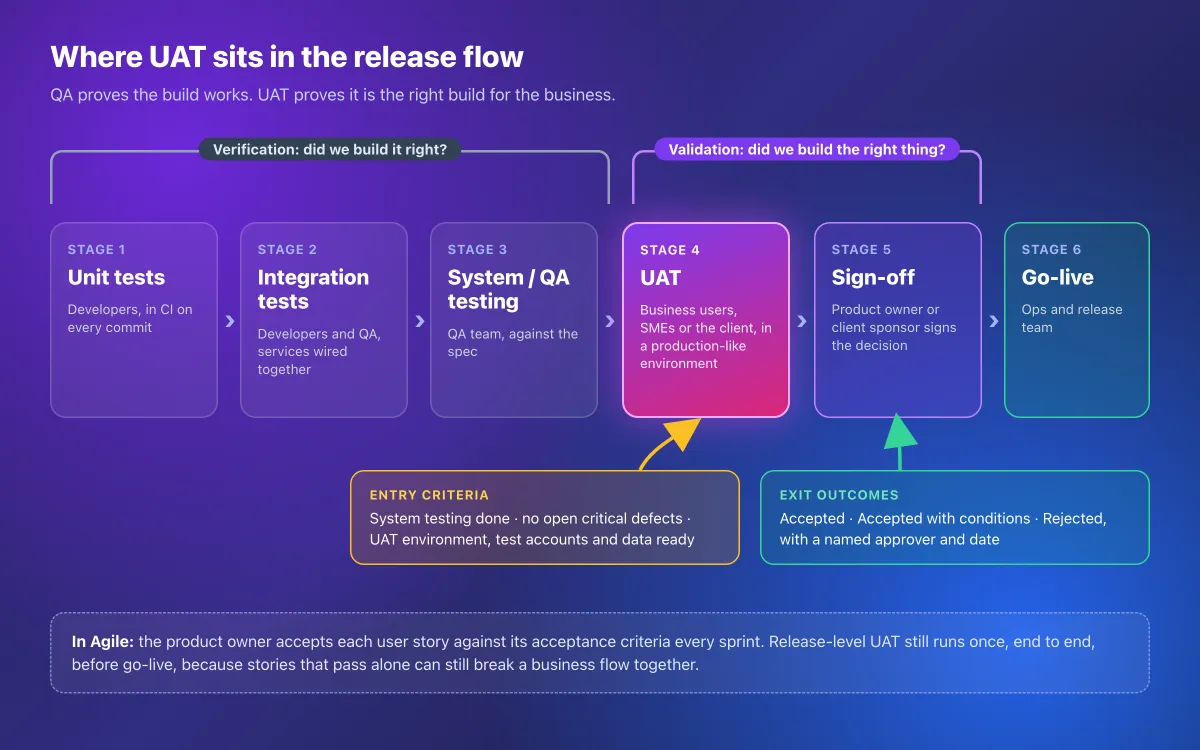
UAT sits after system testing (the QA phase) and before go-live. QA has already checked the build against the spec, so UAT asks a different question: does the build fit how the business works?
The people who test are not the people who run it. Business users, subject matter experts (SMEs) or client staff do the testing. A UAT lead runs the cycle, and the product owner or client sponsor signs.
UAT vs QA vs usability testing vs beta
They all involve someone using the software. The difference is who runs it, what they test against, and what comes out at the end.
| Test type | Who runs it | Goal | Test basis | Environment | Output |
|---|---|---|---|---|---|
| QA / system testing | QA engineers | Find defects | Spec and requirements | Test or staging | Defect reports |
| UAT | Business users, SMEs or the client | Accept or reject the release | Business processes and acceptance criteria | Production-like UAT | Sign-off decision |
| Usability testing | UX researchers with sample users | Find friction | Tasks and observation | Prototype or staging | Findings and recordings |
| Beta testing | Real customers | Real-world feedback at scale | Open use | Production | Feedback and crash data |
| Bug bash | Whole team, time-boxed | Find many bugs fast | Focus areas, no scripts | Staging | A list of bugs |
| Visual regression testing | CI pipeline | Catch unintended UI changes | Baseline screenshots | CI browsers | Pixel diffs |
The short version: QA proves the build works as specified. UAT proves the specification was the right one. Neither replaces the other.
Types of acceptance testing
UAT is one type of acceptance testing, which ISTQB treats as a full test level. The other types answer different "can we accept this?" questions.
| Type | Run by | Proves |
|---|---|---|
| Alpha testing | Potential customers, operators or an independent test team, at the developer's site | It works for real users in a controlled setting before a wider release |
| Beta testing | External customers | It holds up in real-world use |
| Contract acceptance | The client, against the contract | Deliverables meet the agreed terms |
| Regulatory acceptance | Compliance staff or auditors | It meets legal or industry rules |
| Operational acceptance | Ops, SRE and support | Backups, monitoring, failover and runbooks work |
Who is responsible for UAT testing?
The business owns acceptance, and one person owns the decision.
| Role | Responsible for | Usually |
|---|---|---|
| UAT lead | Plan, schedule, tester briefing, daily triage, status reports | QA lead or business analyst |
| Business testers and SMEs | Run scenarios, log feedback with evidence | Ops staff, finance users, client users |
| Product owner or client sponsor | Acceptance criteria and the final sign-off | One named person |
| Developers | Triage support, fixes, deploys to UAT | The delivery team |
| QA support | Environment checks, turning feedback into bugs, retests | QA engineers |
If two people can both sign off, nobody can. Name one approver in the plan.
Where UAT fits in the SDLC and in Agile
Yes, UAT is part of the SDLC. It is the acceptance level, the last test phase before deployment. In a V-model it mirrors the requirements phase, because that is what it checks.
In Agile, acceptance happens at two levels. Each sprint, the product owner accepts every user story against its acceptance criteria. Before a release, you still run release-level UAT, because stories that pass alone can break a business flow together. Short, unscripted exploratory sessions fit well inside that window too.
How to run UAT testing in 7 steps
Steps 1 to 4 happen before testers log in. Steps 5 to 7 are the cycle itself.
1. Set scope and acceptance criteria
Decide which business processes are in scope, and write pass conditions a tester can check without reading code. Pull them from requirements and user stories. Atlassian's guide to acceptance criteria describes them as the conditions a product must meet to be accepted by the user, which is the exact bar UAT applies.
Write each one as a result you can see. "Discount works" is vague. "Code SAVE10 takes 10% off the order total, and the receipt email shows the discount" can pass or fail.
Then agree on entry criteria. Do not start UAT until all of these are true:
- System testing is complete and signed off by QA
- No critical defects are open
- The UAT environment runs the release candidate build
- Test accounts and test data are loaded
- The product owner has reviewed the scenarios
2. Write a one-page UAT plan
A UAT plan answers five questions: what is in scope, who tests, where, when, and how you decide. Keep it to one page. Your full QA test plan already covers strategy, risk and coverage, so the UAT plan only needs what testers and the approver must know.
It names the approver, test window, environment URL and triage time, and says where the scenarios, log and evidence live. A copy-paste version is in the templates below.
3. Write business scenarios and UAT scripts
One scenario is one business task, written in the tester's language, with the expected result in business terms. A UAT script is the numbered list of steps for that scenario.
Compare these two:
- QA style: Verify POST /orders returns 201 with discount_total set.
- UAT style: Apply code SAVE10 to an $80.00 order. Expected: the total is $72.00 and the receipt email shows the discount.
Number every step, because those numbers will show up later in screenshots and feedback. Give each scenario its own test data, such as the account and order to use. Full test case anatomy (priority, traceability, automation status) belongs in your QA test cases, not in the business script.
4. Prepare the UAT environment and test data
The UAT environment should be production-like: the same build, settings and integrations, with a test account per role and masked data. If testers see different behavior than customers will, the sign-off means nothing.
- Deploy the release candidate, with feature flags set the way they will be at launch
- Connect real integrations or their sandboxes, such as a payment test mode and an email catcher
- Create one test account per role: requester, approver, admin and read-only
- Load masked or synthetic data, and never copy raw production data into UAT
- Show a "UAT environment" banner, so every screenshot is easy to identify
- Freeze deploys during test hours, except fixes you announce
Sort out tool access early too. In Azure Test Plans, testers need at least Basic access to run tests and mark outcomes. Microsoft's guide to user acceptance testing in Azure Test Plans notes that users with Stakeholder access can't use the Test Plans web portal.
5. Brief your testers with a one-page visual guide
Give testers one page with numbered screenshots: where to log in, where their scenarios live, how to mark pass or fail, and how to report a failure. Business testers rarely read long instructions. They follow pictures.
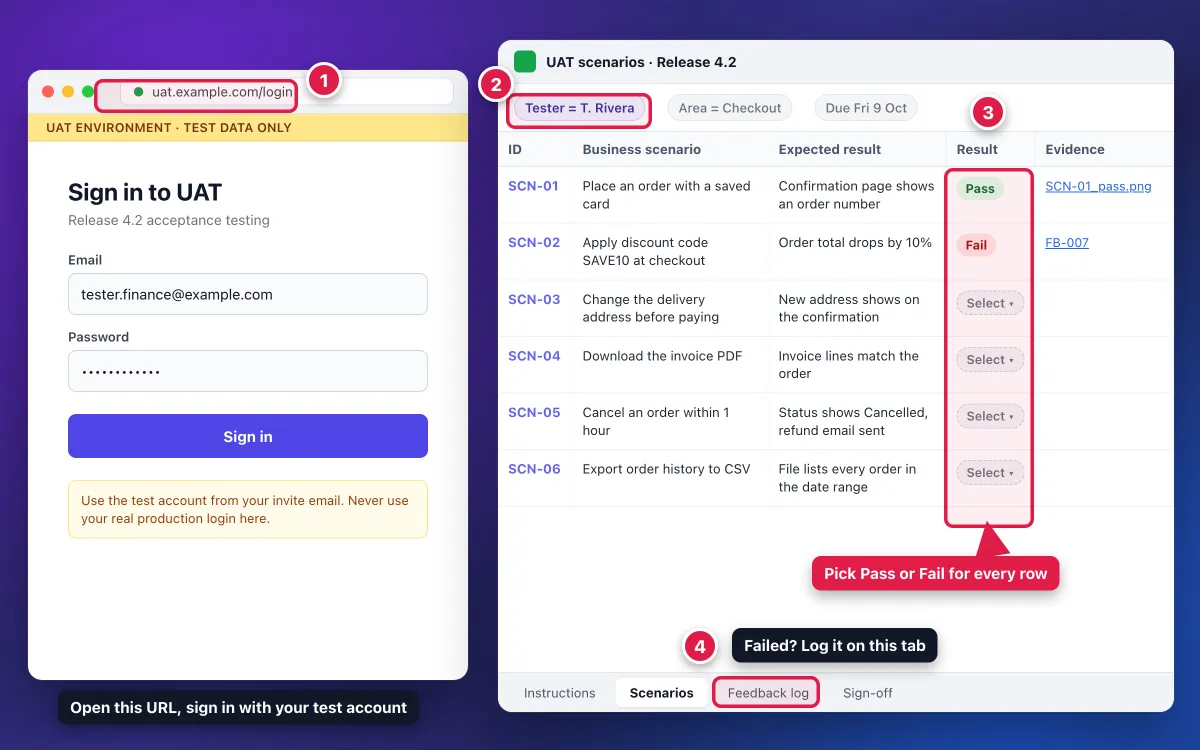
Keep it to four numbered callouts that match the order testers work in. A counter (numbered step) tool keeps the numbers neat. If you would rather not install anything, the free image annotation tool has arrows, boxes and text, so you can type the numbers as labels. This walkthrough on step-by-step instructions with screenshots covers the layout, and these documentation screenshot standards keep crops and callouts consistent.
Then run a 30-minute kickoff where every tester logs in and completes one scenario live. Most access problems show up in those 30 minutes instead of on day three.
6. Execute, log feedback and triage daily
Testers run their scripts and log every failure in a shared feedback log. The UAT lead triages it once a day, which keeps the backlog small and the fix and retest loop short.
For each new row, the UAT lead sets four fields:
- Type: defect, change request, question, or works as designed
- Severity: critical, major, minor or cosmetic
- Blocks sign-off: Y or N (the tester's first guess, confirmed by the product owner)
- Owner: who fixes or answers it
Change requests are the trap. "I'd like an export button here" is a fair idea, not a defect, so it goes to the backlog unless the product owner says it blocks go-live.
Defects go to developers as proper bug tickets with the tester's screenshot attached. If your team works in Jira, here is how to attach screenshots to Jira issues so the evidence sits on the ticket. When a fix lands in UAT, the same tester retests the same scenario and closes the row.
7. Check exit criteria and get sign-off
Compare the results with the exit criteria from your plan, then record one of three decisions.
- Accepted: every in-scope scenario passed or has an agreed workaround.
- Accepted with conditions: go live, but each listed issue gets an owner and a due date.
- Rejected: name what must change and set a retest date.
Record the decision with the approver's name, role and date, using the template below. After sign-off, the accepted scope feeds straight into your release notes.
UAT templates you can copy
All four templates are Markdown, so they paste straight into GitHub, GitLab, Notion and most wikis.
For Google Sheets, paste a table into cell A1 and choose Data > Split text to columns. Set the separator to Custom, type a pipe character, then delete the empty first column and the dashed second row. In Excel, use Data > Text to Columns > Delimited > Other with the same pipe character.
A test management tool (Jira, Azure Test Plans, TestRail) or a shared spreadsheet both work. The fields matter more than the tool.
UAT test plan template (one page)
# UAT plan: [Release name] [version]

| Field | Entry |
|---|---|
| Release / build | 4.2.0-rc3 |
| UAT window | Mon 5 Oct to Fri 9 Oct 2026 |
| UAT lead | [Name, role] |
| Sign-off authority | [One name, role] |
| Environment | https://uat.example.com (UAT banner on) |
| Test accounts | One per role, sent by email, masked data |

## In scope
- [Business process 1]: scenarios SCN-01 to SCN-06
- [Business process 2]: scenarios SCN-07 to SCN-11

## Out of scope
- Performance and security testing
- Features not changed in this release

## Entry criteria
- [ ] System testing complete, no open critical defects
- [ ] Release candidate deployed to UAT
- [ ] Test accounts and masked data loaded
- [ ] Scenarios reviewed by the product owner

## Exit criteria
- [ ] Every in-scope scenario executed
- [ ] No open issue flagged "blocks sign-off"
- [ ] Every open issue has an owner, a workaround and a due date

## Schedule
- Kickoff and tester briefing: Mon 10:00 (30 min)
- Daily triage: 16:00 (15 min)
- Fix deploys to UAT: 08:00 only
- Sign-off meeting: Fri 15:00

## Links
- Scenarios and scripts: [link]
- Feedback log: [link]
- Evidence folder: [link] (files named SCN-ID_step_result_date)
UAT test script template
One row per scenario. Keep the steps short enough to fit in one cell, and split any scenario that needs more than about eight steps.
| Scenario ID | Business scenario | Preconditions | Steps | Expected result | Pass/Fail | Evidence link | Tester | Date |
|---|---|---|---|---|---|---|---|---|
| SCN-02 | Apply a discount code at checkout | Signed in as tester.finance@example.com; cart has a keyboard ($50.00) and a hub ($30.00) | 1. Open checkout 2. Enter SAVE10 3. Click Apply 4. Check the total | Discount line shows $8.00 and the total is $72.00 | | | | |
UAT feedback log for business testers
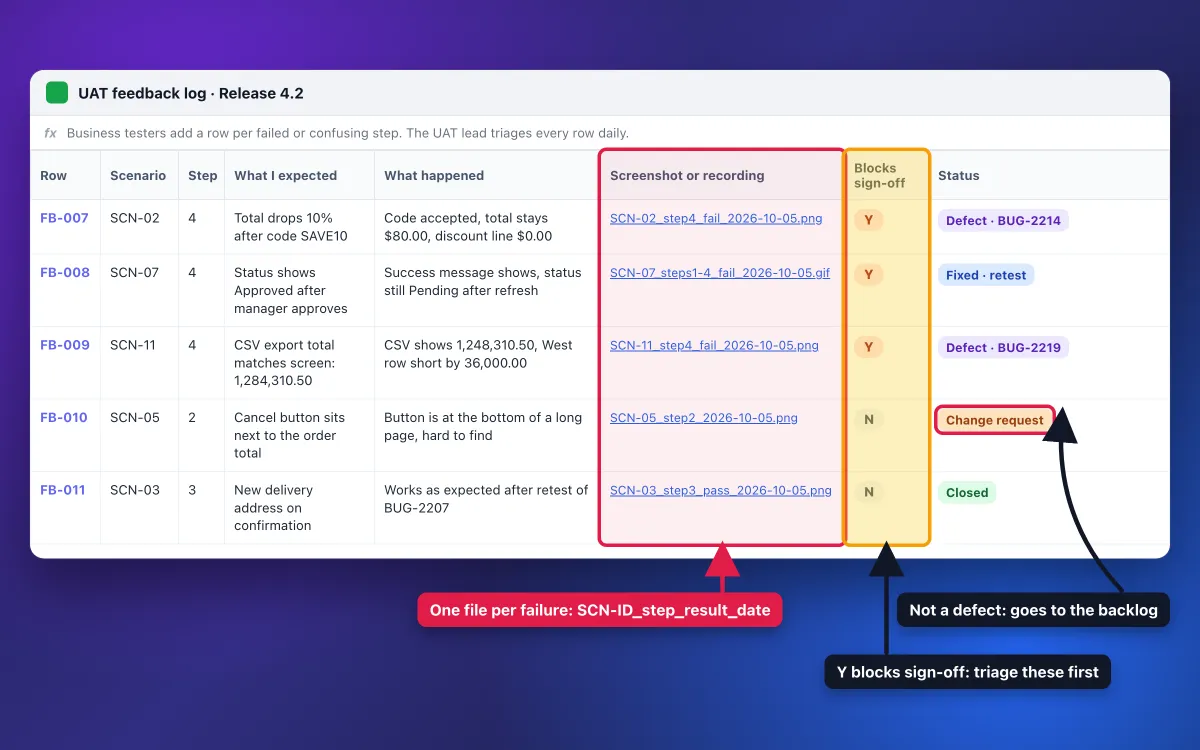
This log is deliberately simpler than a developer bug report. Business testers write what they expected and what happened, and the UAT lead turns each defect row into a dev-ready ticket with the bug report template.
| Scenario ID | Step # | What I expected | What happened | Screenshot or recording | Blocks sign-off (Y/N) | Status |
|---|---|---|---|---|---|---|
| SCN-02 | 4 | Total $72.00 after code SAVE10 | Total stayed $80.00, discount line $0.00 | SCN-02_step4_fail_2026-10-05.png | Y | Defect: BUG-2214 |
| SCN-05 | 2 | Cancel button next to the order total | Button is at the bottom of a long page | SCN-05_step2_2026-10-05.png | N | Change request |
Use a short, fixed list for Status: New, Defect (with the bug ID), Change request, Question, Works as designed, Fixed: retest, and Closed.
UAT sign-off template
# UAT sign-off: [Release name] [version]

| Field | Entry |
|---|---|
| Release / build | |
| UAT window | |
| Scope tested | [Processes and scenario IDs] |
| Scenarios | Passed: 0 · Failed: 0 · Blocked: 0 · Not run: 0 |
| Open defects | Critical: 0 · Major: 0 · Minor: 0 |

## Open issues accepted for go-live
| ID | Issue | Workaround | Owner | Due date |
|---|---|---|---|---|
| | | | | |

## Decision
- [ ] Accepted
- [ ] Accepted with conditions (each condition listed above with an owner and date)
- [ ] Rejected (what must change, and the retest date)

## Approval
Prepared by: [UAT lead name]

| Name | Role | Decision | Date | Signature or ticket link |
|---|---|---|---|---|
| | Sign-off authority (product owner or client sponsor) | | | |
A signature can be a real one, an approval in your ticketing tool, or an email you link to. What matters is a named person, a role, a decision and a date.

Tired of plain screenshots? Try ScreenSnap Pro.
Beautiful backgrounds, pro annotations, GIF recording, and instant cloud sharing, all in one app. Pay $34 once, own it forever.
See pricing and featuresUAT testing examples
Here are three worked UAT testing examples from different kinds of software. Each has a short script and one filled failure report, because failures are where most UAT cycles lose time.
Example 1: web checkout, discount code not applied
Scenario SCN-02: apply a discount code at checkout. The tester is signed in as tester.finance@example.com, and the cart holds a keyboard ($50.00) and a USB-C hub ($30.00).
- Open checkout and confirm the subtotal is $80.00.
- Enter code SAVE10.
- Click Apply.
- Check the order total.
Expected: a discount line of $8.00 and a total of $72.00.
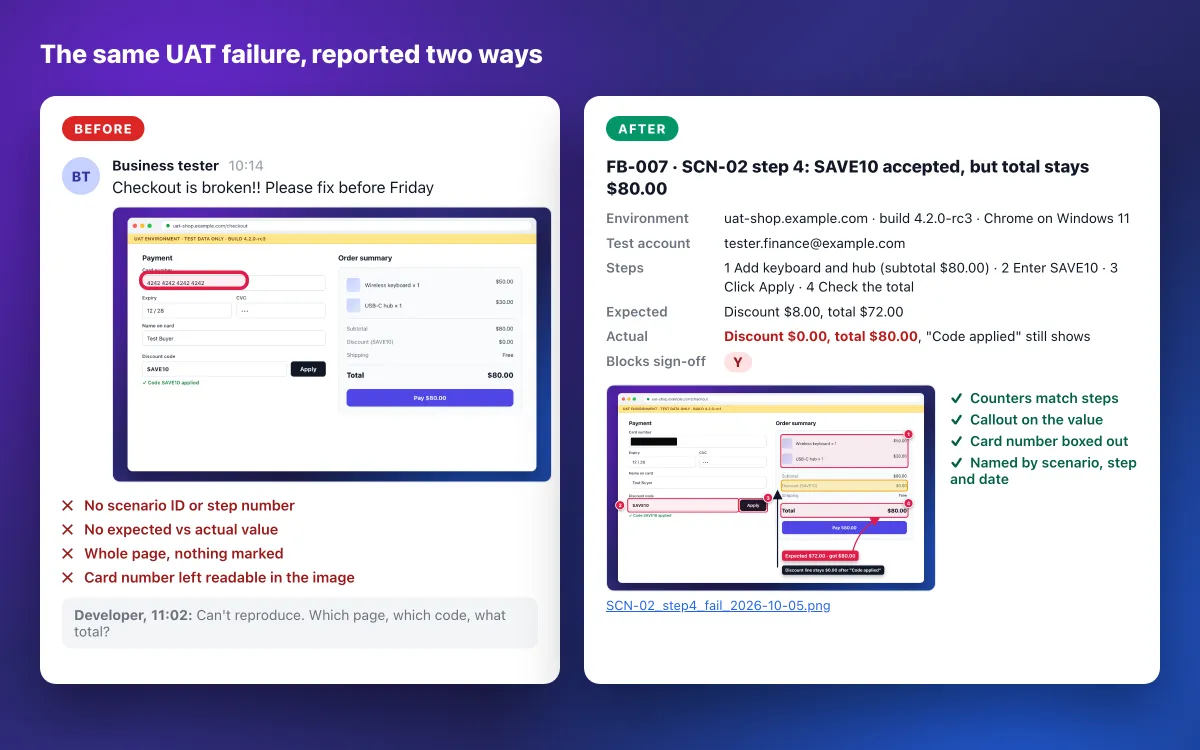
FB-007 · SCN-02 · step 4 · Blocks sign-off: Y
Expected: Discount $8.00, total $72.00
Actual:   Discount $0.00, total $80.00. "Code SAVE10 applied" still shows.
Env:      uat-shop.example.com, build 4.2.0-rc3, Chrome on Windows 11
Account:  tester.finance@example.com
Evidence: SCN-02_step4_fail_2026-10-05.png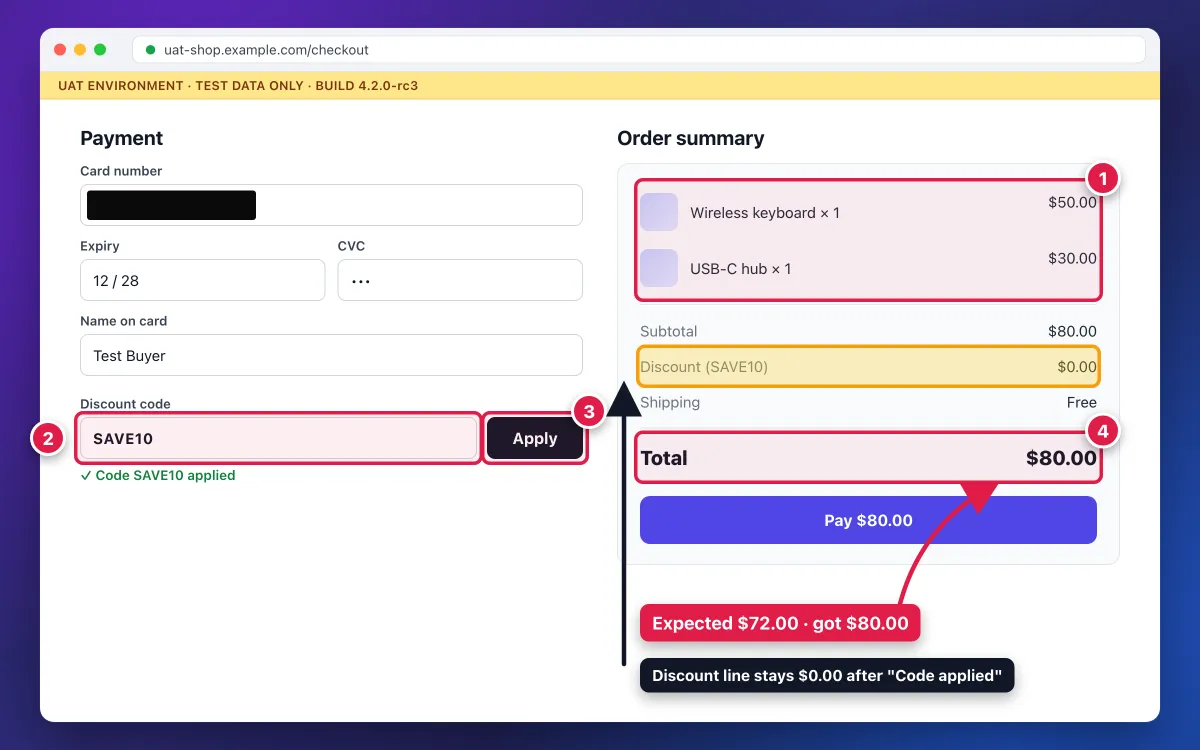
The counters match the script steps, so nobody has to ask which step failed. The card number sits under a solid box even though it is test data. Testers cannot always tell test data from copied production data, so the habit has to be automatic.
Example 2: B2B SaaS approval, status stays Pending
Scenario SCN-07: a manager approves an expense. The tester is signed in as manager.uat@example.com.
- Open EXP-1042 from Approvals and click Approve.
- Check the confirmation message.
- Refresh the page.
- Check the expense status.
Expected: the status reads Approved after the refresh, and the employee gets an approval email.
FB-008 · SCN-07 · steps 1 to 4 · Blocks sign-off: Y
Expected: Status is Approved after refresh
Actual:   "Expense approved" message shows, but the status is still
          Pending after refresh. Activity log shows "Approved by
          manager.uat@example.com" at 10:02.
Env:      uat-expenses.example.com, Safari on macOS
Evidence: SCN-07_steps1-4_fail_2026-10-05.gif (9 seconds)
A single screenshot cannot show this bug, because every frame looks fine on its own. The failure is the sequence: click, success message, refresh, unchanged status. A short GIF shows it in under 10 seconds; see how to record GIFs on Mac or how to record your screen as a GIF on Windows.
The tester also noted the activity log entry, which tells developers the approval is saved but the status update is not.
Example 3: report export, totals do not match the source
Scenario SCN-11: export the quarterly sales report from the finance desktop client.
- Open Sales by region for Q3 2026.
- Note the grand total on screen.
- Click Export to CSV and open the file.
- Compare the CSV total with the screen.
Expected: every region and the grand total match to the cent.
FB-009 · SCN-11 · step 4 · Blocks sign-off: Y
Expected: CSV total 1,284,310.50 (matches the screen)
Actual:   CSV total 1,248,310.50. West is 198,409.75 in the CSV and
          234,409.75 on screen (a difference of 36,000.00).
Env:      Finance Suite desktop client, UAT build 7.1
Evidence: SCN-11_step4_fail_2026-10-05.png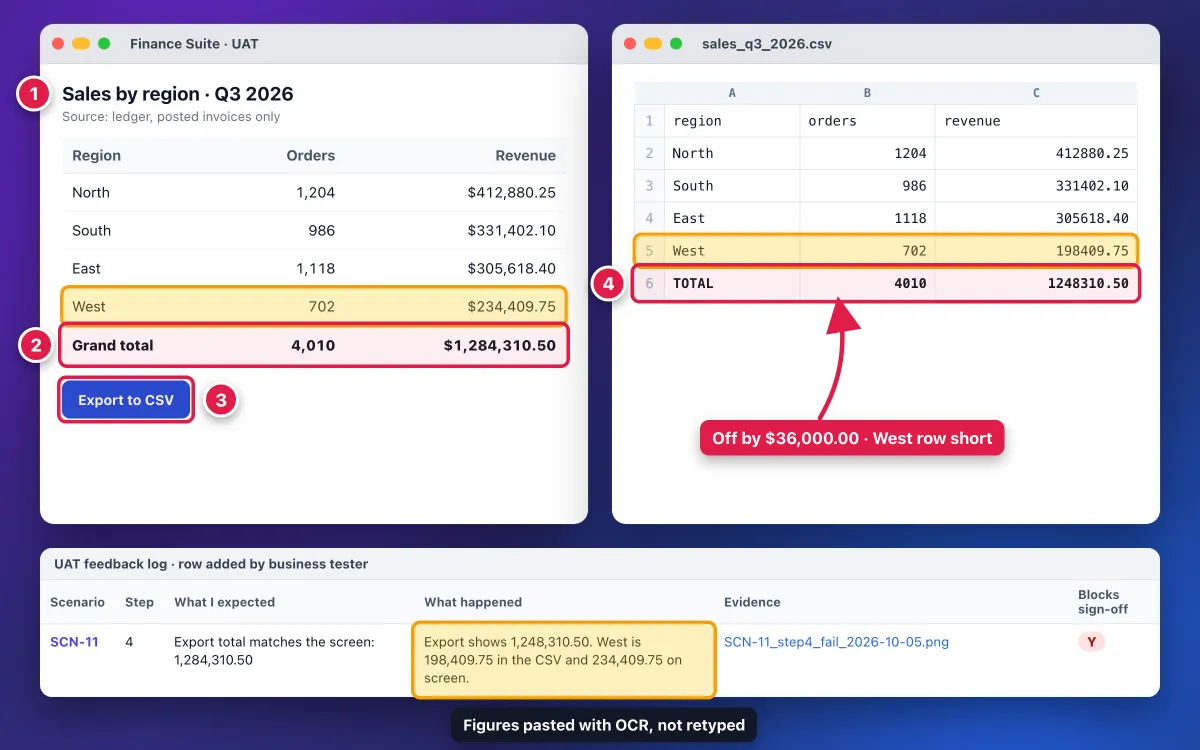
Numbers like these are easy to mistype, so copy them with OCR: capture the totals, extract the text and paste it into the log. The free extract text from image tool does this in a browser.
This is a desktop app, so capture it in regions: one region capture per section of a long report.
How business testers should report a failed UAT scenario
A good UAT failure report lets a developer reproduce the problem without a meeting. This 6-point standard ties every screenshot to the script step numbers and the "blocks sign-off" flag, so the evidence and the log stay in sync.
- Capture the region, not the whole desktop. Crop to the part of the screen that fails, plus enough context to see where it is. A full desktop shows chat pop-ups and other people's data.
- Number the steps to match the script. Counter 4 in the image means step 4 in the log, so nobody has to guess.
- Point at the wrong value. Draw an arrow and add a short callout, such as "Expected $72.00 · got $80.00".
- Hide sensitive data the right way. The best fix is masked test data, so nothing real is on screen. For card numbers, account numbers, IDs and passwords, use a solid opaque box, because blur and pixelate can be reversed.
- Record flows, capture states. If the failure takes several steps to appear, record a short GIF or screen recording instead of a screenshot.
- Copy error text with OCR. Paste the exact error message or figures into the log instead of retyping them.
Blur and pixelate still have a place, but only for low-risk background details such as names in a list or avatars. On a Mac, this blur and pixelate guide shows both. Once the image is ready, fill the log row: scenario ID, step number, expected, actual, evidence file name and the Y or N flag.
Which tools to use. The built-in tools cover the basics. On Windows, Snipping Tool captures regions, has a pen and highlighter, and its Text actions copy text from a screenshot. On a Mac, the built-in screenshot tools plus Markup handle capture and arrows, and Live Text copies text from images.
A dedicated app saves time when you file many reports a day. ScreenSnap Pro, for example, puts capture and annotation in one flow, with numbered counters, solid-fill boxes, blur and pixelate, OCR and GIF recording. Its pin feature keeps the expected-result screenshot from the spec on top of the app while you test, which makes a mismatch easy to spot.
For long web pages, a full-page capture helps, with one catch. Most UAT environments sit behind a login, SSO or a VPN, and URL-based website capture tools render public pages from a server, so they cannot reach them. Use region captures, or your browser's own full-page screenshot, which runs inside your signed-in session: see the guides for Mac and Windows.
Where to put the files. Attach the image file to the record itself: the feedback log, Jira, Azure DevOps or a GitHub issue. A quick cloud share link is fine in a triage chat, but share links are meant for quick sharing and uploads are removed from time to time, so they are not an evidence store. Teams that collect UAT feedback in GitHub can turn the log columns into an issue form; GitHub Docs explains how to configure issue templates.
Evidence that makes sign-off painless
Most UAT cycles only need screenshots of failures. Some also need proof of the passes:
- Regulated work, such as banking, insurance, health or pharma validation
- Client contracts where acceptance triggers a payment milestone
- Internal or external audits of the release process
For those, capture the final expected result of each passed scenario and name the file the same way every time, for example SCN-04_step3_pass_2026-10-05.png. Store the evidence in one UAT folder per release, linked from the sign-off record.
Redact PII before a file goes in, because evidence folders get shared with auditors and clients. General QA evidence rules belong in your full test plan. This folder only needs what the approver signs against.
Common UAT mistakes (and how to avoid them)
- Testers who are really QA. If QA engineers run UAT, the spec gets tested twice and the business never checks it. Recruit people who do the job every day.
- Vague acceptance criteria. "Works correctly" cannot fail. Write each criterion with a value or a visible result.
- An environment that is not production-like. Missing integrations or different settings make every pass suspect. Fix the environment before you start the clock.
- Real customer data in screenshots. Copied production data ends up in tickets, chats and slides. Mask the data, and box out anything sensitive before you share.
- "It does not work" feedback. No step, no expected value and no screenshot means no fix. Teach testers the 6-point standard on day one.
- Feature requests logged as defects. They swell the defect count and stall sign-off. Triage them as change requests every day.
- No named sign-off authority. A committee cannot sign. Put one name in the plan.
- Starting with open critical bugs. Testers hit known bugs, lose trust and stop testing. Hold the line on entry criteria.
Frequently Asked Questions
Before your next UAT cycle
Copy the four templates, fill in the plan, and send testers the one-page visual guide before kickoff. The cycle runs smoother when every failure arrives with a step number, a marked-up screenshot and a clear "blocks sign-off" flag.
If capturing and marking up those screenshots is the slow part, ScreenSnap Pro handles capture, numbered steps, solid-fill redaction, OCR and GIFs in one flow. It is a one-time $34 purchase for Mac and Windows: 1 license, 2 seats (2 computers, Mac or Windows). See pricing.

Morgan
Indie DeveloperIndie developer, founder of ScreenSnap Pro. A decade of shipping consumer Mac apps and developer tools. Read full bio
@m_0_r_g_a_n_