How to Screenshot on an HP Laptop (2026): 6 Easy Ways
To screenshot on an HP laptop, press the Windows key plus PrtSc to capture the whole screen and save it straight to Pictures, then Screenshots. For a specific area, press Windows + Shift + S and drag a box. On some HP models the PrtSc key needs Fn held down with it. That is the fast answer. Below is every method, what each one captures, and exactly where the file lands.
Not certain your laptop is an HP? Identify your computer first. On a different brand? Jump to Dell, Lenovo, ThinkPad, Asus, Acer, or Surface.
HP laptops run Windows, so the capture tools are the same ones every Windows 10 and Windows 11 machine ships with. The keyboard is what differs. HP builds a shared function row, and one firmware setting decides whether those top keys fire their printed label or their F number first. Nobody flips that setting on purpose, which is why PrtSc saves a screenshot on one HP and does nothing on the next one down the shelf. Below are all six capture methods, plus the HP part: which keys the function row affects, how to change the setting, and where the file ends up.
The HP keys that behave differently
Three of the six Windows capture methods run through the PrtSc legend on your function row. Those three are the ones that can misfire on an HP. The other three never touch the top row and work here exactly as they do anywhere else.
| Method | Keys | What the HP function row does to it |
|---|---|---|
| Save full screen | Windows + PrtSc | May need Fn held too, depending on your function row mode |
| Copy full screen | PrtSc | Same. On its own it often does nothing until you add Fn |
| Copy active window | Alt + PrtSc | Same, and Fn + Alt + PrtSc is an awkward stretch one-handed |
Want to sidestep the question entirely? Windows + Shift + S opens the snip toolbar without involving the top row at all, and the Snipping Tool app and Game Bar are equally unaffected. All six methods are written out below, followed by the setting that causes the split.
Method 1: Windows + PrtSc (save the whole screen)
This is the one to memorize. Press Windows + PrtSc together. The screen dims for a moment to confirm the capture, and Windows saves a PNG of your full display automatically.
You do not have to paste it anywhere. The file is already saved. This is the biggest advantage over plain Print Screen, which only copies to the clipboard.
Best for: quick full-screen grabs you want as files without any extra steps.
Method 2: PrtSc alone (copy to clipboard)
Press the PrtSc key by itself and Windows copies the entire screen to your clipboard. Nothing is saved yet. To keep it, open Paint, a Word document, or an email, and press Ctrl + V to paste.
This method is handy when you want to drop a screenshot straight into a document without a saved file cluttering your folders.
Best for: pasting a capture directly into another app.
Method 3: Alt + PrtSc (capture one window)
Press Alt + PrtSc to copy only the window you are currently using, not the whole screen. This is cleaner than cropping a full-screen shot later. The image goes to your clipboard, so paste it with Ctrl + V to save it.
Best for: grabbing a single app or dialog box without the desktop around it.
Method 4: Windows + Shift + S (snip any area)
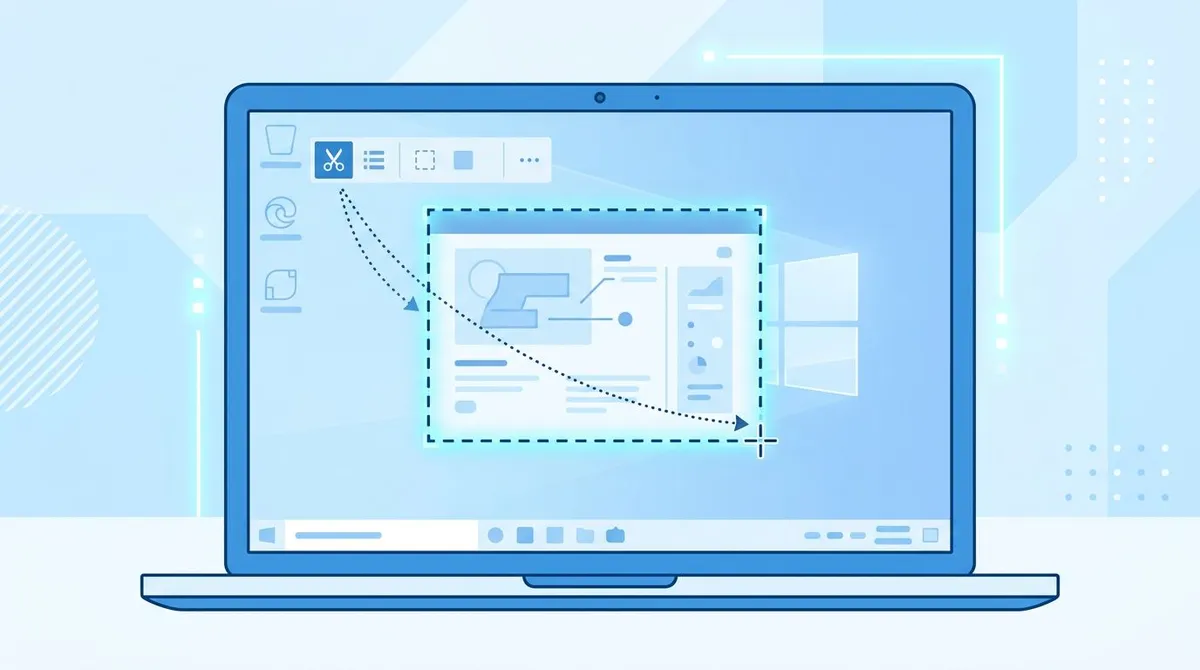
This is the modern favorite. Press Windows + Shift + S and the screen dims with a small toolbar at the top. Choose rectangular, freeform, window, or full-screen mode, then drag over the part you want.
The snip copies to your clipboard, and a preview appears in the bottom corner. Click that preview to open it in the Snipping Tool, where you can mark it up and save it to any folder you like. Microsoft documents the full Snipping Tool workflow if you want the official reference.
Best for: capturing one exact area, which is what most people actually want.

Tired of plain screenshots? Try ScreenSnap Pro.
Beautiful backgrounds, pro annotations, GIF recording, and instant cloud sharing, all in one app. Pay $39 once, own it forever.
See pricing and featuresMethod 5: The Snipping Tool app
Prefer buttons over shortcuts? Open the Start menu, type "Snipping Tool," and launch the app. Click New, pick your capture mode, and drag. From there you get a built-in editor with a pen, highlighter, and crop, plus a Save As button so you control exactly where the file goes.
The Snipping Tool also has a delay timer, which is the only built-in way to capture a right-click menu or a tooltip that vanishes the moment you move the mouse.
Best for: people who want a visible app and a real Save dialog.
Method 6: Game Bar (Windows + G)
Press Windows + G to open the Xbox Game Bar, then click the camera icon in the Capture widget. Despite the name, it works for most app windows, not just games. Captures land in Videos, then Captures.
Game Bar cannot grab the Windows desktop or File Explorer, so it is a niche option. For a broader list of options, see our roundup of the best screenshot tools for Windows.
Best for: capturing gameplay or a full-screen app, especially if you also want to record video.
The setting behind it: HP Action Keys Mode
Here is the single most common HP screenshot problem. You press PrtSc and nothing happens. You press it again with Fn held down and it works fine. Nothing is broken. Your top row is sitting in one of two modes, and only one of them sends a plain PrtSc to Windows.
HP calls that setting Action Keys Mode, and it lives in the BIOS rather than in Windows. Turned on, the top row fires its printed action first (brightness, volume, and the rest) and Fn gets you the other function. Turned off, the top row is F1 through F12 and Fn gets you the printed action. Which side your PrtSc legend falls on depends on how the model labels that key.
The practical test takes five seconds. Press the key alone, then press it with Fn, and see which one drops a file into Pictures.
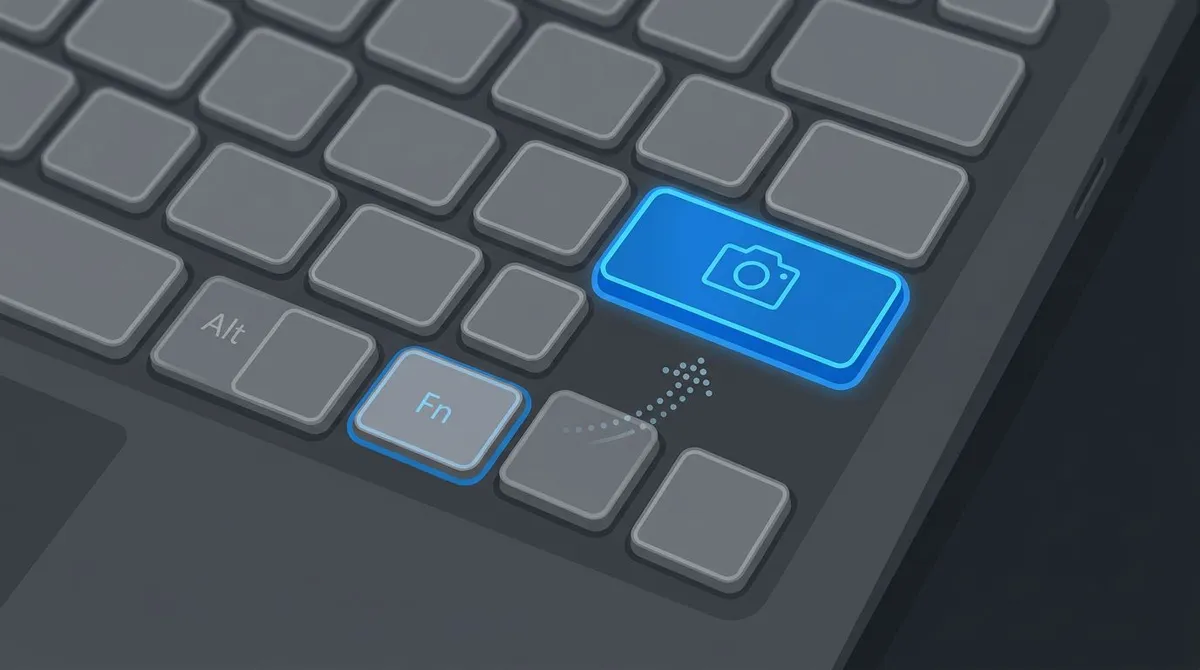
To settle it permanently, shut the laptop down. Press the power button and tap Esc right away to reach the HP startup menu, then press F10 for BIOS setup. Under Advanced, open Built-in Device Options or Device Configurations, switch Action Keys Mode, then save and exit.
Some HP keyboards also carry a quick toggle for the same idea, usually called Fn lock. It can sit on Fn + Shift, or on a key wearing a small padlock icon, and business models often put a tiny light on the Fn key to show the current mode. That toggle is why a shortcut you have used for a year can stop working overnight: a bumped key, a new BIOS build, or an IT image can flip it without anyone deciding to. Microsoft keeps a full list of Windows keyboard shortcuts if you want to double-check a combination.
Where the file went, or whether there is one
A lot of "my HP screenshot vanished" posts are not a folder problem at all. The capture never fired, because the key was in its other mode and Windows received a different keystroke.
So check the count before you check the folders. Open This PC, then Pictures, then Screenshots. If Windows + PrtSc is working, a file named "Screenshot (1)" is already there, and the number of files goes up by one every time you press the combination. If nothing changes, the key is the problem and the save path is fine, so go back to Action Keys Mode above.
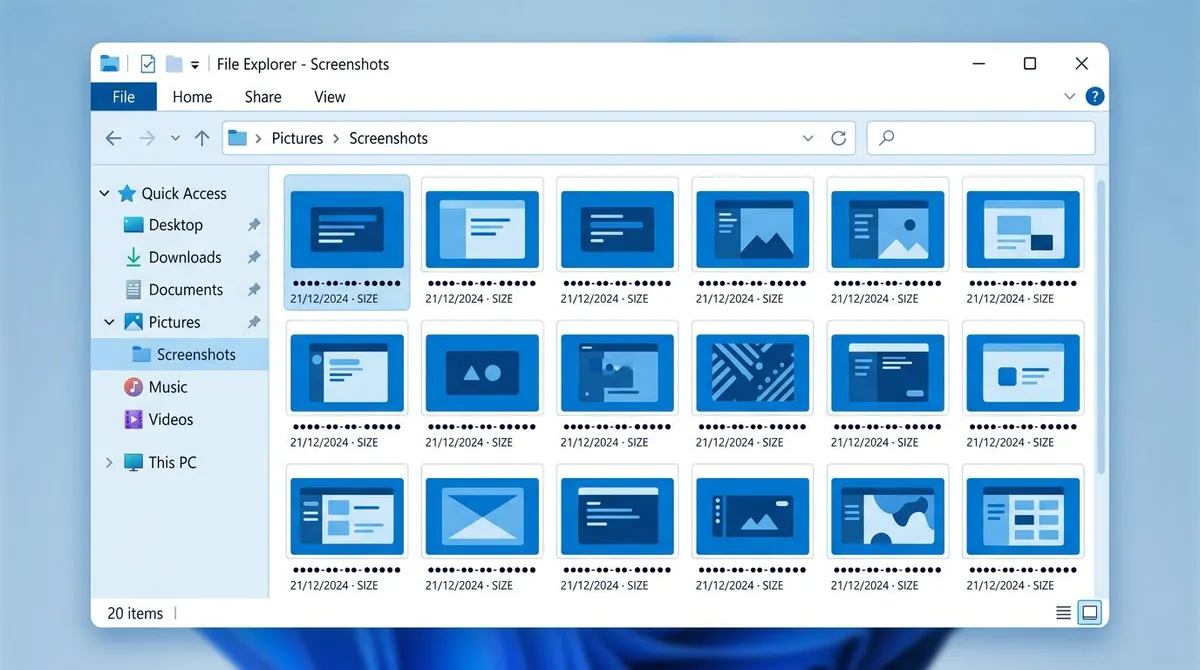
Only two methods write a file by themselves: Windows + PrtSc into that Screenshots folder, and Game Bar into Videos, then Captures. PrtSc, Alt + PrtSc, and Windows + Shift + S all hand you a clipboard image instead, and your next copy wipes it, so paste it somewhere before you do anything else.
Still hunting? Our full guide on where screenshots go on Windows walks through every save location and how to change the default folder.
Editing what the function row handed you
Losing an argument with the function row usually means you end up with the wrong capture. You wanted one window, Alt + PrtSc did nothing until you added Fn, and by the time it fired you had grabbed the whole desktop. That is a two-minute fix.
Start with the image annotation tool, which runs in a browser tab. Plenty of HP ProBook and EliteBook machines are managed by an IT department that blocks installers, and a browser tool needs no admin rights for arrows, boxes, or a blur over an account number. When you need a resize or a PNG to JPG swap, editing screenshots on Windows lists what already ships with the OS. And when the only issue is too much desktop around the thing you meant to capture, the crop a screenshot on Windows steps cut it back down.
If you regularly capture long pages that scroll past the screen edge, the built-in keys cannot help. See how to take a full-page screenshot on Windows and a scrolling screenshot on Windows for that specific job.
Taking the function row out of the equation
Every method above depends on a key whose behavior is decided in your BIOS. That is a strange foundation for something you do ten times a day. If you capture often, the fix is not another Fn combination. It is a shortcut that never touches the top row in the first place.
ScreenSnap Pro lets you bind capture to keys you choose, so Action Keys Mode can be on, off, or flipped by an IT image and your shortcut still fires. What follows the capture stays in one window too: mark it up, drop it on one of 500+ backgrounds when it is going into a deck, and copy a share link without digging through Pictures first. It runs on Windows and Mac from a single $39 one-time purchase covering two computers, so nothing renews. Checkout emails you the license key and installer right away.
Frequently Asked Questions

Morgan
Indie DeveloperIndie developer, founder of ScreenSnap Pro. A decade of shipping consumer Mac apps and developer tools. Read full bio
@m_0_r_g_a_n_