MOV vs MP4: Best Format for Screen Recordings 2026
MOV and MP4 are containers, not quality levels. The codec inside decides file size and picture quality, so the same H.264 video is identical in either wrapper. For screen recordings, MP4 with H.264 is the right default because it plays and uploads almost everywhere. MOV matters when you need Apple ProRes or a Final Cut round-trip.
If you landed here with a .mov on your desktop that QuickTime just produced, the short version is: keep it if you are about to edit it, convert it if you are about to send it. The rest of this page explains why, and what breaks when you get it wrong.
Container vs codec: the part that actually decides quality
A container is a box. It holds a video track, one or more audio tracks, timing data, and metadata, and it tells a player where each piece starts.
MOV is Apple's QuickTime container. Apple's QuickTime File Format documentation describes it as a structure of nested atoms, and that structure is the direct ancestor of MP4. MP4 is MPEG-4 Part 14, standardised on top of the same atom layout.
The codec is what does the compressing. Both containers routinely carry H.264 video with AAC audio, which is the pairing most screen recorders produce.
So when someone says MOV looks better than MP4, they are almost always comparing an H.264 MP4 against a ProRes MOV. That is a codec comparison wearing a container's name.
What your screen recorder actually gives you
Most people never choose a container. The recorder chooses for them, and that single default is the reason this question exists at all.
| Recorder | Default container | Typical codec |
|---|---|---|
macOS Screenshot toolbar (⌘ + Shift + 5) | .mov | H.264 or HEVC |
| QuickTime Player, New Screen Recording | .mov | H.264 |
Windows Game Bar (Win + Alt + R) | .mp4 | H.264 |
| Snipping Tool recording (Windows 11) | .mp4 | H.264 |
| OBS Studio | your choice | H.264, AAC |
| ScreenSnap Pro | .mp4 | H.264 |
On a Mac, both built-in paths land on .mov. Apple's guide to taking a screenshot or screen recording covers the toolbar, and our walkthrough of QuickTime screen recording covers the Player route. Neither offers MP4 as an output.
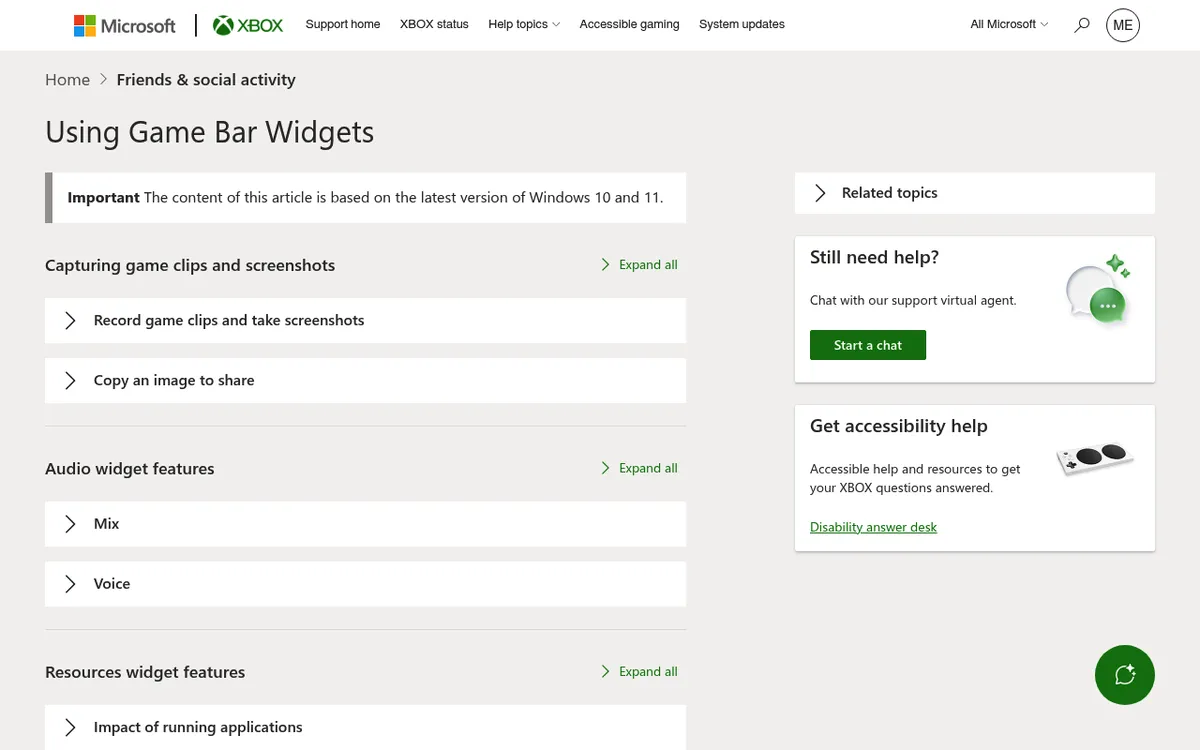
On Windows you get MP4 for free. Microsoft's Game Bar capture writes MP4 files into Videos\Captures, and the Snipping Tool recorder does the same into Videos\Screen Recordings. Our guide to screen recording on Windows walks through both.
OBS Studio is the interesting case. Its own recording output guide recommends MKV, because an MKV survives a crash that would leave an MP4 unreadable, and then suggests remuxing to MP4 afterwards. That remux step is the same trick we come back to further down.
MOV vs MP4 for screen recordings: the differences that matter
| Factor | MOV | MP4 |
|---|---|---|
| Compatibility | Native on Apple platforms, patchier elsewhere | The closest thing to universal |
| File size, same codec and bitrate | Effectively identical | Effectively identical |
| Editing headroom | Can carry ProRes, alpha channels, timecode | Limited to what MP4 supports |
| Progressive playback | Depends on how the file was written | Faster start when the index sits at the front |
| Metadata | Richer, including chapter and reference tracks | Leaner, more portable |
| Where it fails | Uploads and embeds that expect MP4 | Handing a mastering-grade file to an editor |
The size row is the one that surprises people. A container adds kilobytes of structure, not megabytes of picture. If your MOV is four times larger than a comparable MP4, the codec or the bitrate changed, not the wrapper.
Why screen recordings behave differently from camera footage
Every ranking page on this topic is written about camera footage. Screen content is a different animal, in two ways that matter.
Redundancy. Camera video changes in every pixel of every frame because of noise, grain, and hand movement. A screen recording of someone reading a document is mostly identical frames with a cursor moving through them. H.264 and HEVC store the differences between frames, so screen content compresses far harder. That is why a ten-minute MP4 screen capture can land in the low hundreds of megabytes while thirty seconds of ProRes MOV is bigger.
Text sharpness. This is the one real argument for a MOV master. Most H.264 exports use 4:2:0 chroma subsampling, which stores colour at a quarter of the luma resolution. On a face that is invisible. On one-pixel UI borders and coloured code syntax it shows up as soft, slightly fringed edges, and it gets worse if the clip is later scaled or re-encoded.
So if the recording is a deliverable you will re-cut, retitle, or scale, a higher-bitrate or ProRes MOV master protects the text. If the recording is a bug repro you are pasting into a ticket today, that headroom buys you nothing and costs you upload time.
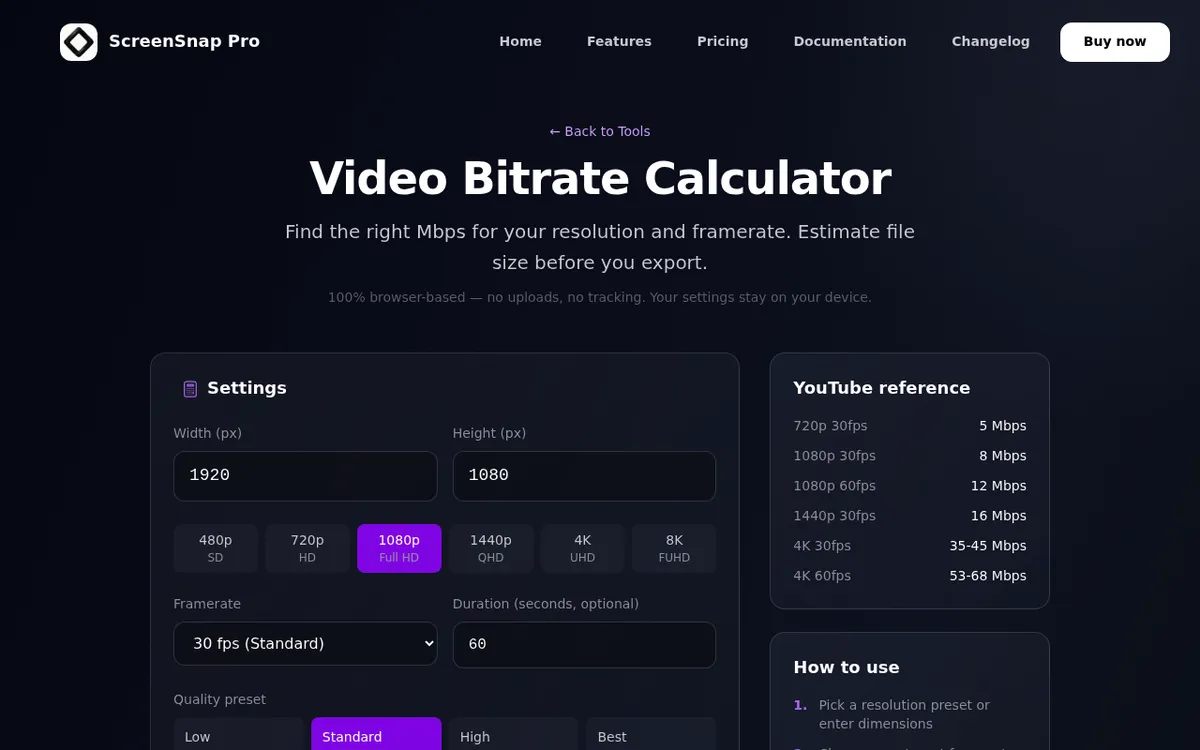
Bitrate does most of the work either way. Our video bitrate calculator turns a target file size into the bitrate you should record or export at, which is more useful than guessing at a quality slider.

Tired of plain screenshots? Try ScreenSnap Pro.
Beautiful backgrounds, pro annotations, GIF recording, and instant cloud sharing, all in one app. Pay $34 once, own it forever.
See pricing and featuresWhere the container breaks things
This is the practical payoff. The container rarely changes how a recording looks. It regularly changes whether the recording plays where you sent it.
| Destination | What happens | What to do instead |
|---|---|---|
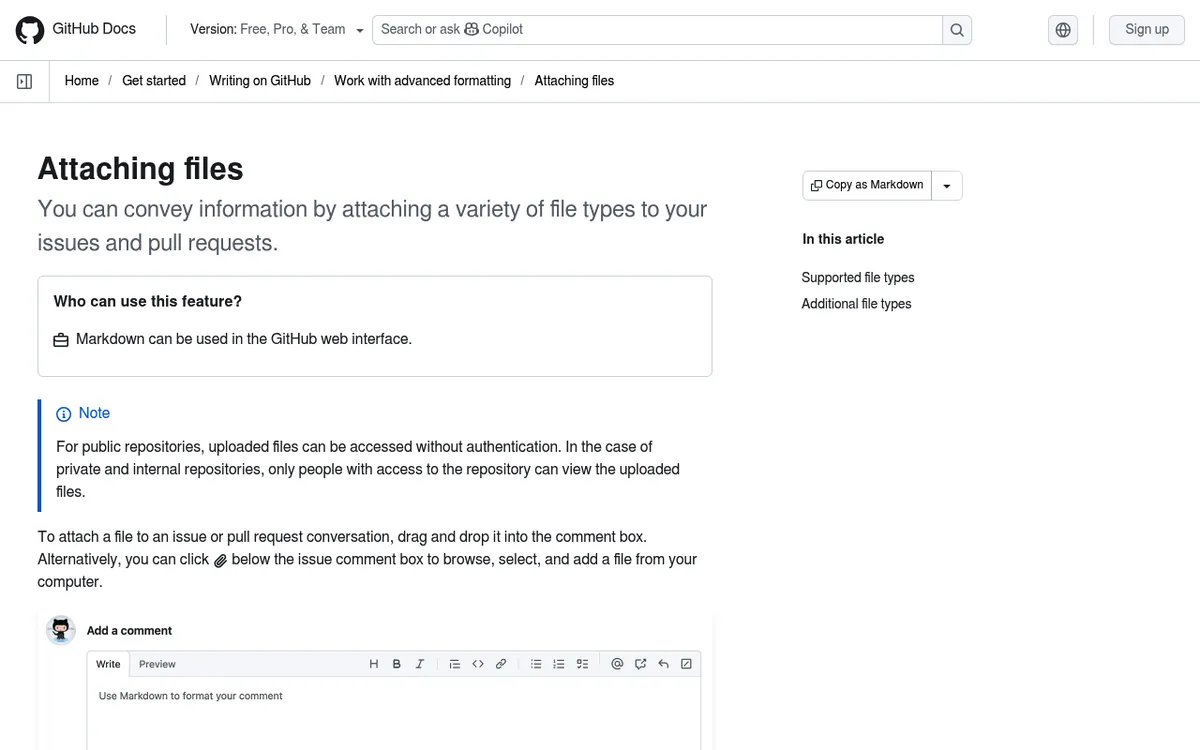
| GitHub issues and pull requests | Both .mp4 and .mov are on the supported attachment list, but playback is browser dependent and GitHub caps video at 10 MB on free plans and 100 MB on paid ones | Use H.264, which GitHub recommends for the widest browser support, and trim before upload |
| Slack and Teams | Uploads work, though Slack tops out at 1 GB per file and in-app playback is more predictable with H.264 MP4 | Send MP4 so colleagues can scrub it inline instead of downloading |
| PowerPoint | Microsoft explicitly recommends MP4 with H.264 and AAC for compatibility across Windows and Mac | Convert before you insert, not after the deck breaks |
| Windows with no extra software installed | MOV may open, or may fail depending on the codec inside | Record MP4, or convert once |
| Final Cut Pro, Premiere Pro, DaVinci Resolve | Both import fine; MOV is the container ProRes lives in | Keep MOV only when it holds ProRes |
| Email attachments | Neither container helps; the size limit does not care | Share a link, or cut the clip down first |
The pattern is consistent: MP4 is what platforms assume, and H.264 is what browsers can decode. MOV is what Apple's own tooling assumes.
Which one to pick
- Sharing a demo, a bug repro, or a walkthrough. MP4 with H.264. No exceptions worth arguing about.
- Uploading to YouTube, Vimeo, or a social platform. MP4. Every one of them re-encodes on ingest anyway, so hand them the container they parse fastest.
- Handing footage to an editor, or archiving a master. MOV with ProRes. Apple's About Apple ProRes page lays out the variants, and 422 HQ is the usual choice for screen content you will re-cut. Our guide to editing a screen recording on Mac covers what to do with it next.
- Recording on Windows. You already have MP4. Leave it alone.
- Recording on Mac and sharing anywhere. Convert once, or skip the step and record MP4 in the first place.
That last option is the quiet fix. The MOV-versus-MP4 problem on a Mac is created entirely by the recorder's default, so a recorder that writes MP4 removes it. ScreenSnap Pro records screen video to MP4 on both Mac and Windows with microphone, system audio, and webcam, and records screen to GIF directly with no video step in between, for a one-time $34. If you want the Mac built-ins instead, our guides to screen recording on a MacBook and the Mac screen recording shortcut cover those.
Converting MOV to MP4 without losing quality
Here is the part almost nobody states plainly. MOV and MP4 are close relatives, so if the video inside your MOV is already H.264 with AAC audio, you do not need to re-encode it at all. You can copy the streams into an MP4 shell and lose nothing:
ffmpeg -i recording.mov -c copy recording.mp4That is a remux. It finishes in seconds, the picture is bit-for-bit what it was, and the file size barely moves. It is the same operation OBS calls remuxing.
You only truly re-encode when the source codec cannot live in an MP4, which in practice means ProRes. Then quality loss is unavoidable, so record at a decent bitrate and encode once rather than repeatedly.
Two honest caveats. ScreenSnap Pro is a capture app, not a converter, so it will not transcode an existing MOV for you. And if your real goal is an animated loop rather than a video, converting to MP4 first is a detour: convert a MOV to a GIF directly, or go the other way and turn a GIF into an MP4.
Troubleshooting
MOV will not play on Windows. The container is usually not the problem; the codec is. Remux or re-encode to H.264 MP4. If the file came off a Mac and holds HEVC, that is the likely culprit.
No audio after converting. QuickTime captures sometimes carry uncompressed PCM audio, which MP4 handles badly. Re-encode just the audio and leave the video alone: ffmpeg -i in.mov -c:v copy -c:a aac out.mp4. If the recording had no audio to begin with, our guide to screen recording with audio on Mac covers the capture side.
File too large for Slack or email. Cut the dead air first, because a 40 second clip beats a compressed 4 minute one. Our video trimmer handles the cut, and on Windows there are more options for reducing video file size.
The converted file looks worse. You re-encoded when you could have remuxed. Check the source codec, and if it is already H.264, redo it with -c copy.
Upload rejected the file. Check the size limit before blaming the format, then check whether the site wants H.264 specifically rather than any MP4.
Too much dead space around the window. Cropping is a framing fix rather than a format fix, and on Windows you can crop the video after capture. High-bitrate captures such as gameplay recording on PC are the ones most likely to need both a crop and a trim.
Frequently asked questions
The short answer
For nine out of ten screen recordings, MP4 with H.264 is correct because it is the format every platform, browser, and ticket tracker expects. Keep MOV for the specific case it is good at: a ProRes master headed into an editor.
The cleanest way out of the whole question on a Mac is to stop generating the wrong file. If you would rather capture MP4, GIFs, and annotated screenshots from one app on both Mac and Windows, ScreenSnap Pro is a one-time purchase with no subscription attached.

Morgan
Indie DeveloperIndie developer, founder of ScreenSnap Pro. A decade of shipping consumer Mac apps and developer tools. Read full bio
@m_0_r_g_a_n_