Jumpshare Review 2026: Features, Pricing & Alternatives
Jumpshare is a native screen recorder for macOS and Windows. It records your screen and webcam, writes out a transcript, and hands you a share link. It now competes with async video tools like Loom, not with file-sharing services. Screenshot and GIF capture are still built in. The question for Mac users: does a per-seat subscription pay off if capture, not video, is most of your work?
In this Jumpshare review we cover what the app does today, run the real pricing math, and help you decide if it fits your workflow.
Updated July 2026: Jumpshare is now a native screen recorder for macOS and Windows. It competes with async video tools rather than file-sharing services. We have updated this review for that shift and for current pricing. Screenshot capture, GIF capture, and file sharing are all still in the product.
What is Jumpshare?
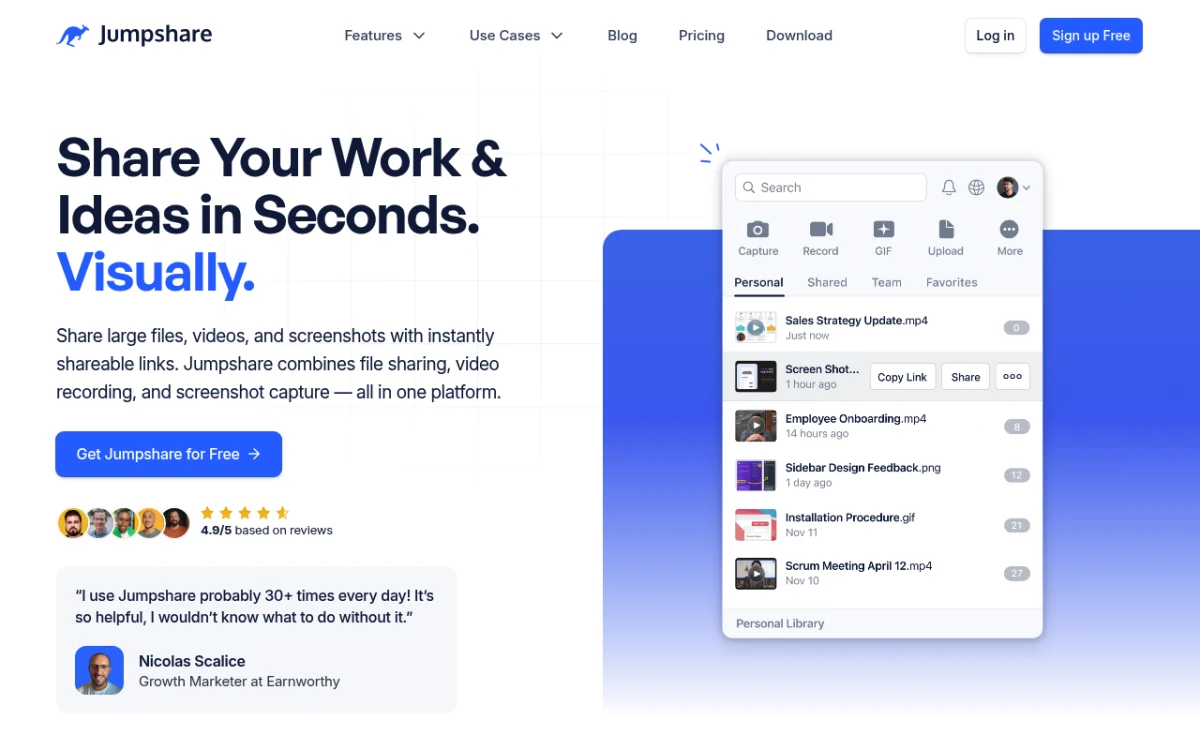
Jumpshare began as a file sharing service. It has since rebuilt itself around screen recording. Its own site now leads with the line "the all-in-one native screen recorder" and lists async video tools as rivals. The current feature set:
- Screen and webcam recording with captions, transcription, and built-in editing
- AI features that generate titles, summaries, and chapters (Business plan)
- Screenshot capture with basic annotation
- GIF recording for quick demos
- File sharing and collaboration with cloud storage, still offered but no longer the headline
The desktop apps are native code, not a web wrapper. That helps capture speed and system integration. There is also a Chrome extension and an iPhone app.
The big question: now that recording is the focus, how well does the capture side hold up?
Jumpshare features breakdown
Screen recording with AI
This is the centre of the product. Recording includes:
- Screen recording with webcam overlay
- 4K on paid plans
- Transcription and captions generated for you
- AI titles, summaries, and chapters on the Business plan
- Drawing tools while you record
- Built-in trimming and editing after the fact
The transcription is the standout. Captions and a searchable transcript appear on their own. If you make walkthroughs, demos, or async updates, that saves real time. Note that the AI layer sits on the Business tier, not the entry paid plan.
The native apps make recording feel quick, and the menu bar app stays out of the way. This used to be a weak spot. It is not one now.
Screenshot capture and annotation
Jumpshare's screenshot tool covers the basics. You can capture your full screen, a selected area, or a window using keyboard shortcuts, and the app sits in your menu bar for quick access.
The markup tools include arrows, text, shapes, and a highlighter. They work fine for quick edits, like flagging a bug or circling a button. Next to apps built purely for screenshots, the toolset is lighter.
Gaps that capture-heavy users notice:
- No blur or pixelate for redacting sensitive information
- No counter badges for step-by-step guides
- No screenshot backgrounds for polished looks
- No scrolling capture for long pages
- Fewer pro markup options than focused tools
Screenshots upload to Jumpshare's cloud right away, and you get a link in seconds. For Slack threads and email, that flow is genuinely useful. It is one of several ways to turn an image into a shareable link on Mac, and the options are worth comparing before you commit to a subscription for it.
The catch: sharing needs an internet connection. Maybe you prefer to edit screenshots locally first. If so, the cloud-first design can feel tight.
GIF recording
GIF recording is straightforward. Select an area, hit record, and Jumpshare produces a GIF that uploads and returns a link. For bug reports and quick demos it does the job.
The limits show up in the details. You cannot set frame rate, resize the GIF after recording, or tune compression. Focused GIF recording tools give you more control. That matters, because GIF file size almost always does. You can compress GIFs afterwards, but built-in control saves a step.
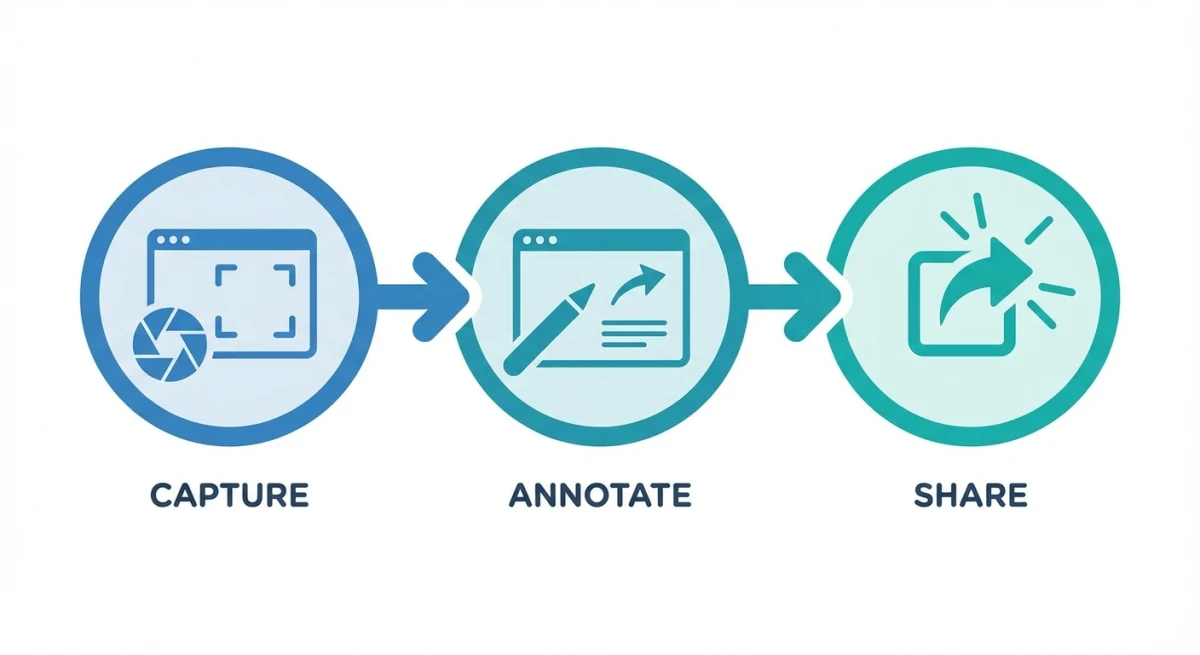
File sharing and collaboration
Jumpshare's file sharing roots are still in the product, just no longer the pitch. You can:
- Share files via link
- Preview many file types in-browser
- Collect feedback with time-stamped comments
- Create team spaces with shared folders
- Set files to expire
This helps if your team already lives in Jumpshare. It is no longer the reason the company asks you to choose it, and it is thin next to dedicated storage services.
Jumpshare pricing explained
Jumpshare charges per user, per month, with 20% off for annual billing:
| Plan | Price | Storage | Recording | Key notes |
|---|---|---|---|---|
| Basic | $0 | Limited | 5 min | 25 upload limit, screenshot and GIF capture |
| Plus | $12 / user / mo | From 2TB, plus 250GB per extra user | Unlimited | Captions, transcription, video editing |
| Business | $16 / user / mo | From 3TB, plus 500GB per extra user | Unlimited | Jumpshare AI, titles, summaries, chapters, lead gen |
| Enterprise | Custom | Unlimited | Unlimited | SSO, dedicated account manager, uptime guarantee |
The real cost over time
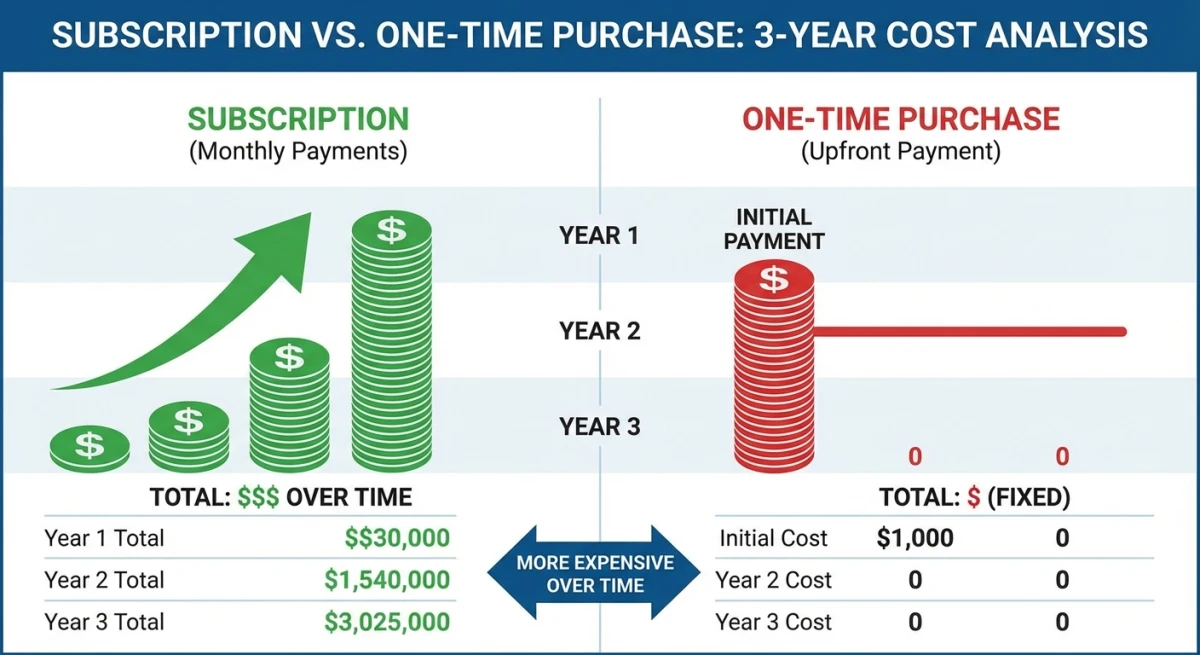
Per-seat pricing adds up. Run the numbers for how long you plan to use it. For a single user:
- Year 1: roughly $115 on Plus billed annually, up to $192 on Business billed monthly
- Year 2 running total: roughly $230 to $384
- Year 3 running total: roughly $346 to $576
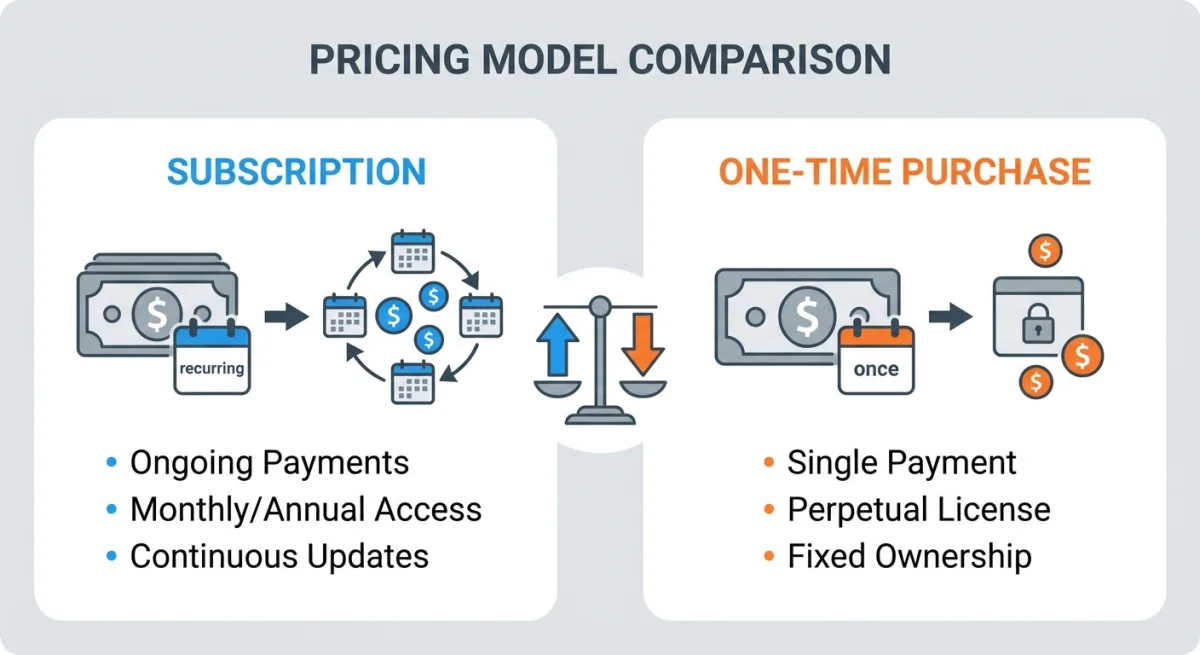
Now multiply by headcount. A five-person team on Business, billed monthly, spends roughly $960 in year one. One-time tools cost the same in year three as on day one. That is the trade-off.
Free plan limitations
The Basic tier works as a trial rather than a long-term home:
- 25 upload limit
- 5 minute recording cap, which rules out longer tutorials
- Limited storage
Screenshot and GIF capture are included. It is a fair way to test the capture side before paying.
Pros: what Jumpshare does well
Native apps on both platforms. The macOS and Windows apps are native code, not a web wrapper. Capture and recording feel quick and sit properly in the system.
Strong recording and AI. Transcription, captions, summaries, and chapters are the reason to look at Jumpshare. If async video fills part of your week, this is the core value.
Instant sharing. Capture, then link, in one motion. For teams working in Slack or email this stays one of its best qualities.
One app for recording and capture. Screenshots and GIFs live alongside video, so you are not switching tools for a quick capture.
Built-in editing. You can trim and tidy a recording in the app. No separate video editor needed for simple fixes.

Tired of plain screenshots? Try ScreenSnap Pro.
Beautiful backgrounds, pro annotations, GIF recording, and instant cloud sharing, all in one app. Pay $39 once, own it forever.
See pricing and featuresCons: where Jumpshare falls short
Per-seat fees add up. At $12 to $16 per user per month, the cost grows with your team and never stops. Solo users pay for team features they may not need.
Lighter screenshot tools. Next to focused capture apps, the markup set is thin. No blur or pixelate for private info, no counter badges, no screenshot backgrounds.
AI sits on the higher tier. Titles, summaries, and chapters are Business-plan features. The entry paid plan is not the full experience.
Cloud-centric by design. The workflow assumes you want everything uploaded. Keeping captures local is not what this tool is for.
You are paying for storage. A large share of the price is cloud storage. If you already pay for iCloud, Google Drive, or Dropbox, you are buying storage twice.
No OCR or text extraction. Often need to pull text from images like error messages, code, or receipts? You will need another tool, or our free OCR text extractor.
Few export options. Captures live in Jumpshare's cloud. Getting them out in other formats is awkward. Focused tools and image format converters give you more freedom.
Jumpshare vs dedicated screenshot tools
The core question: do you need a recording platform, or focused capture tools?
| Feature | Jumpshare | Dedicated Screenshot App |
|---|---|---|
| Screen recording | ✅ With AI transcription | ⚠️ Varies by tool |
| Screenshot capture | ✅ Basic | ✅ Advanced |
| Annotation tools | ⚠️ Limited | ✅ Full suite |
| GIF recording | ✅ Yes | ✅ Yes (many tools) |
| File sharing/cloud | ✅ Built-in | ⚠️ Optional |
| Pricing | 💰 $12 to $16 per user per month | 💰 One-time, roughly $25 to $40 |
| Offline use | ⚠️ Limited | ✅ Full |
| Native macOS app | ✅ Yes | ✅ Yes |
Jumpshare fits when recording is central to your work, you want transcription and AI summaries, and per-seat pricing is normal for your team.
Focused tools fit when capture is most of your work, you prefer one-time pricing, or you want deeper markup features.
Who should use Jumpshare?
Good fit:
- Teams who send async video updates, demos, or walkthroughs regularly
- Sales and marketing people who want transcripts and AI summaries attached to recordings
- Remote teams who share recordings and screenshots daily
- Anyone replacing a Loom-style subscription who also wants capture in the same app
Less ideal for:
- Solo users whose work is mostly screenshots rather than video
- People who want deep markup, backgrounds, or redaction built in
- Budget-minded users, since per-seat cost compounds every month
- Anyone who wants captures to stay local by default
Match the tool to the job
Jumpshare's pitch has narrowed, and that is a good thing. It is now a recording tool that also captures, rather than a tool that does a bit of everything. That makes the choice easier.
If most of your day is recording and explaining, it earns its place. If most of your day is capturing, annotating, and shipping static images, a focused capture app will do more for less.
Best Jumpshare alternatives for Mac
If Jumpshare's per-seat pricing or capture depth do not fit, these cover other angles:
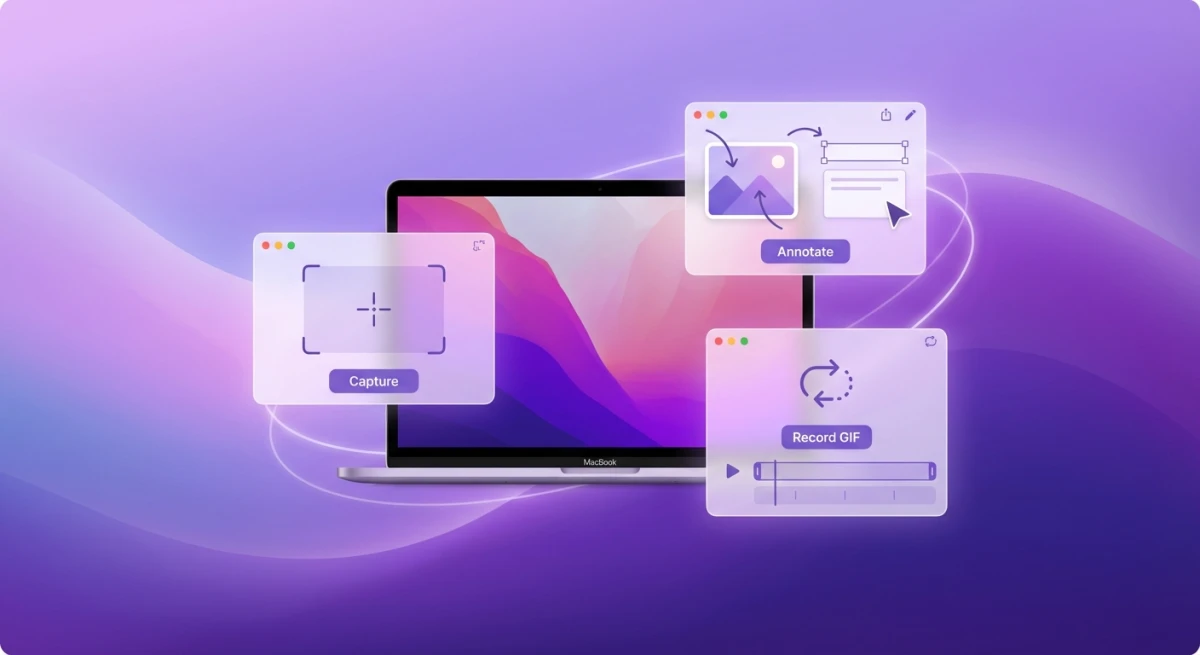
ScreenSnap Pro, for screenshots and GIFs without a subscription
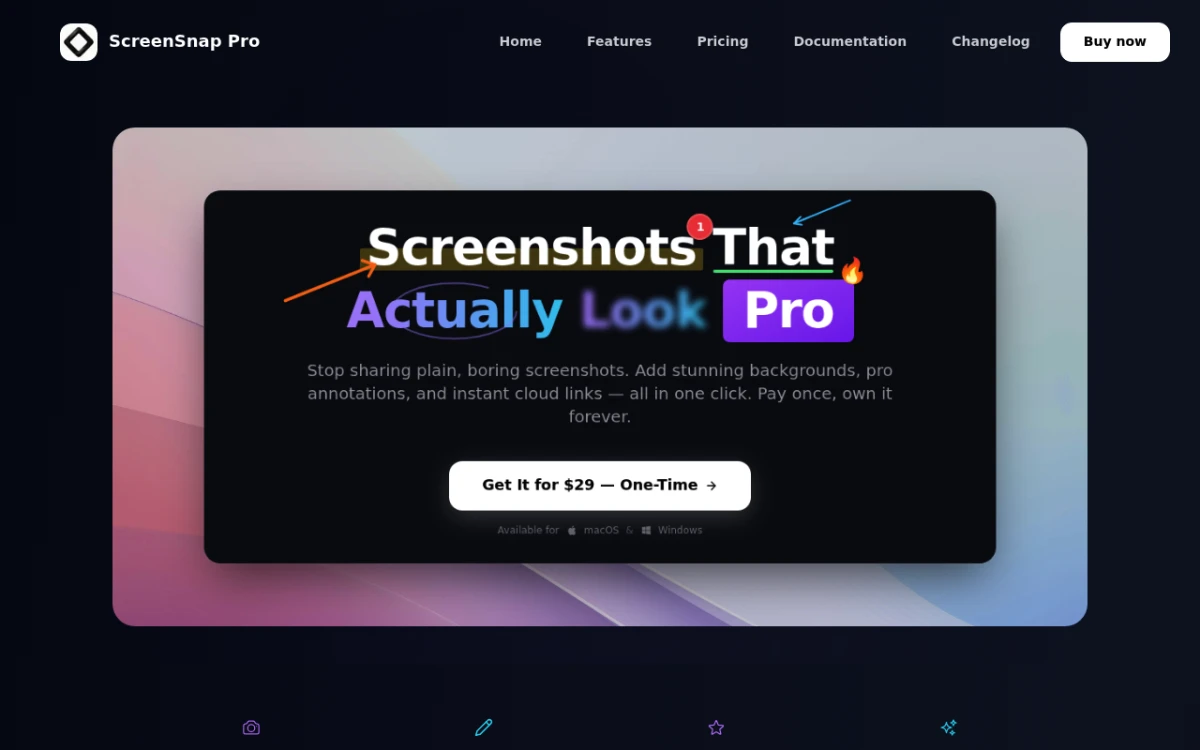
ScreenSnap Pro does screenshots, GIF recording, and screen recording for a one-time $39 purchase. You get 500+ gradient backgrounds, 17 markup tools including blur and pixelate, Scrolling Capture for long pages, OCR text extraction, and optional cloud sharing.
The difference is the model. Pay once, own it forever, with no per-seat fees and no storage upsells. If you do not need transcription or AI summaries, this puts the money into capture and markup instead.
CleanShot X, feature-rich screenshot tool
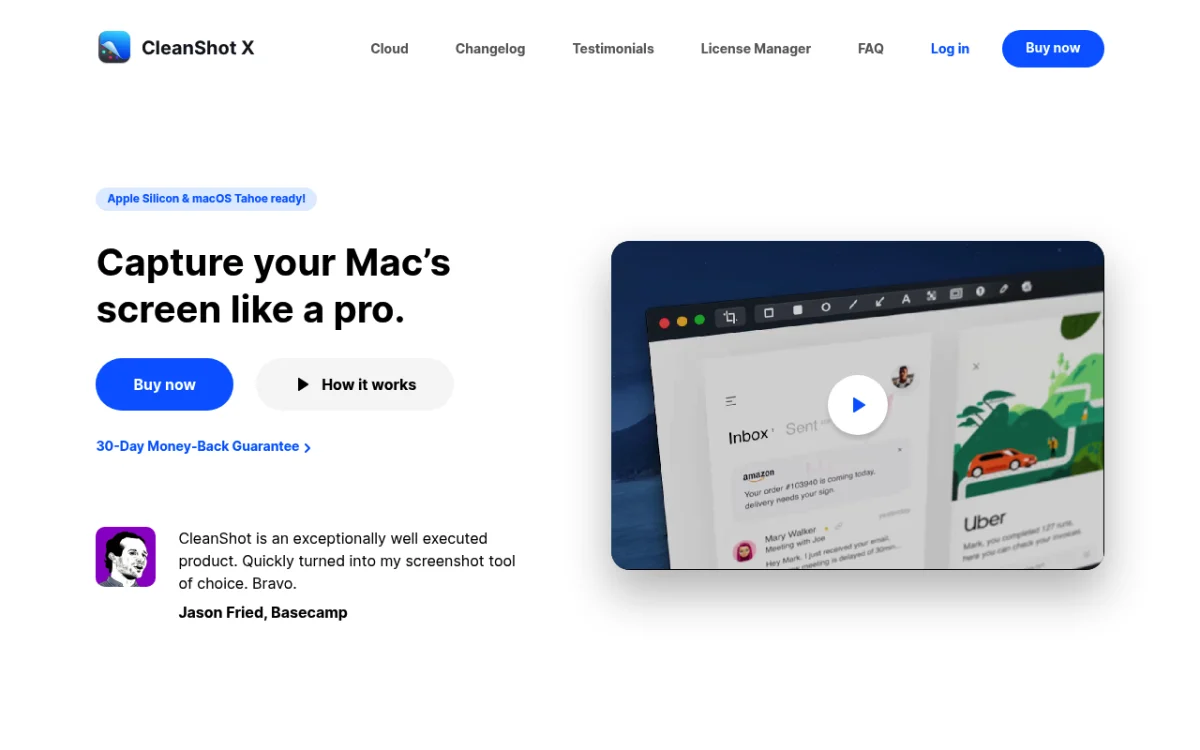
CleanShot X is a Mac screenshot app with scrolling capture, rich markup, and optional cloud. It is a one-time purchase with a separate cloud plan available.
Snagit, documentation-focused capture
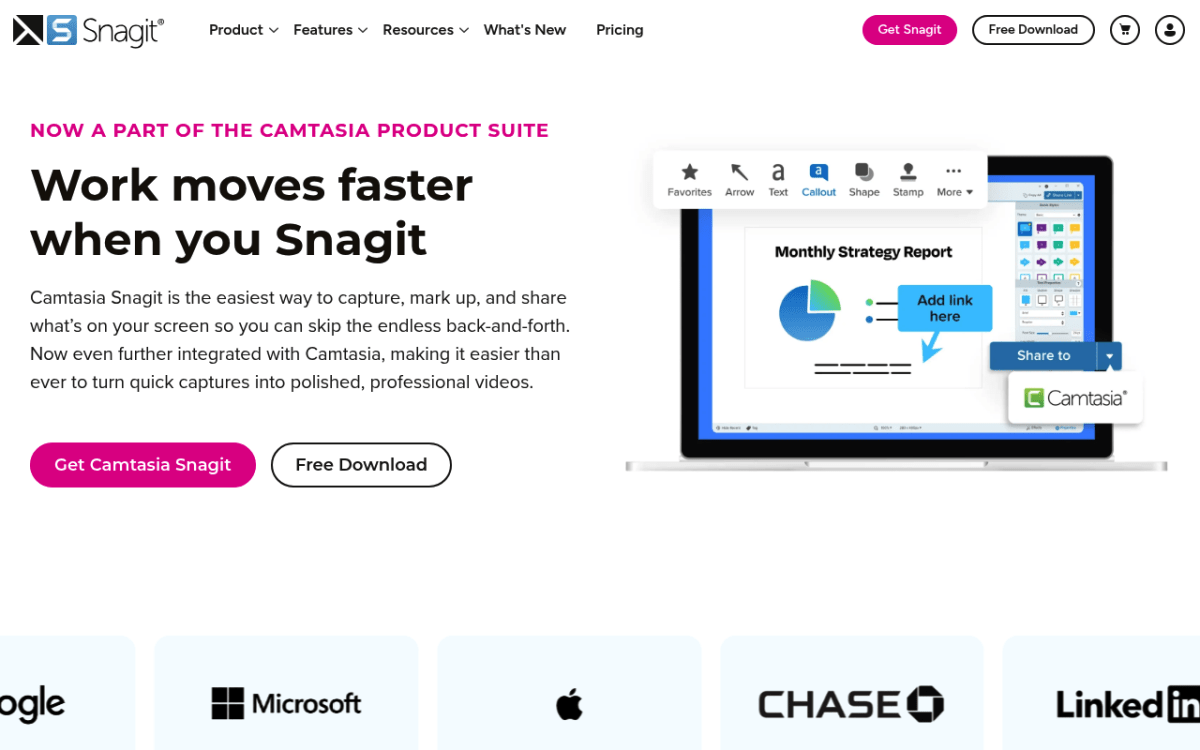
Snagit offers strong capture and editing, and it suits documentation teams. It moved to a subscription model, and the pricing has become a pain point for some users.
Loom, if async video is the priority
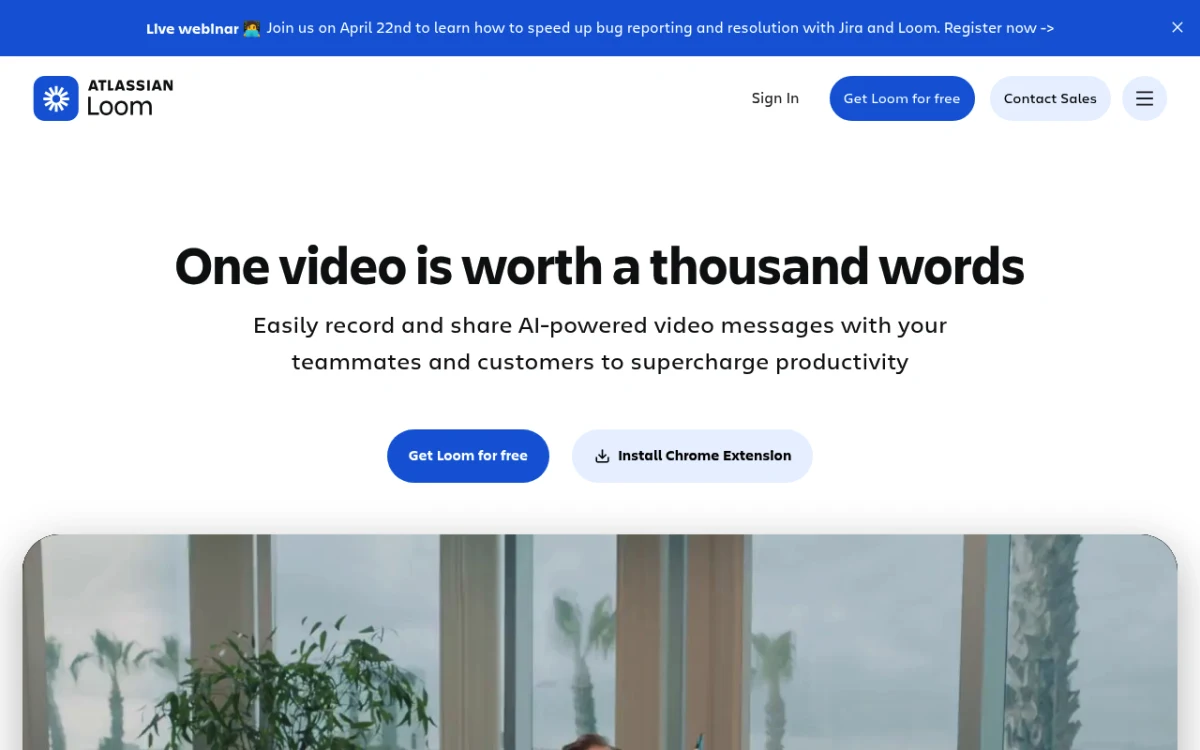
Loom is the tool Jumpshare now measures itself against. It does async video messaging only, with AI summaries, transcripts, and viewer analytics. It plugs into tools like Notion and Jira. The trade-off: no screenshots at all, so it is a narrower choice.
ShareX, free and open-source (Windows)
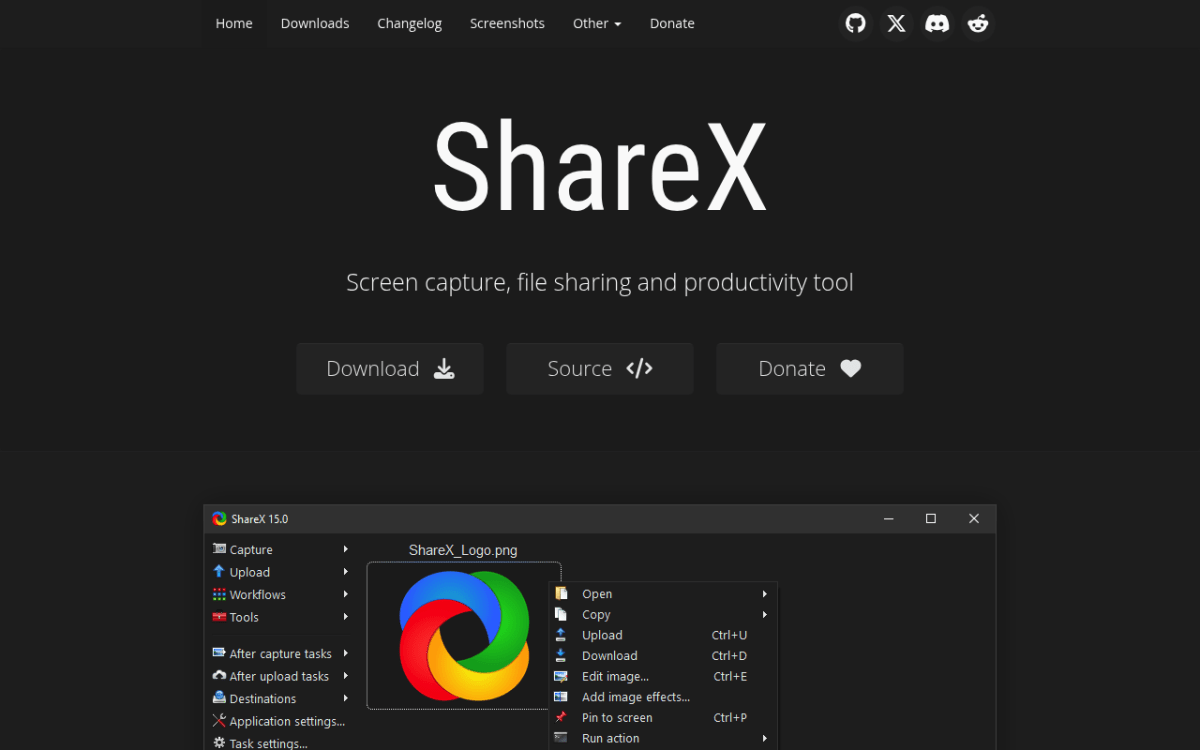
ShareX is a free Windows tool with extensive capture and automation features. There is no Mac version, so Mac users should look at focused capture apps instead.
macOS built-in tools, the free baseline
Do not forget ⌘ + Shift + 3/4/5. macOS has solid screenshot features and basic screen recording through QuickTime. There is no markup depth or GIF recording, but the price is right. You can change your screenshot save location and format settings to suit your workflow.
Verdict: is Jumpshare worth it in 2026?
Jumpshare is a capable native screen recorder. The transcription and AI features are genuinely useful. The pivot also makes it easier to place: async video, with capture included.
For a solo Mac user who mostly takes screenshots, it is still more platform than the job needs. A single user pays team pricing, and the capture depth is lighter than focused apps offer.
Our take: already paying for an async video tool? Jumpshare is worth a trial, since it may fold recording and capture into one subscription. If you rarely record and mostly capture, put the money into a one-time capture tool instead.
Quick decision guide
- Need screen recording with transcription and AI summaries? Jumpshare Business
- Need recording without the AI layer? Jumpshare Plus
- Need screenshots and GIFs with no subscription? ScreenSnap Pro
- Need documentation-heavy capture? Snagit
- Need async video messaging only? Loom
- Need free basics? macOS built-in plus free online tools
Frequently Asked Questions

Morgan
Indie DeveloperIndie developer, founder of ScreenSnap Pro. A decade of shipping consumer Mac apps and developer tools. Read full bio
@m_0_r_g_a_n_