Technical Documentation Examples: 10 Real Docs + Templates
Technical documentation examples include API references, tutorials, installation guides, user guides, READMEs, troubleshooting pages, runbooks, release notes, design docs and bug reports. The best ones share four traits: they serve one reader with one task, show a working example first, stay current, and use annotated visuals where words get slow.
Below are 10 public docs you can open right now, one per doc type. Each one gets an annotated teardown, the habits that make it work, and a skeleton you can paste into your own repo. Bug reports and runbooks are on the list on purpose. If you write those every week, you already write technical docs.
Technical documentation examples at a glance
| # | Doc type | Who reads it | Real example | What to steal | Go deeper |
|---|---|---|---|---|---|
| 1 | API reference | Developers mid-integration | Stripe API reference | Copyable request and response beside every endpoint | Skeleton in #1 |
| 2 | Tutorial | Newcomers learning by doing | Django tutorial | Expected output after every command | Skeleton in #2 |
| 3 | Installation guide | Anyone setting up the tool | Docker Desktop install pages | Requirements before steps | Skeleton in #3 |
| 4 | User guide | End users with one task | Apple and Microsoft help pages | Task-named titles | User manual guide |
| 5 | README | Developers deciding to try a repo | Starship | Demo GIF plus a 3-step quick start | Skeleton in #5 |
| 6 | Troubleshooting page | Users stuck on an error | GitHub Docs SSH errors | The exact error as the title | Skeleton in #6 |
| 7 | Runbook | On-call engineers | GitLab runbooks | Symptoms, commands, escalation | Skeleton in #7 |
| 8 | Release notes | Users and admins after an update | VS Code release notes | Exact setting names | Release notes template |
| 9 | Design doc / RFC | Reviewers and future maintainers | Kubernetes KEPs | Non-goals and alternatives | Design doc template |
| 10 | Bug report | Developers who must reproduce it | Kubernetes bug form | Required repro and version fields | Bug report template |
What counts as technical documentation
Technical documentation is any written material that explains how a product works, or how to use, build, run or fix it. The Diátaxis framework splits it into four types by what the reader needs right now:
- Tutorials teach a beginner by doing.
- How-to guides walk someone through a real task.
- Reference describes the machinery: endpoints, flags, settings.
- Explanation covers the why: design, tradeoffs, history.
A second split is by subject. Product docs describe the software itself, for two audiences: user docs (user guides, install guides, release notes) and system docs for the people who build and run it (API references, design docs, runbooks, test plans and bug reports). Process docs record how the work gets done: project plans, schedules, status reports, standards and meeting notes. The guide to internal documentation covers the team-facing side in depth.
Most real pages mix modes, and that is fine as long as each page knows its main job. A tutorial that stops every two lines for theory loses the learner.
10 technical documentation examples worth copying
Each entry links to a live public page. The teardown images are annotated captures of those live pages, taken logged out in October 2026. A dashed line marks where a long page was cropped, and the numbers on each image match the numbered list under it.
1. API reference: Stripe API reference
The Stripe API reference is the page many API teams quietly benchmark against. It serves a developer who is mid-integration and needs one endpoint, fast.
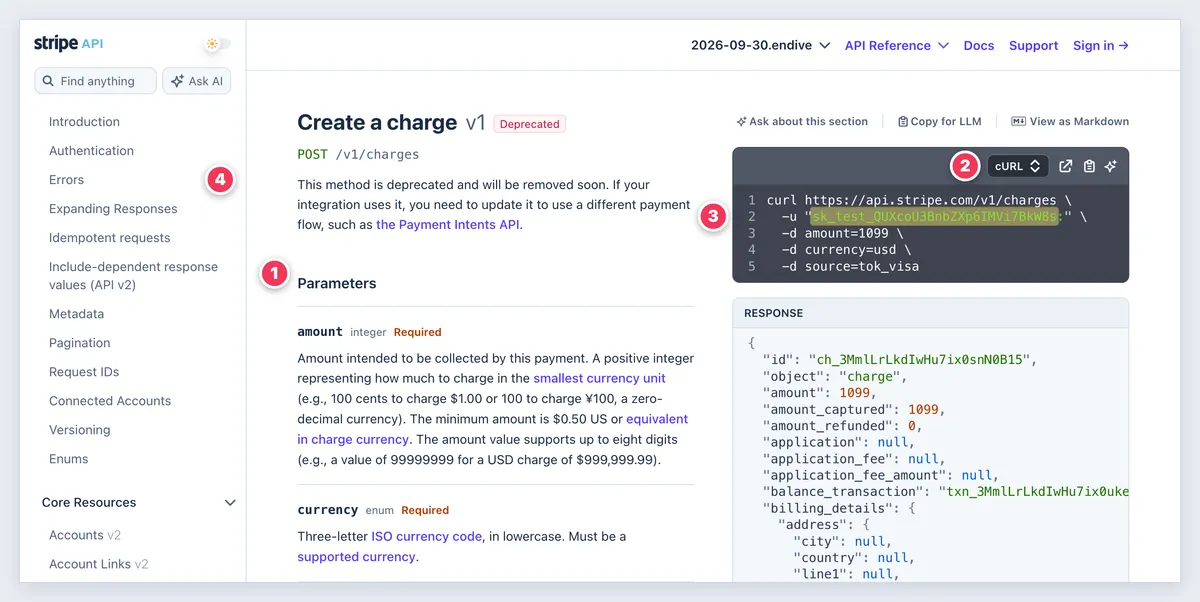
- Three panes. Navigation on the left, parameters in the middle, code on the right. You read and copy without scrolling away.
- A language switcher. Samples default to curl, and one click swaps them to an official library such as Python, Node.js, Go or Ruby.
- Copyable request and response. Samples use test-mode keys that start with
sk_test_, so readers can paste and run them safely. - An error table. The Errors page maps each HTTP status code to a plain cause, like 401 for "No valid API key provided."
## Create a charge
`POST /v1/charges`

| Parameter | Type    | Required | Description     |
|-----------|---------|----------|-----------------|
| amount    | integer | yes      | Amount in cents |

**Request:** curl sample with a test key, then one tab per SDK
**Response:** full JSON body
**Errors:** status code, cause, fix
2. Tutorial: Django "Writing your first Django app"
Django's tutorial builds one poll app across eight parts. It serves a newcomer who learns best by building something real.
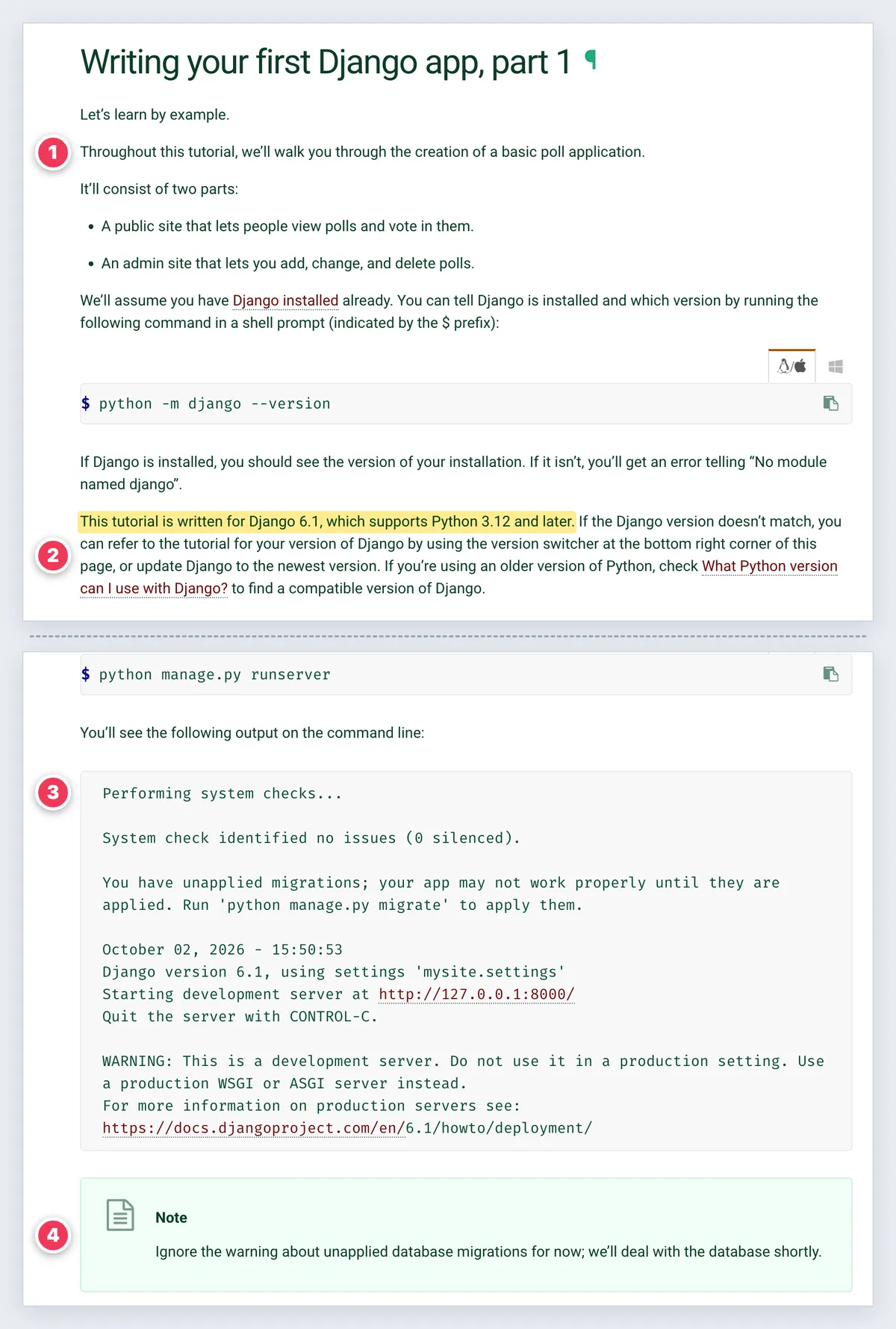
- One outcome. The opening lines say what you will build: a public site for voting and an admin site for managing polls.
- The version, stated up front. The page names the Django and Python versions it targets and points to a version switcher.
- Expected output after commands. After
runserver, it prints the exact terminal output you should see, warnings included. - Worries answered in place. A note tells you to ignore the migrations warning for now, right where it appears.
# Build a task tracker, part 2 of 6: the database
You will: add a Task model and save your first task.
Written for: Acme 4.2 and Python 3.12 or later.

## Step 2. Run the first migration
$ acme db migrate
You should see: Applying tasks.0001_initial... OK
> Ignore the superuser warning. You create one in part 4.
3. Installation guide: Docker Desktop for Mac and Windows
Docker keeps a separate install page for Mac and for Windows. Both serve people who want the tool running before they read anything else.
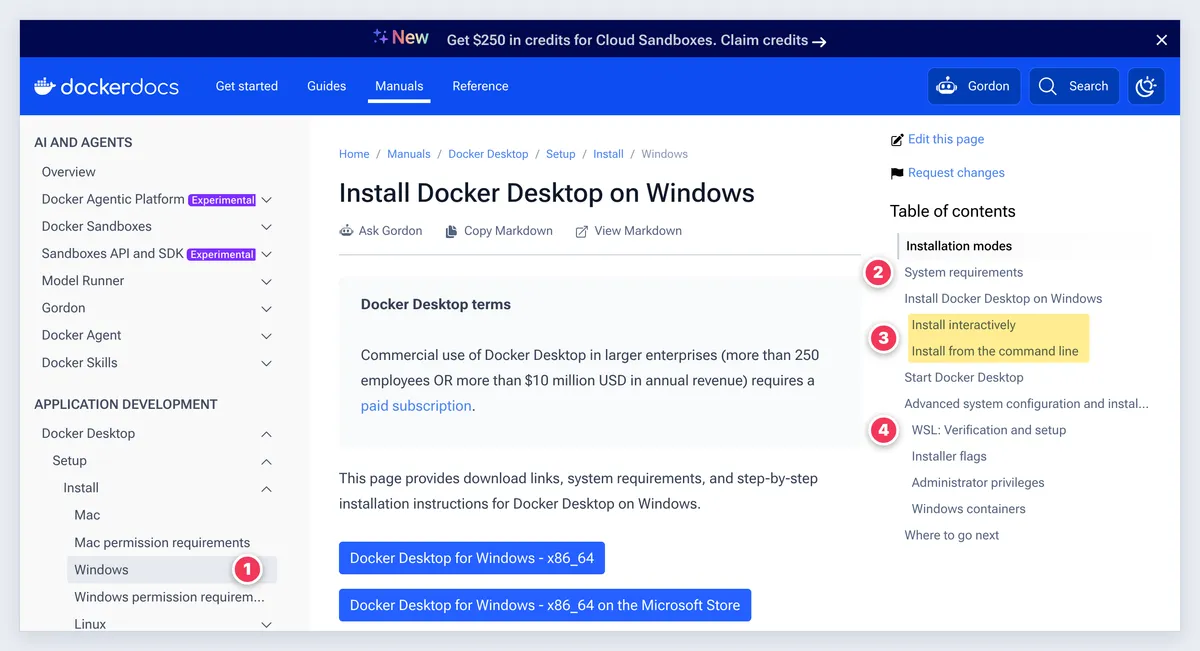
- One page per OS, then variants. The Mac page covers Apple silicon and Intel. The Windows page covers its WSL 2 and Hyper-V backends.
- Requirements before steps. Supported OS versions, RAM and virtualization needs come first, so nobody fails halfway.
- Two install paths. An interactive install for most people, and a command-line install with installer flags for admins.
- A check before you go on. The Windows page has you run
wsl --versionand explains what to do if no version appears.
# Install Acme Agent on macOS
## System requirements
- macOS 14 or later, 4 GB of RAM, Apple silicon or Intel
## Install
1. Download the installer for your chip.
2. Drag it to Applications.
## Install from the command line
$ sudo installer -pkg AcmeAgent.pkg -target /
## Verify the install
$ acme-agent --version    (expect: acme-agent 3.4.1)
4. User guide: Apple and Microsoft help articles
Apple's Take screenshots or screen recordings on Mac and Microsoft's Use Snipping Tool to capture screenshots are classic help articles. They serve someone with one job to do right now.
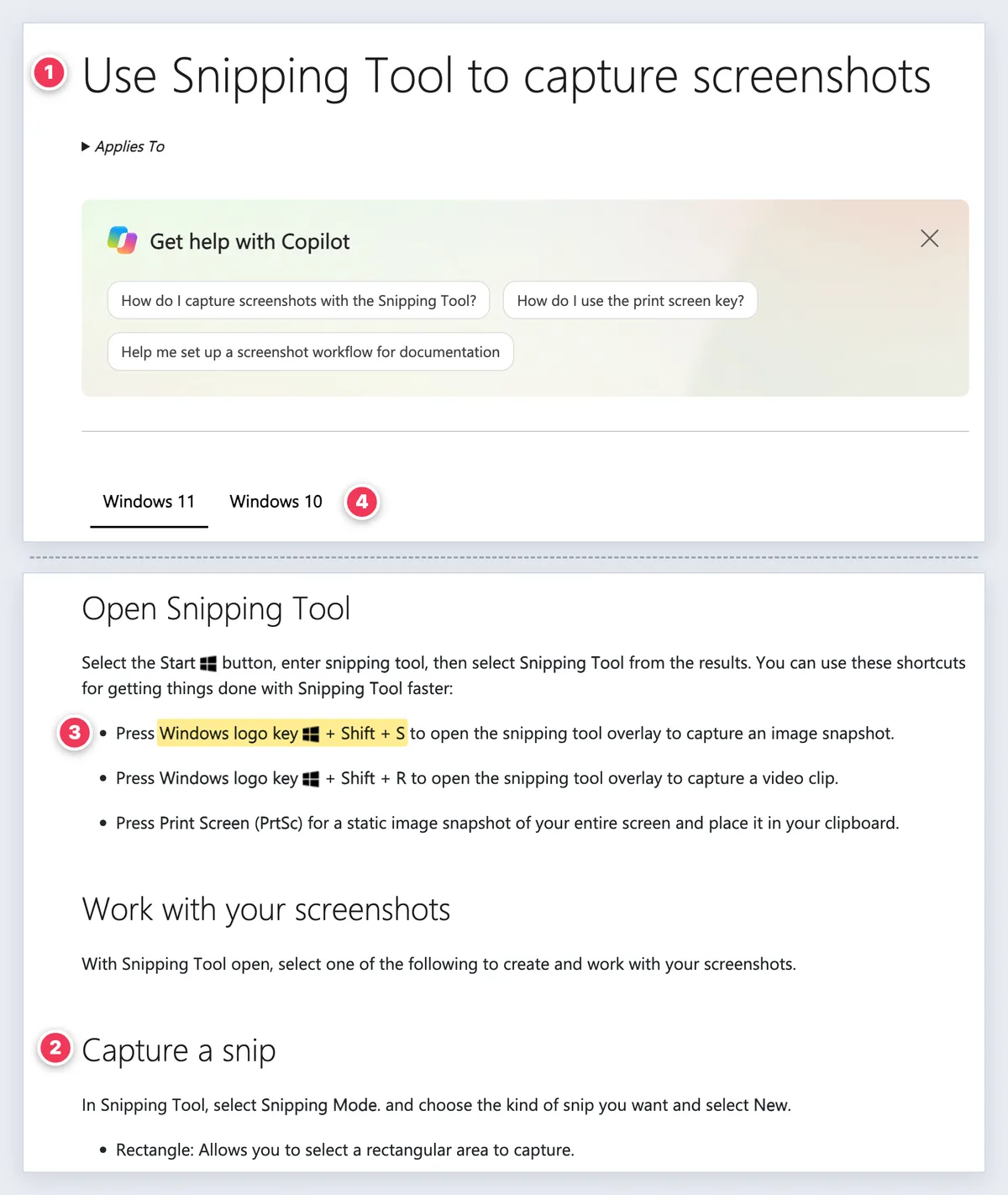
- Task-named titles. The title is the task, phrased the way people search for it.
- One task per section. Microsoft's headings start with verbs: "Capture a snip," "Annotate a snip," "Save a snip."
- Shortcuts written in full. Apple writes "Shift-Command-4." Microsoft writes "Windows logo key + Shift + S."
- Version-aware content. Microsoft gives Windows 11 and Windows 10 their own instructions on the same page.
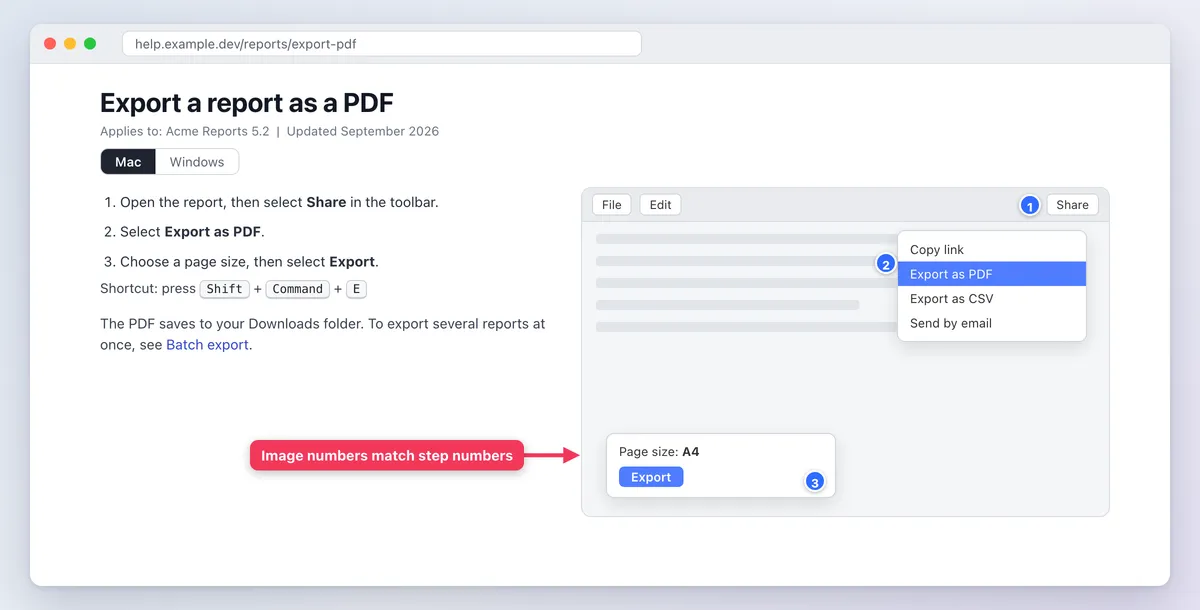
The one thing to add: a screenshot whose callout numbers match the step numbers. The guide to step-by-step instructions with screenshots shows the method. To turn task pages like these into a full product manual, see how to write a software user manual.
# Export a report as a PDF
Applies to: Acme Reports 5.2 (Mac and Windows)
1. Open the report, then select **Share** in the toolbar.
2. Select **Export as PDF**.
3. Choose a page size, then select **Export**.
Shortcut: `Shift+Command+E` (Mac) or `Ctrl+Shift+E` (Windows)
5. README: Starship
The Starship README sells a cross-shell prompt in one screen, for macOS, Windows and more. It serves a developer deciding in 30 seconds whether to try it.
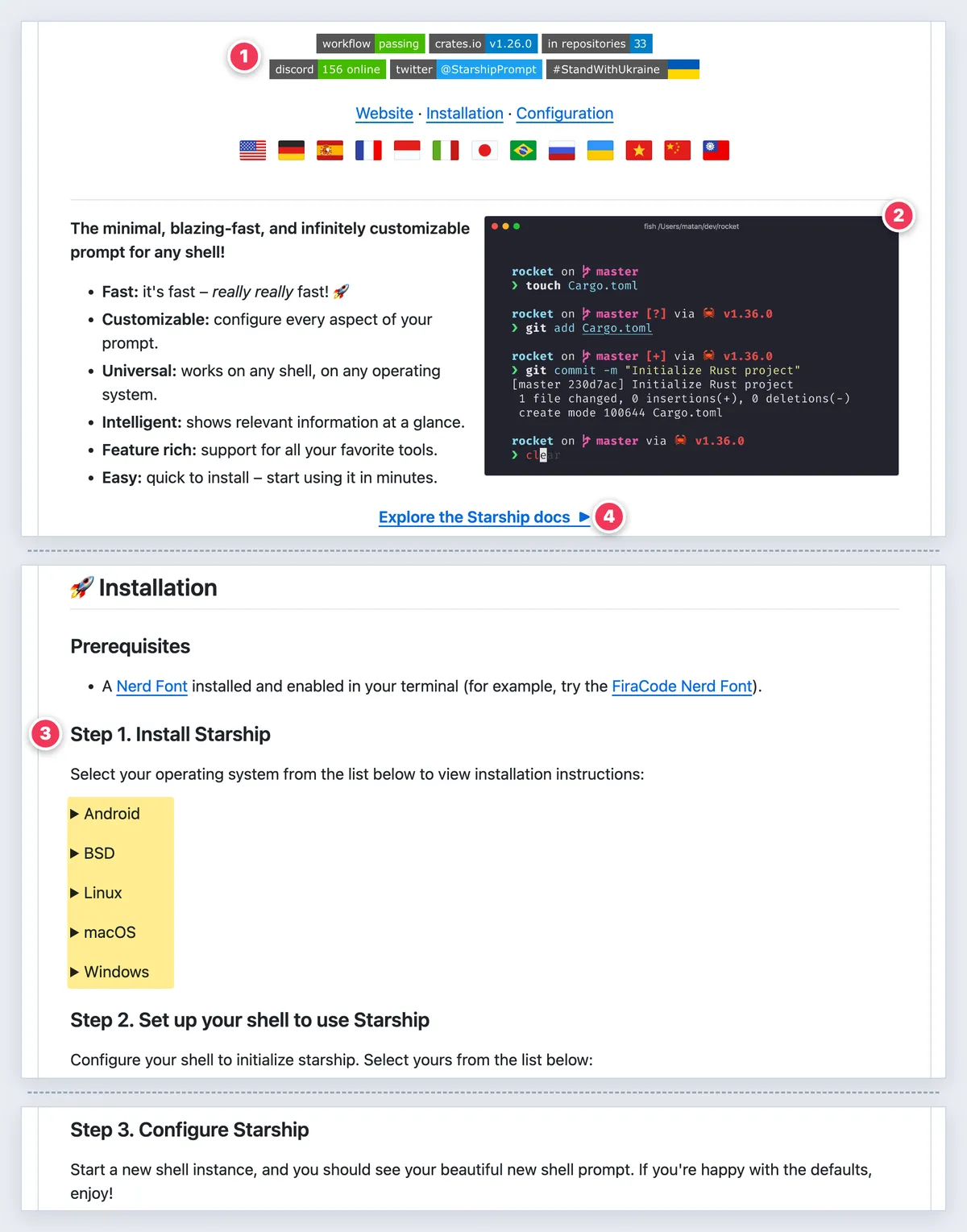
- Badges as proof. Build status, the latest release and packaging status sit at the very top.
- A demo GIF beside the pitch. You see the prompt working before you read a feature list.
- A three-step quick start. Install, set up your shell, configure. Per-OS and per-shell commands hide in collapsible sections.
- Links out for depth. Full configuration lives on the docs site, so the README stays short.
For the demo itself, see how to record a terminal session, then commit the GIF to the repo.
# quicklog
Structured logs you can read in a terminal.
 

## Quick start
1. Install: `brew install quicklog` (macOS) or `winget install Acme.Quicklog` (Windows)
2. Run: `quicklog tail app.log`
3. Configure: see [docs/config.md](docs/config.md)6. Troubleshooting page: GitHub Docs SSH errors
GitHub's Error: Permission denied (publickey) page serves a developer who just pasted an error into a search box.
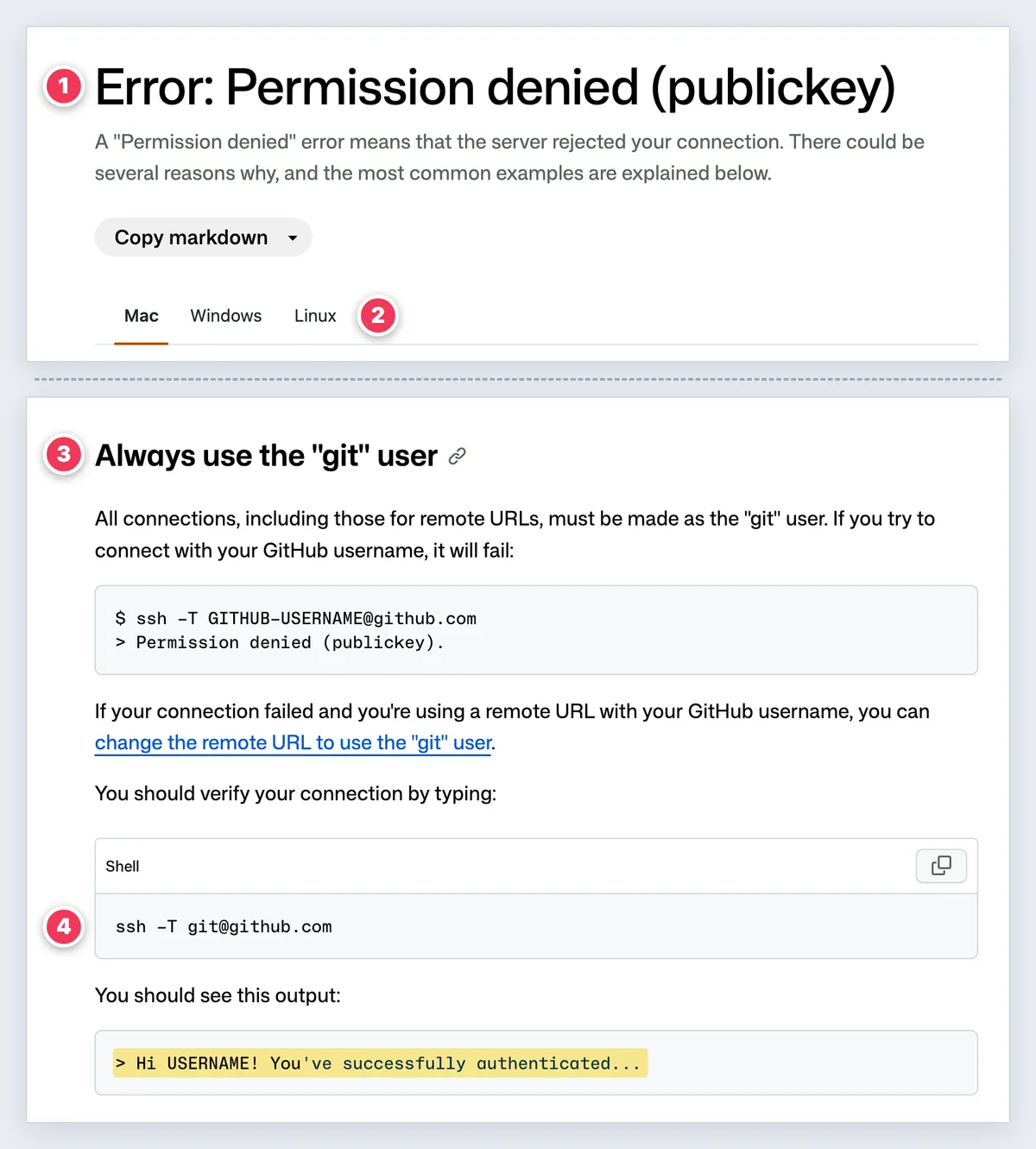
- The exact error is the title. It matches what the terminal printed, so search finds it.
- An OS switcher. Each operating system gets its own commands.
- Causes as headings. Each likely cause, like "Always use the 'git' user," has its own section and fix.
- A verify step. Run
ssh -T git@github.com, and the page shows the success message you should get back.
Copy error text exactly. If it only exists in a screenshot, run it through a free OCR text extractor instead of retyping it.
# Error: connect ECONNREFUSED 127.0.0.1:5432
Applies to: Mac, Windows
## Cause: the database service is not running
Fix (Mac): `brew services start postgresql@16`
Fix (Windows): `net start postgresql-x64-16` (admin terminal)
## Cause: the app points at the wrong port
Fix: set `DB_PORT=5432` in `.env`
## Verify the fix
`pg_isready -h 127.0.0.1 -p 5432` prints "accepting connections"
7. Runbook: GitLab's on-call runbooks
GitLab's runbooks repo is public, so you can read how a large SRE team writes for engineers at 3 a.m. A typical page, like the one for low disk space alerts, follows one shape.
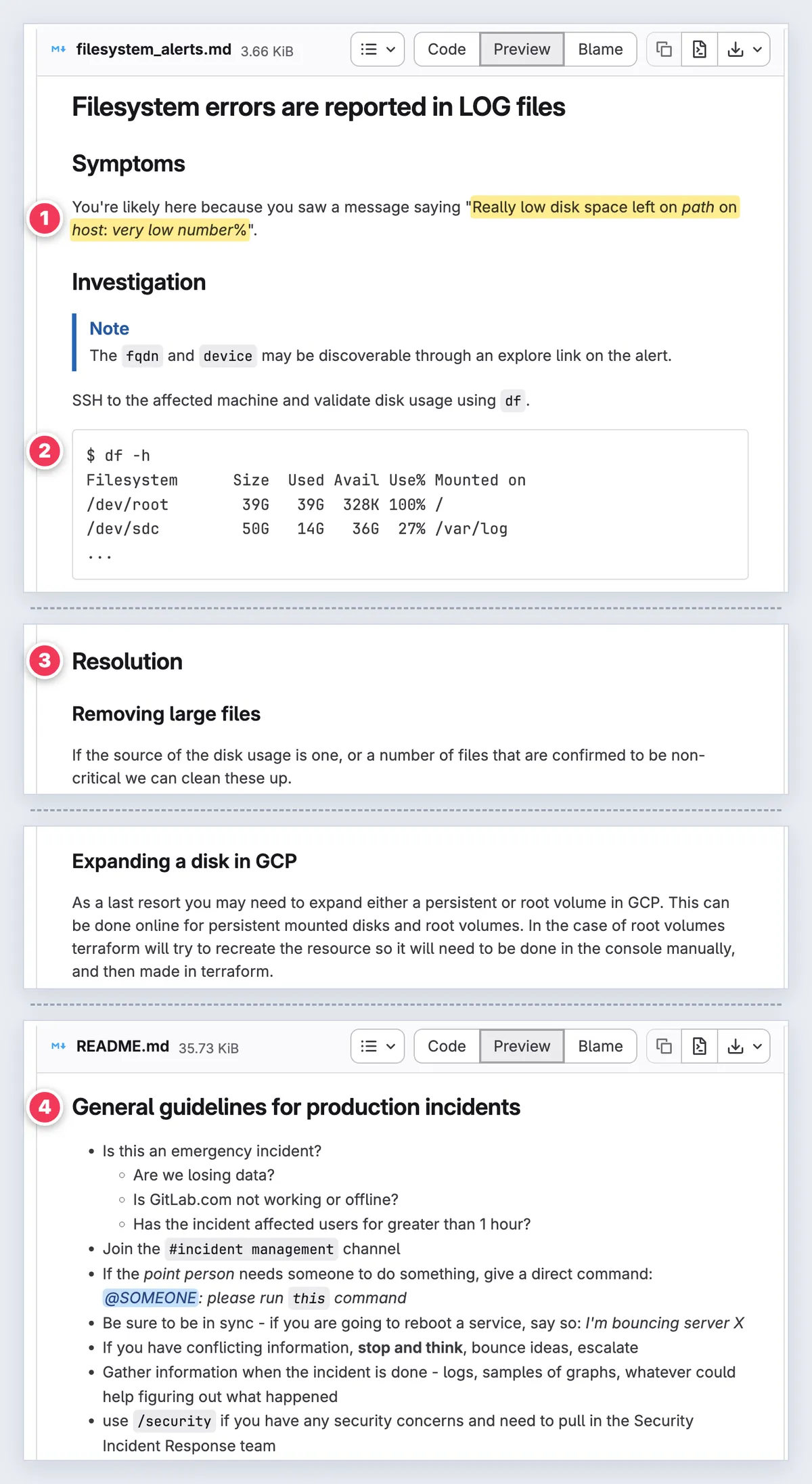
- Symptoms quote the alert. The page opens with the exact alert message, so on-call knows they are in the right place.
- Commands with sample output.
df -hcomes with example output so you can compare what you see, thendunarrows down the biggest directories. - Resolution options. Separate fixes for removing large files and for growing a disk.
- Escalation rules. The repo's README covers when it is an emergency, which channel to join, and when to escalate.
For the wider workflow around runbooks, see the process documentation guide.
# Runbook: ApiHighErrorRate
Owner: @payments-oncall | Last reviewed: 2026-09-12
## Symptoms
Alert: "5xx rate above 5% for 10 minutes on acme-api"
## Diagnose
$ kubectl -n api get pods    (look for CrashLoopBackOff)
## Mitigate
1. Roll back: `acme deploy rollback acme-api`
## Escalate
Not fixed in 30 minutes? Page @db-oncall and open an incident.
8. Release notes: VS Code
VS Code's release notes ship with every version. They serve users and admins who want to know what changed on their machine.
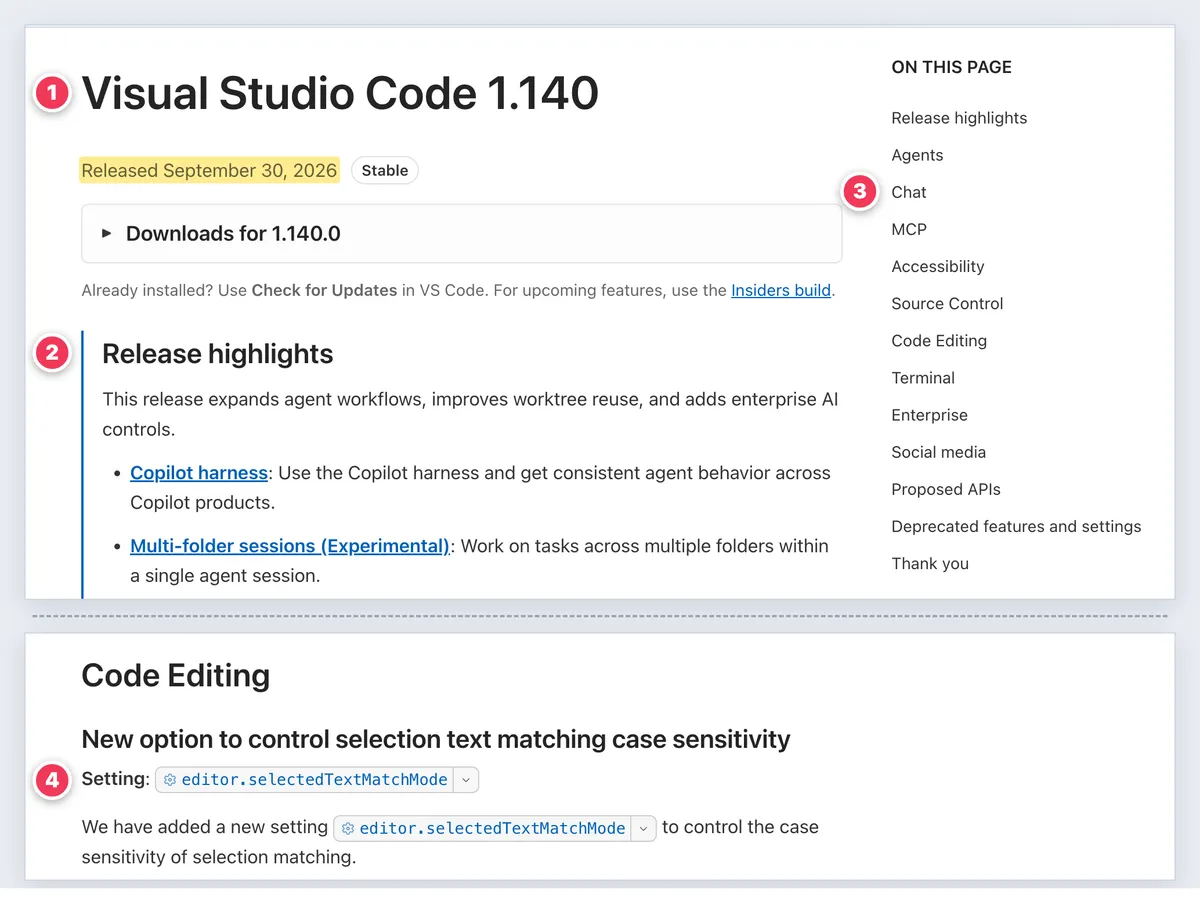
- Version and date first. "Visual Studio Code 1.140, Released September 30, 2026" sits above everything else.
- Highlights up top. A short list of the biggest changes comes before the details.
- Grouped by area. Chat, Terminal, Accessibility and more, plus a section for deprecated features and settings.
- Exact setting names. Each feature names its setting, with a link that opens it in VS Code. Many include a short demo clip.
For your own, the release notes template gives you the format. The changelog examples show how a changelog differs.
# Acme Studio 3.2 (released 2026-09-30)
## Highlights
- Sticky scroll keeps the current function name on screen.
## Editor
### Sticky scroll
Turn it on with `editor.stickyScroll.enabled`.

## Deprecated
- `editor.legacyMinimap` is removed in 3.4.9. Design doc / RFC: Kubernetes Enhancement Proposals
The KEP template is how Kubernetes proposes big changes. It serves reviewers today and the maintainer who asks "why did we do this?" two years later. Python's PEP 1 describes a close cousin.
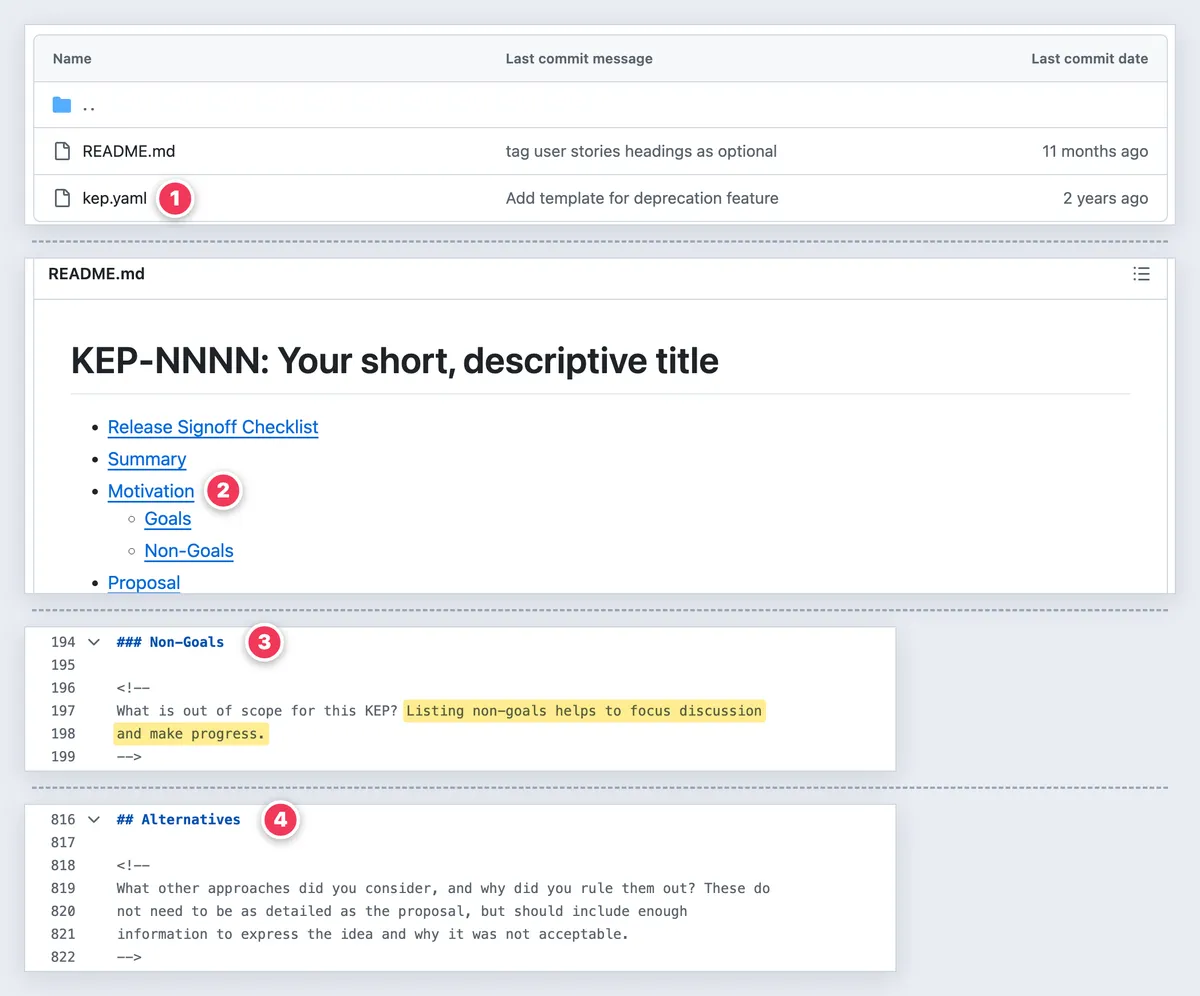
- A status header. Each KEP keeps metadata in a
kep.yamlfile: status, owning group, reviewers, approvers and milestones. - Motivation before design. Summary and Motivation come before the Proposal and Design Details, so reviewers judge the problem before the solution.
- Non-goals. The template puts it plainly: "Listing non-goals helps to focus discussion and make progress."
- Alternatives considered. A section asks what else you tried and why you ruled it out.
For a full design doc with a filled-in example, start from this software design document template.
# RFC-042: Rate limits for the public API
Status: Implementable | Owner: @jane | Reviewers: @omar, @li | Updated: 2026-09-28
## Summary
## Motivation
## Goals
## Non-goals
- Per-customer pricing tiers (separate RFC)
## Proposal
## Alternatives considered
| Option | Why not |
10. Bug report and test docs: Kubernetes bug report form
Kubernetes uses a GitHub issue form for bugs. It serves the developer who has to reproduce your problem without five follow-up questions.
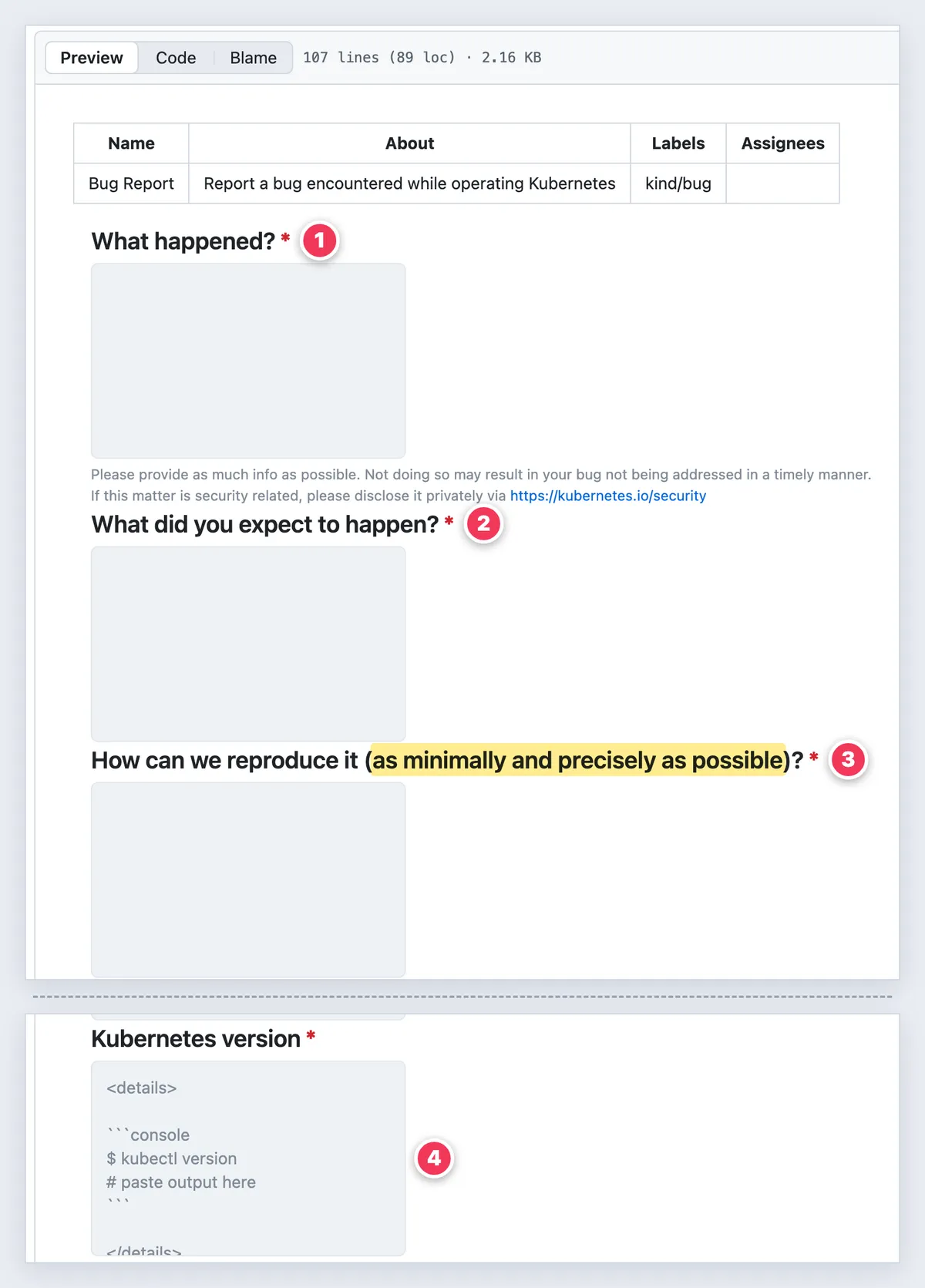
- Required fields. "What happened?", "What did you expect to happen?" and the repro field cannot be left blank.
- Expected vs actual, split. Two separate prompts make the reporter state both.
- A minimal repro. The field asks for steps "as minimally and precisely as possible."
- Environment fields. Kubernetes version, cloud provider and OS version. The version and OS fields come prefilled with the commands to run.
Test cases follow the same logic: preconditions, steps, expected result. Start from the bug report template, then copy a ready-made form from the GitHub issue template guide or check GitHub's issue forms syntax to build your own.
QA teams write more test docs than bug reports: UAT scripts and sign-offs, exploratory testing charters and session notes, and the results sheet from a bug bash.
# .github/ISSUE_TEMPLATE/bug_report.yml
name: Bug report
description: Something broke. Tell us how to reproduce it.
labels: ["bug"]
body:
  - type: textarea
    id: actual
    attributes:
      label: What happened?
    validations:
      required: true
  - type: textarea
    id: expected
    attributes:
      label: What did you expect to happen?
    validations:
      required: true
  - type: textarea
    id: repro
    attributes:
      label: Steps to reproduce
    validations:
      required: true
  - type: input
    id: version
    attributes:
      label: Version (output of quicklog --version)
    validations:
      required: true
What the best technical documentation examples have in common: 7 patterns
Strip away the branding and the same seven habits show up in every example above.
- One reader, one task. Each page answers one question for one person. If a page serves two readers, split it.
- The example comes before the explanation. Stripe shows the request. Django shows the output. Theory comes once the reader has something working.
- Real error text. Paste errors word for word into headings and steps. GitHub's SSH page is easy to find because its title is the error.
- Version and last-updated date. Django names its version and VS Code dates every release. Undated docs lose trust fast.
- Scannable steps. One action per step, UI names in bold, shortcuts in code format. The Google developer documentation style guide and the Microsoft Writing Style Guide cover the details.
- Visuals only where words are slow. A screenshot earns its place when the reader must find a control. Number the callouts to match the steps.
- A named owner. Runbooks and KEPs name owners and reviewers. Docs without an owner drift out of date. The Write the Docs guide has more on keeping docs alive.
Pull request descriptions follow the same rules. A good one states the problem, the change and how to test it, and it often becomes the first draft of a design doc.

Tired of plain screenshots? Try ScreenSnap Pro.
Beautiful backgrounds, pro annotations, GIF recording, and instant cloud sharing, all in one app. Pay $39 once, own it forever.
See pricing and featuresTechnical writing examples beyond software docs
Ask "what are 5 examples of technical writing?" outside a software team and you get a wider list:
- User manuals for hardware, appliances and devices.
- Standard operating procedures for repeatable work. These SOP templates are a good start.
- White papers that explain a technology or a business case with data.
- Specifications, from product requirements to engineering specs.
- Release notes, which sit in both worlds.
Training manuals and job aids belong here too. A training manual template helps when your readers are new staff rather than developers. The same rules apply: one reader, one task, example first.
Make your docs as visual as these
Every example above uses visuals sparingly and on purpose. For the full capture workflow, see the technical documentation screenshots guide. Here is the short version by doc type:
- User and install guides: numbered callouts that match the step numbers.
- API reference teardowns: arrows plus one short text callout.
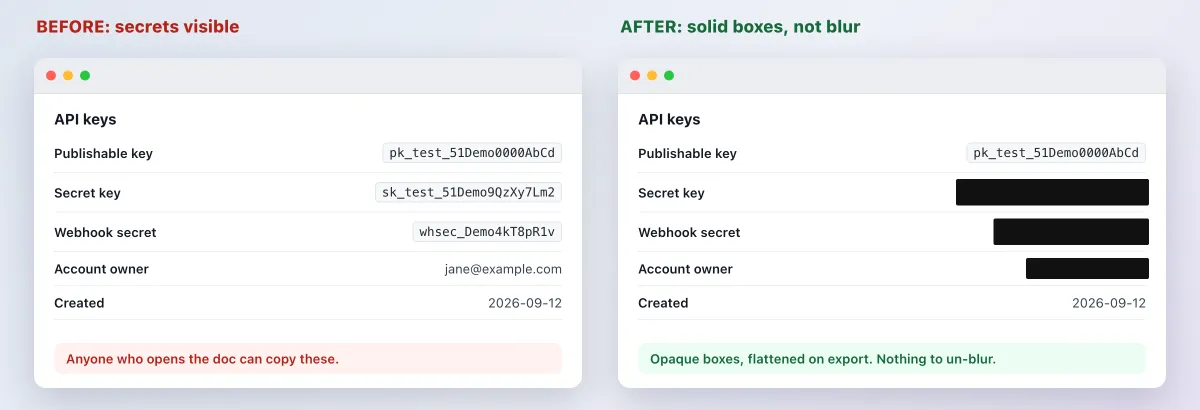
- Anything with secrets: cover API keys, tokens and emails with a solid, opaque box. Blur and pixelation can be reversed, as the guide to redacting text safely explains.
- Troubleshooting pages: OCR the error from a screenshot so the heading holds real, searchable text.
- Release notes and READMEs: a 5 to 10 second GIF, saved as a file and committed next to the docs.
- Doc reviews: grab a whole long page at once. The Mac and Windows full-page guides cover the options. To mark up a page for reviewers, see how to annotate a website.
If you make these visuals every week, a dedicated tool saves time. ScreenSnap Pro has 17 annotation tools, including a numbered counter, arrows, a highlighter and a solid-fill rectangle for redaction. It records GIFs, copies text out of images with OCR, and pins a screenshot so the spec stays in view while you write. Its Website Capture grabs a full public page from a URL. For logged-in or internal pages, use its Scrolling Capture on your own browser window instead.
Cloud share links are handy for quick feedback on a draft. The images in your docs should be saved files that live with the docs.
A technical documentation template you can copy
Use this skeleton for any how-to, install guide or runbook. Delete what you do not need.
# [Task, in the reader's words]
**Audience:** [who this is for]
**Applies to:** [product and version, OS]
**Owner:** @[team or person] | **Last reviewed:** YYYY-MM-DD
## Before you start
- [Prerequisite, with a link]
- [Access or permissions needed]
## Steps
1. [One action.] Expected result: [what the reader sees].
2. [One action.] Expected result: [what the reader sees].

## Verify it worked
[Command or check, plus the expected output]
## Troubleshooting
### [Exact error message]
Cause: [why it happens]. Fix: [what to do].
## Related
- [Reference page] | [Tutorial] | [Release notes]Need a PDF for a customer or an audit? Paste the skeleton, or a finished README, into a free Markdown to PDF converter.
Frequently Asked Questions
Pick one example and copy its structure
Open the example that matches the doc you owe this week, keep it next to your draft, and copy the structure, not the words. Then add one clear, annotated screenshot where a reader would otherwise get lost.
If you want those visuals to take minutes instead of an afternoon, ScreenSnap Pro is a one-time $39 purchase: 1 license, 2 seats (2 computers, Mac or Windows). See the pricing.

Morgan
Indie DeveloperIndie developer, founder of ScreenSnap Pro. A decade of shipping consumer Mac apps and developer tools. Read full bio
@m_0_r_g_a_n_