Technical Writing Software: 15 Tools for Technical Writers, Sorted by Job
Technical writing software falls into six jobs: screenshots and how-to videos (ScreenSnap Pro, Snagit), help authoring and CCMS (MadCap Flare, Paligo, Adobe FrameMaker, RoboHelp), docs platforms (Document360, GitBook, Confluence), docs-as-code (Markdown in VS Code with Docusaurus or MkDocs), diagrams (draw.io, Mermaid) and style checks (Vale plus a style guide).
Most lists of tools for technical writers cover authoring tools only. This one sorts 15 tools by the job they do, so you can pick one per job and skip the rest. It is written for technical writers, and for the engineers, architects and QA engineers who write docs between tickets.
Each entry covers who it fits, what to watch out for, the pricing model and what it runs on. Want to see what good output looks like first? Browse these technical documentation examples.
Screenshots come first because every doc type below needs them. ScreenSnap Pro covers capture, annotation, scrolling capture and how-to videos in one desktop app for a one-time price. It is not a help authoring tool or a docs platform, so you still pick a writing tool from the sections below.
Technical writing software at a glance
| # | Job | Tool | Pick it if | Pricing model | Runs on |
|---|---|---|---|---|---|
| 1 | Screenshots and video | ScreenSnap Pro | You need annotated screenshots, long captures and short how-to videos in one app | $39 one-time | Mac, Windows |
| 2 | Screenshots and video | Snagit | Your team wants Step Capture, auto redaction and shared themes | $39 per user per year | Mac, Windows |
| 3 | Help authoring | MadCap Flare | You single-source one big manual to web help and PDF | $3,150 per author per year (Desktop) | Windows |
| 4 | CCMS | Paligo | You reuse and translate content at scale | From $15,000 per year | Browser |
| 5 | Structured authoring | Adobe FrameMaker | You build long XML or DITA manuals and print PDFs | Subscription, price on adobe.com | Windows 11 |
| 6 | Help authoring | Adobe RoboHelp | You publish online help and policy docs | Subscription, price on adobe.com | Windows, Mac (to macOS 14) |
| 7 | Knowledge base | Document360 | Support runs a customer help center | Quote only | Browser |
| 8 | Docs platform | GitBook | You want a hosted docs site with Git Sync | Free for 1 user, then per site plus per user | Browser |
| 9 | Team wiki | Confluence | Your team already lives in Jira | Free up to 10 users, then per user | Browser |
| 10 | Docs-as-code editor | VS Code | You write Markdown next to the code | Free | Mac, Windows |
| 11 | Site generator | Docusaurus | Engineers own a versioned docs site | Free, open source | Any OS with Node.js |
| 12 | Site generator | MkDocs | You want Markdown plus one config file | Free, open source | Any OS with Python |
| 13 | Diagrams | draw.io | Non-developers edit the diagrams | Free | Browser, Mac, Windows |
| 14 | Diagrams as code | Mermaid | Diagrams get reviewed like code | Free, open source | GitHub and most docs tools |
| 15 | Style checks | Vale | Every pull request gets a style check | Free, open source | Mac, Windows, CI |
Prices checked November 2026 on each vendor's own pricing page, in US dollars. They can change, so confirm before you buy.
How to choose tools for technical writers: start from the job
Answer five questions before you compare brands:
- Who reads the docs, and where? A help center, a developer portal, a PDF manual and an internal wiki need different tools. The output format of your manual decides more than any feature list.
- How much reuse and translation? A CCMS pays off only when the same content ships in many products or languages.
- Who writes? Full-time writers like a visual editor. Engineers prefer Markdown in a pull request.
- Which budget model? Per author per year, per site plus per user, quote only, or free open source.
- What is your exit path? Make sure you can export Markdown, XML or HTML before you commit.
Then start from the row that sounds like you:
| If this is you | Start here |
|---|---|
| Every doc you ship needs annotated screenshots or a short how-to video | ScreenSnap Pro, plus one tool from a row below |
| One manual as PDF and web help, in several languages | A help authoring tool or CCMS |
| A customer help center run by support | A docs platform |
| Docs next to code, with engineers contributing | Docs-as-code |
| Internal team docs | The wiki your team already opens (see internal documentation) |
Three stack mistakes to skip: buying a CCMS without real reuse, publishing screenshots with live API keys, and exporting diagrams without keeping the source file.
Screenshot and screen recording tools
Every doc type above needs visuals, so this job comes first. A docs screenshot tool should handle five things:
- numbered callouts that match your step numbers
- opaque boxes that hide secrets for good
- the same callout style across hundreds of images
- short GIF or MP4 clips for UI flows
- saved image files you commit with the docs
For sizing, annotation rules and file names, follow the technical documentation screenshots guide. This section compares the tools only.
1. ScreenSnap Pro
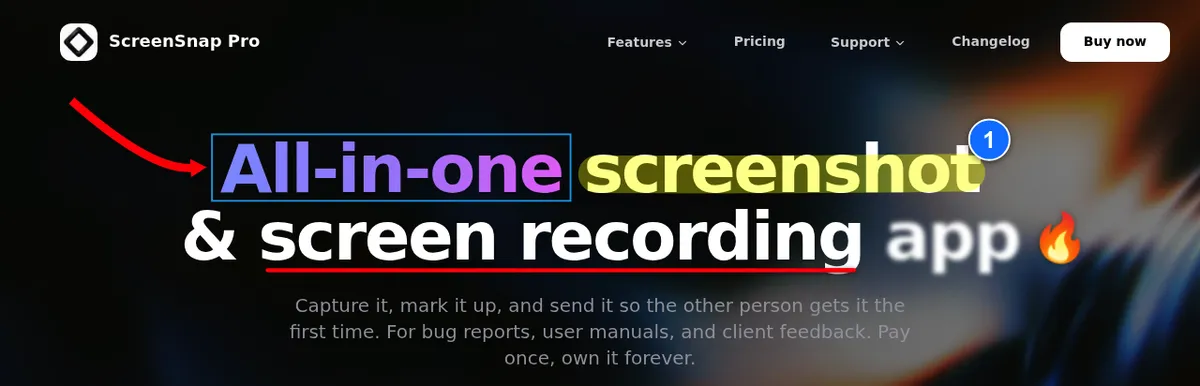
ScreenSnap Pro is a screenshot, screen recording and video editing app for Mac and Windows. It covers the whole visuals job in one app for a one-time price. You capture, annotate, stitch long pages and record short how-to videos without switching tools.
Pick it if you write step-by-step instructions with screenshots every week. The Counter tool drops numbered callouts (1, 2, 3) that match your steps. Arrows, callouts, text, highlighter and spotlight are part of its 17 annotation tools.
The Filled Rectangle covers keys, tokens and customer data with a solid box. Use that box for secrets, since blur and pixelate can be reversed (how to redact text).
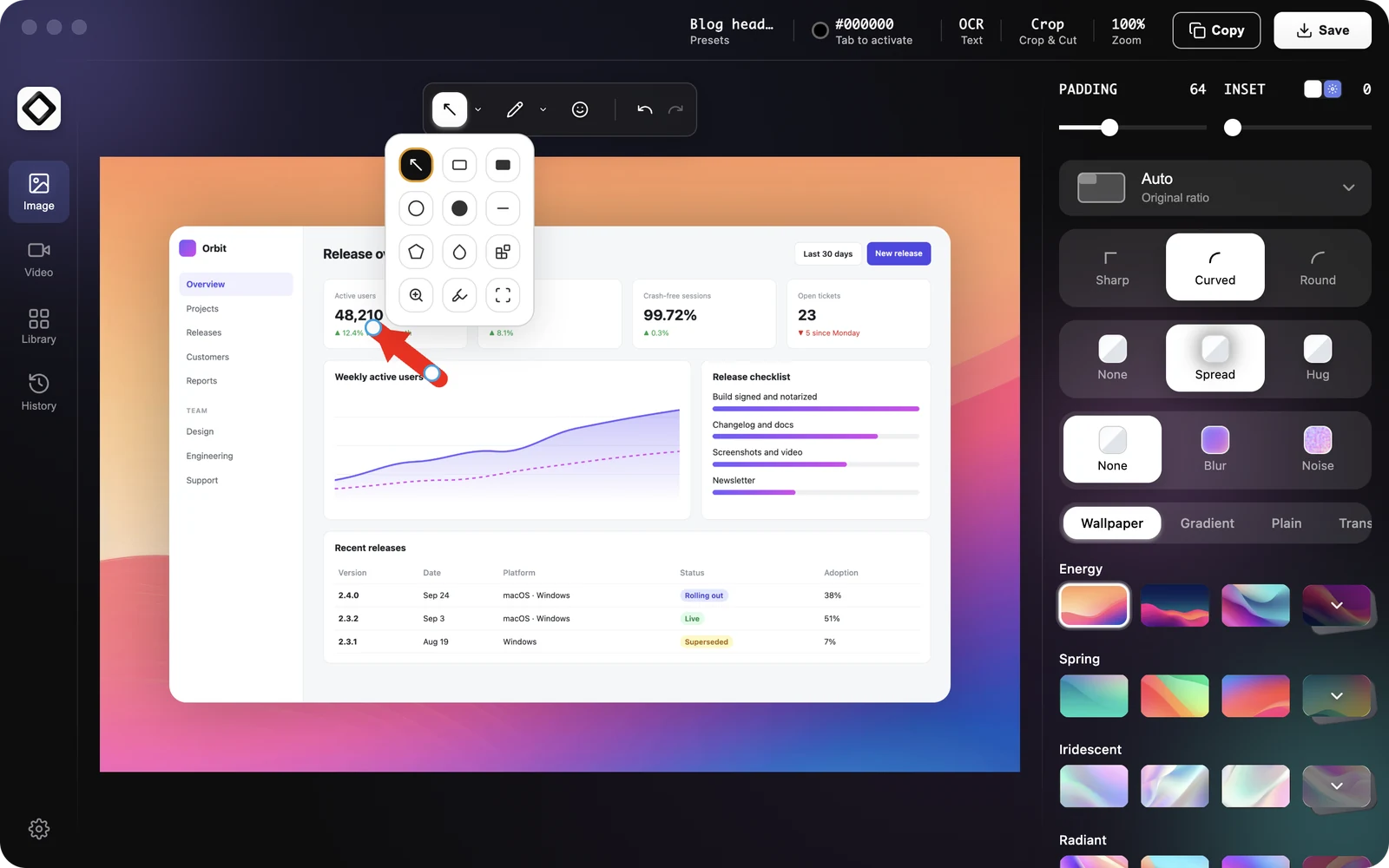
More features that help with docs:
- Scrolling Capture stitches a long page, PDF, chat thread or settings panel in any app while you scroll down by hand. It works on pages behind a login too.
- Website Capture renders a full public page from its URL, handy for full-page screenshots on Mac or on Windows. It cannot reach localhost or logged-in pages, so use Scrolling Capture there.
- OCR copies exact UI labels and error text into your doc. Pin Screenshot keeps a spec on screen while you write.
- Screen and GIF recording with webcam, mic and system audio, for 5 to 10 second UI flows on Mac or Windows. The built-in video editor trims, cuts, removes silences and zooms in on the click that matters.
- Saved files in PNG, JPEG, WebP or AVIF that you commit next to the docs.
Cloud share links are handy when a reviewer needs a quick look at a draft. The doc itself should embed the exported image file.
Watch out for: it is not an authoring tool or docs platform. There is no automatic step capture, no automatic redaction detection, and no shared team themes or library. The video editor has no captions.
Pricing model: $39 one-time. 1 license, 2 seats (2 computers, Mac or Windows).
Runs on: macOS 15 or later (Apple Silicon and Intel) and 64-bit Windows 10 and 11.
2. Snagit
Snagit by TechSmith is the long-time default capture tool for technical writers. TechSmith now markets it as Camtasia Snagit.
Pick it if you want features no other tool here has. Step Capture turns your clicks into a step-by-step guide. Smart Redact finds emails, phone numbers and card numbers for you; choose its solid redaction style, not blur, for secrets.
Team Themes keep callout styles the same across writers, and the Library sorts thousands of captures. It also does scrolling capture and screen recording.
Watch out for: Snagit went subscription-only with the 2025 versions. Older perpetual versions keep working, but new versions need a subscription. See the Snagit pricing breakdown, or the Snagit alternatives for Windows and Mac.
Pricing model: $39 per user per year in TechSmith's store, with a 14-day money-back guarantee. Team and education plans are priced separately.
Runs on: macOS 14 or later, and Windows 10 and 11.
Need guides built from your clicks for SOPs instead? Scribe and Tango are covered in the process documentation tools roundup.
Screenshot tools compared
| ScreenSnap Pro | Snagit | Built-in tools | |
|---|---|---|---|
| Pricing model | $39 one-time | $39 per user per year | Free |
| Runs on | Mac, Windows | Mac, Windows | One OS each |
| Numbered callouts | Yes (Counter) | Yes (Step tool) | No |
| Redaction | Solid box you draw | Smart Redact finds data for you | Basic shapes only |
| Scrolling capture | Yes, you scroll by hand | Yes | No |
| Automatic step capture | No | Yes (Step Capture) | No |
| GIF and video | Yes, with a video editor | Yes | Video, plus GIF export in Snipping Tool |
| Full page from a public URL | Yes (Website Capture) | No | No |
| Team themes and volume licensing | No | Yes | No |
For an occasional capture, the built-ins are enough. On a Mac, Shift + Command + 5 opens the Screenshot app (Apple's guide).
On Windows, Windows logo key + Shift + S opens Snipping Tool. More shortcuts live in Mac screenshot shortcuts and how to use Snipping Tool on Windows 11.
Help authoring tools and CCMS
A help authoring tool (HAT) is a desktop app where you write topics once and publish them to web help, PDF and more. A component content management system (CCMS) is a shared store of small reusable pieces, with versions, reviews and translation built in.
3. MadCap Flare
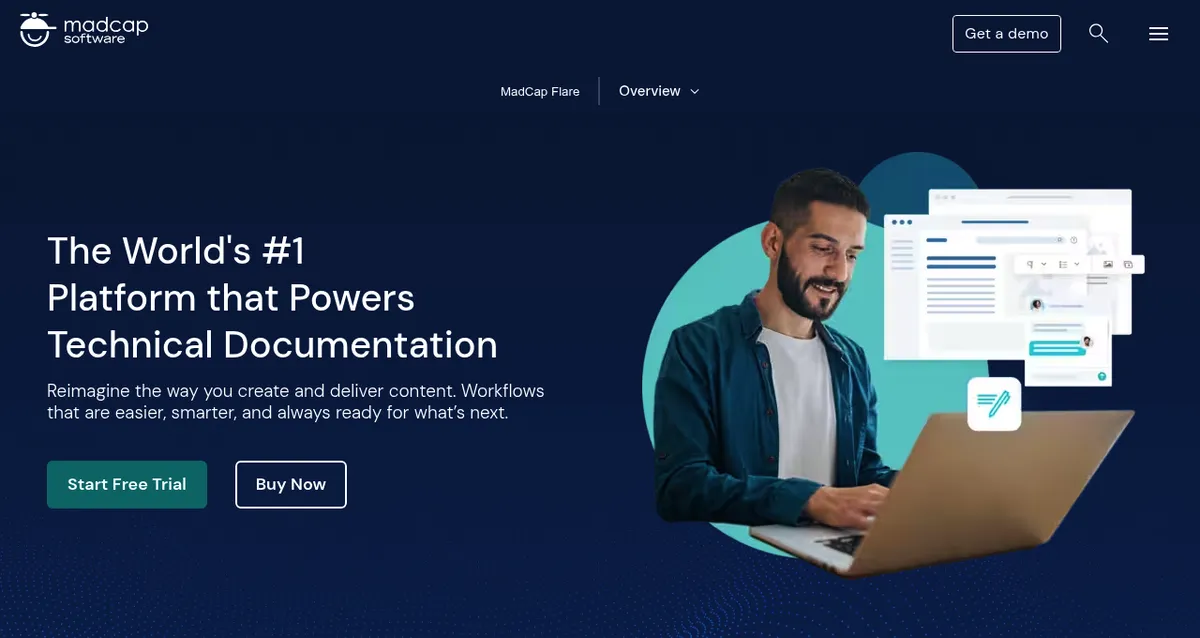
MadCap Flare is a help authoring tool built for topic-based writing. You write a topic once, reuse snippets and variables, and publish the same source to HTML5 help, PDF and knowledge bases.
Pick it if you ship one large manual in several formats and languages, and a writer will own the project.
Watch out for: it runs on Windows only. MadCap's Flare system requirements list Windows 10 or 11 and 16 GB of RAM, so Mac writers need a Windows virtual machine. Plan for a real learning curve.
Pricing model: Flare Desktop (the Starter plan) costs $3,150 per author per year on MadCap's pricing page. Flare Online plans are contact sales. A free trial is available.
Runs on: Windows.
4. Paligo
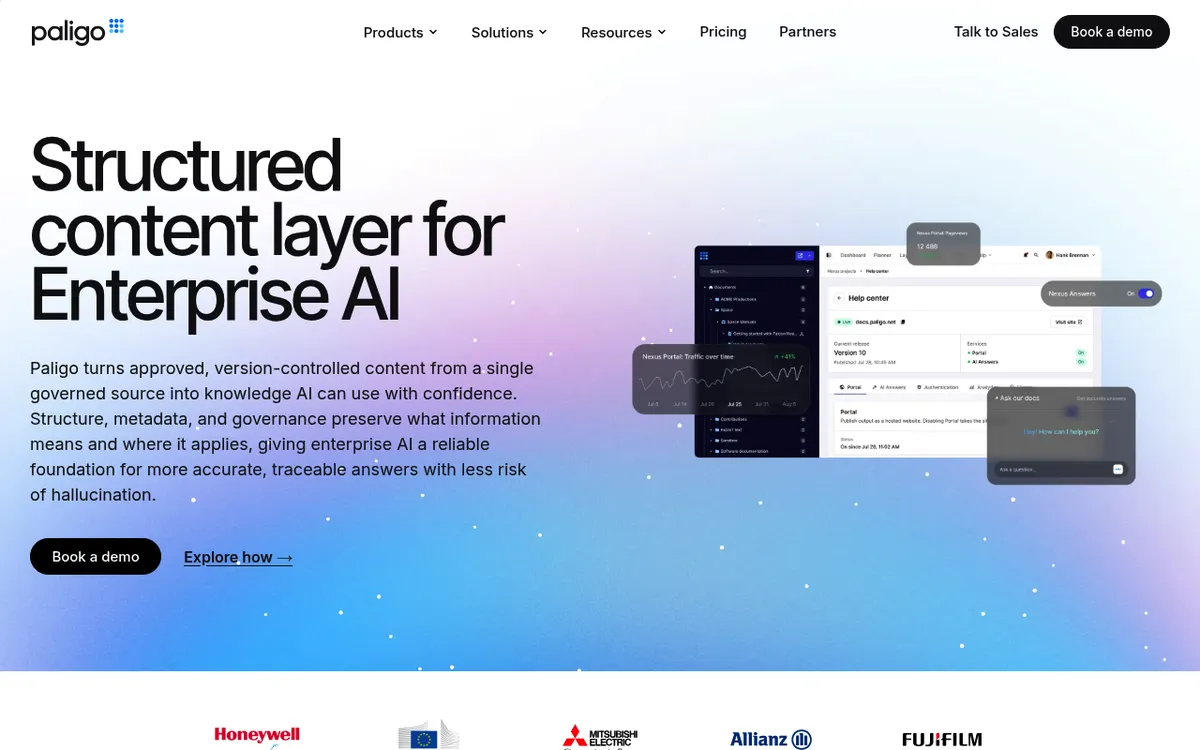
Paligo is a CCMS that runs in the browser. Content lives as small reusable components that are versioned, reviewed, translated and tagged. Paligo can publish to its hosted Nexus Portal help centers.
Pick it if the same content ships in several product variants and languages, and copy-paste has become a maintenance problem.
Watch out for: it is priced for docs teams, not solo writers. Structured authoring takes time to learn.
Pricing model: Business starts at $15,000 per year for 2 authors, up to 10 contributors or reviewers and 2 languages (Paligo pricing). Enterprise is custom.
Nexus Portal (from $5,000 per year) and Nexus Answers (from $6,000 per year) are add-ons. A free trial is available.
Runs on: any modern browser.
5. Adobe FrameMaker

Adobe FrameMaker is Adobe's tool for writing and publishing structured and unstructured technical content. It is a classic pick for long XML and DITA manuals that also need print-ready PDF.
Pick it if you maintain long structured manuals, for example for hardware or regulated products.
Watch out for: Adobe's FrameMaker buying guide says the latest release is no longer sold as a one-time purchase. The March 2026 release lists 64-bit Windows 11 only in Adobe's system requirements.
Pricing model: subscription. Individuals pay monthly or yearly on an annual commitment, teams buy through Adobe VIP, and enterprises use an ETLA. Adobe shows the live price in its store, so check adobe.com for your region.
Runs on: Windows 11.
6. Adobe RoboHelp
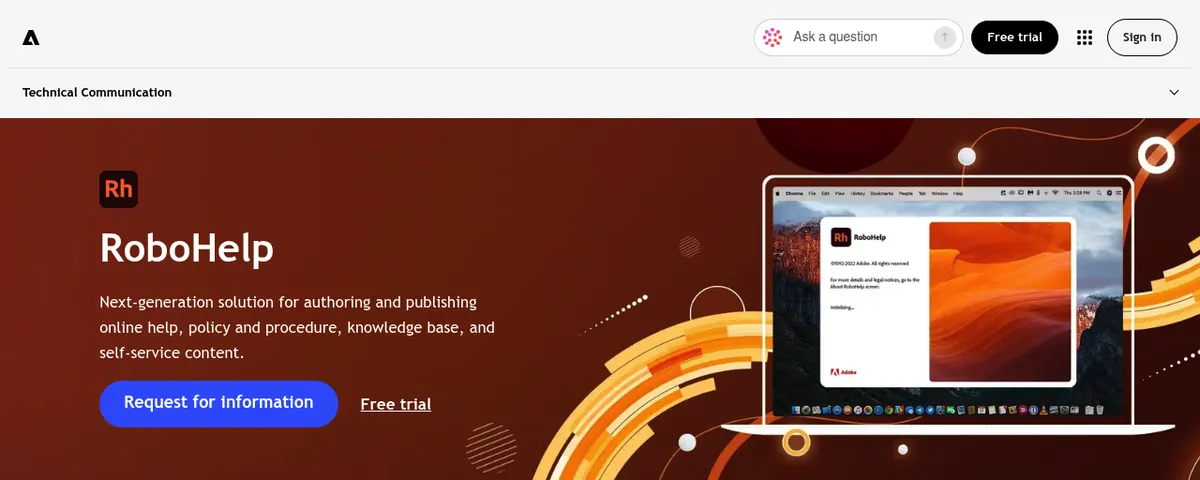
Adobe RoboHelp writes and publishes online help, policies and procedures, and self-service knowledge base content.
Pick it if you want a help authoring tool with a Mac build (up to macOS 14), or you already use FrameMaker.
Watch out for: the latest release is subscription only, like FrameMaker (RoboHelp buying guide). Adobe's RoboHelp system requirements list macOS 10.15 to 14 Sonoma for the 2026 release, so check before you install on a newer Mac.
Pricing model: subscription, with a free trial. Check the price for your region on adobe.com.
Runs on: Windows 10 and 11, and macOS 10.15 to 14.
Knowledge base and docs platforms
These tools host your docs and give readers search. None of them is the best for everyone, so pick by who writes and who reads.
7. Document360

Document360 is knowledge base software for customer and internal help. It comes with AI search, a chatbot and AI writing help under the Eddy AI name.
Pick it if your support team runs a product help center and wants AI search on top of it.
Watch out for: pricing is quote only. The Document360 pricing page lists no plan prices, no free plan and no trial.
Pricing model: a custom quote based on team accounts, workspaces, languages, privacy needs and AI usage.
Runs on: browser.
8. GitBook
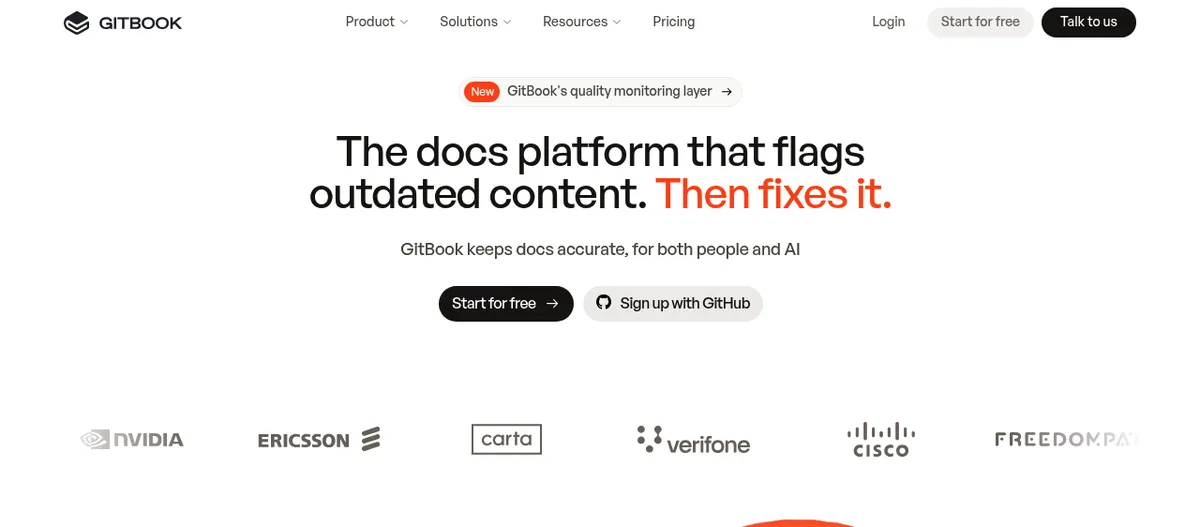
GitBook is a hosted docs platform. Git Sync lets you review and merge doc changes through branches, and it also handles API docs and AI search.
Pick it if you want a polished public docs site without running a build, shared by writers and engineers.
Watch out for: the fee is per site, so it adds up if you run several docs sites. The free plan has one user and no custom domain.
Pricing model: billed yearly, per GitBook pricing:
- Free: $0 for 1 user
- Essential: $65 per site per month plus $12 per user per month
- Ultimate: $249 per site per month plus $12 per user per month
- Enterprise: custom
Paid plans include AI credits and a 14-day trial.
Runs on: browser.
9. Confluence
Confluence is Atlassian's team wiki. Many engineering teams keep design notes, runbooks and how-tos there.
Pick it if your team already lives in Jira and the docs are mostly internal. The internal documentation guide covers structure and ownership.
Watch out for: public product docs look like a wiki unless you add a theme or an app. Pages go stale fast without named owners.
Pricing model: free for up to 10 users with 2 GB of storage. Paid plans are per user per month, and the rate depends on team size. For a 300-user team, the Confluence pricing page lists Standard at $5.78 and Premium at $11.16 per user per month.
Runs on: browser.

Tired of plain screenshots? Try ScreenSnap Pro.
Beautiful backgrounds, pro annotations, GIF recording, and instant cloud sharing, all in one app. Pay $39 once, own it forever.
See pricing and featuresDocs-as-code: Markdown, Git and a static site generator
Docs-as-code means your docs live in plain text files in Git. They get reviewed in pull requests like code, and a site generator builds them into a website.
10. Markdown in VS Code
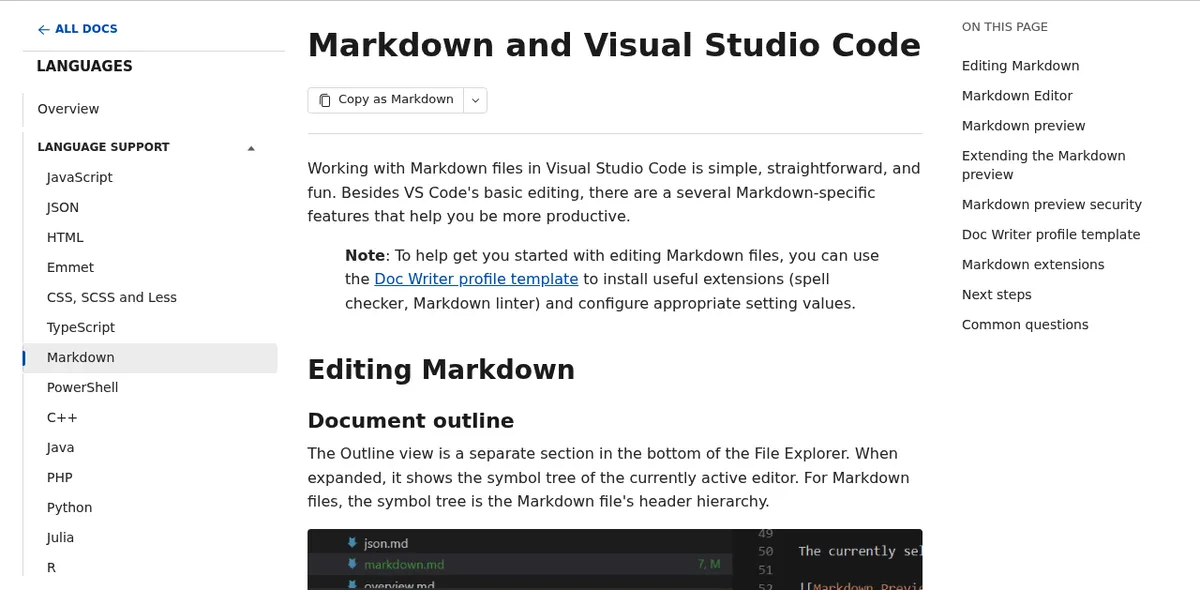
Visual Studio Code is free for private or commercial use, per the VS Code FAQ. It has a built-in Markdown preview and outline view.
Pick it if you write docs in the same repo as the code. Add two extensions: Vale Linter for style checks and Markdown Preview Mermaid Support for diagrams.
Watch out for: it is an editor, not a publishing system. You still need a site generator and a review habit. CLI docs also need terminal clips, covered in how to record a terminal session.
Still owe someone a PDF? A free Markdown to PDF converter handles one-off exports.
Pricing model: free.
Runs on: Mac and Windows.
11. Docusaurus
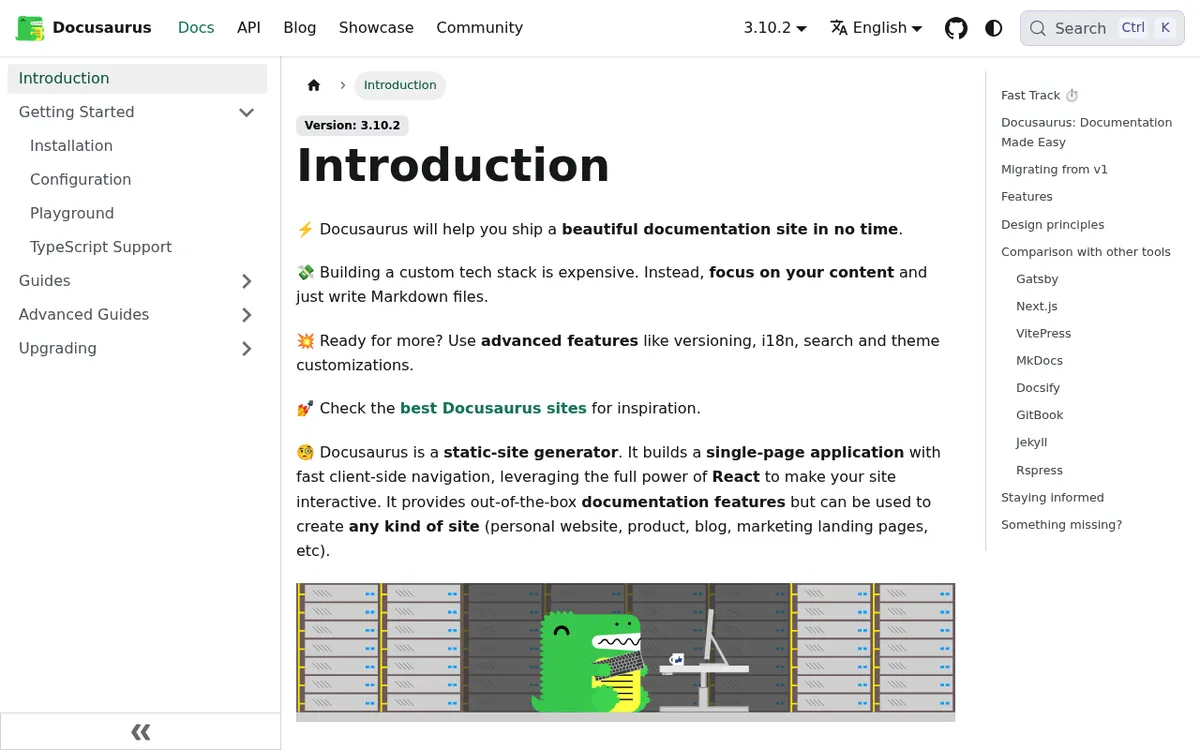
Docusaurus is an open-source site generator from Meta Open Source, under the MIT license. You write in MDX (Markdown plus React components). It ships docs versioning, Algolia search support and built-in translation.
Pick it if an engineering team owns a versioned product docs site.
Watch out for: it is a React project, so custom layouts need someone who is comfortable with JavaScript.
Pricing model: free and open source. You pay only for hosting.
Runs on: any OS with Node.js. The output is static HTML you can host anywhere.
12. MkDocs
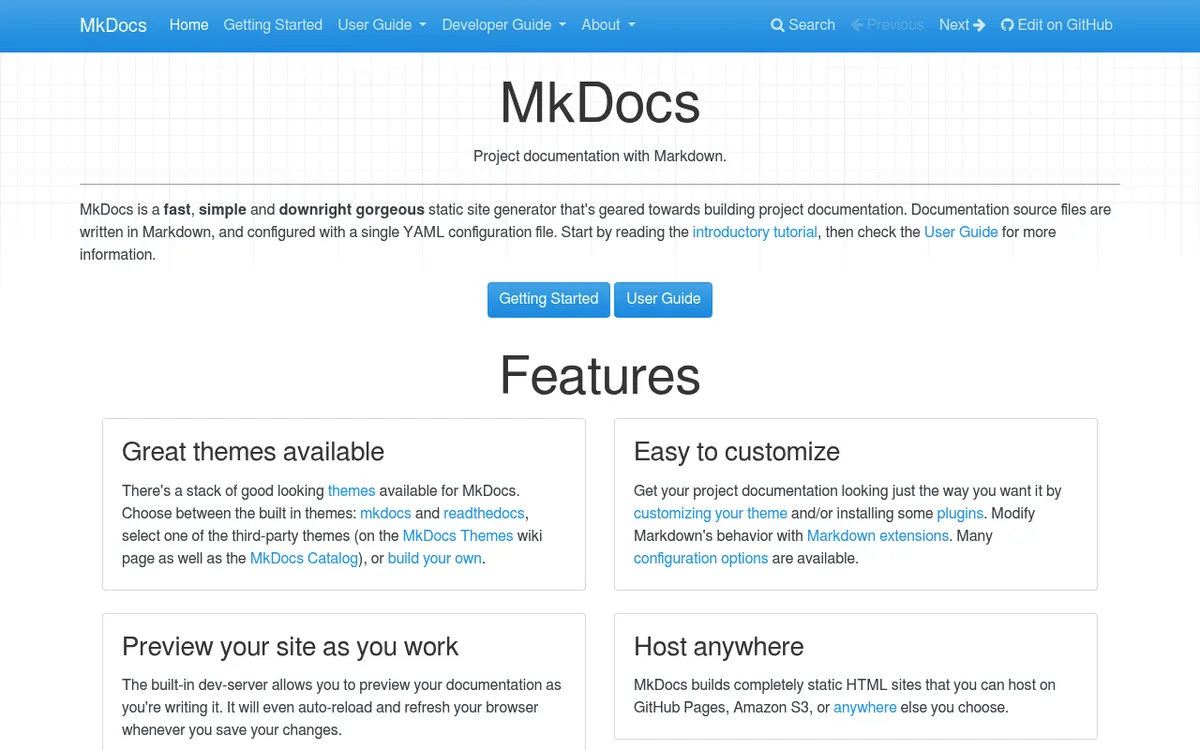
MkDocs builds a docs site from Markdown files and one YAML config file. It is open source under the BSD-2-Clause license.
Pick it if you want the shortest path from Markdown to a docs site and your team knows Python.
Watch out for: the project is in flux. Read this status note before you start a new site.
MkDocs status, November 2026:
- MkDocs 1.6.1 is still the latest stable release (release notes). MkDocs 2.0 is in pre-release on PyPI.
- The Material for MkDocs team says 2.0 drops plugins, moves config to TOML and breaks their theme, with no migration path (their MkDocs 2.0 post).
- Material for MkDocs, the common theme, is in maintenance mode with critical fixes through May 5, 2027. Its team now builds Zensical (MIT).
- That post is one side of a project dispute, so check both projects before you choose.
Pricing model: free and open source.
Runs on: any OS with Python.
Diagram tools
13. draw.io
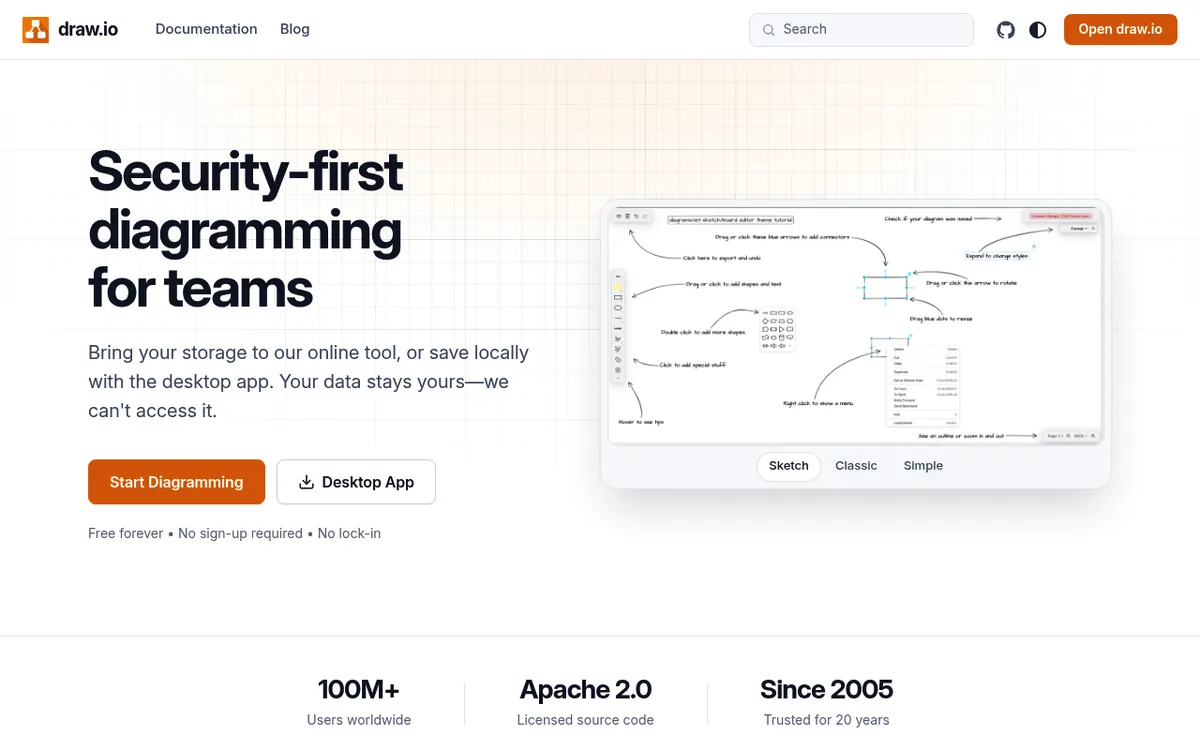
draw.io is a free diagram editor with no sign-up and no lock-in. Its source is Apache 2.0 licensed, and it runs in the browser or as a desktop app. You choose where files live: your own cloud storage or your local disk.
Pick it if non-developers edit the diagrams. It plugs into Confluence and Jira, GitHub, VS Code, Google Drive, OneDrive and Notion.
Watch out for: when you export a PNG or SVG for the doc, commit the .drawio source file next to it. Without the source, nobody can edit the diagram later.
Pricing model: free.
Runs on: browser, Mac and Windows.
14. Mermaid
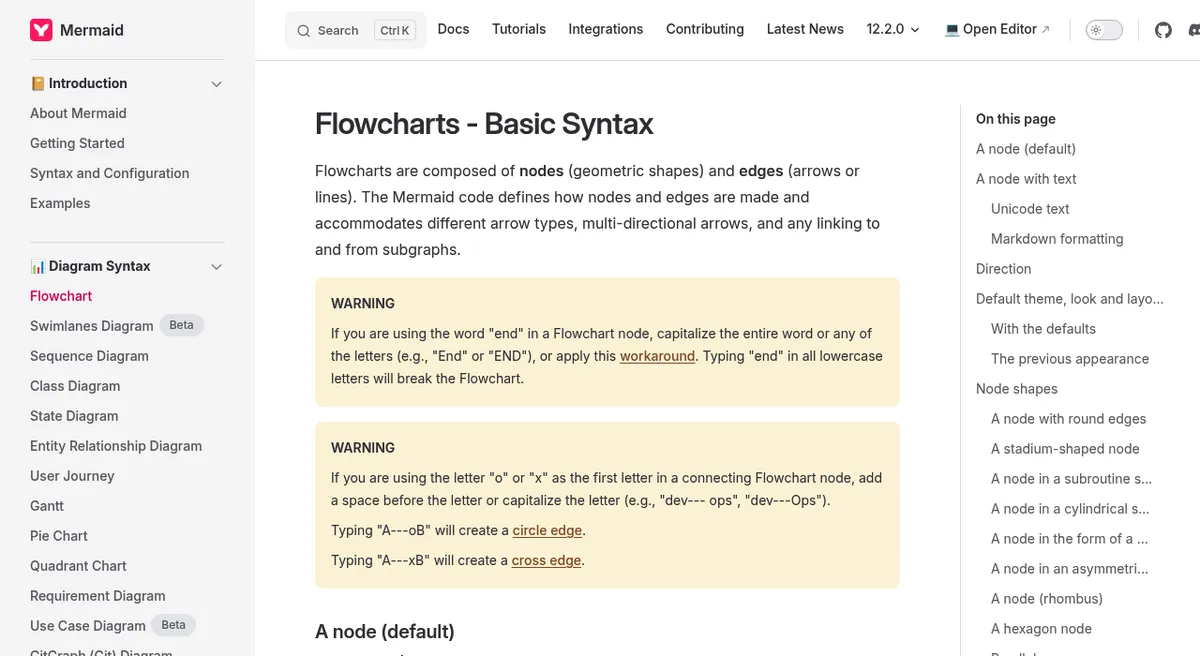
Mermaid turns text into diagrams: flowcharts, sequence diagrams, state diagrams and more. It is MIT licensed. GitHub renders Mermaid blocks in issues, discussions, pull requests, wikis and Markdown files (GitHub Docs on diagrams).
A docs review flow takes four lines:
flowchart LR
  A[Write in Markdown] --> B[Open pull request]
  B --> C[Vale style check]
  C --> D[Merge and publish]
Pick it if diagrams should be reviewed and diffed like code. The software design document template has a working example.
Watch out for: you get little control over layout, and big diagrams get hard to read. Split them into smaller ones.
Pricing model: free and open source.
Runs on: anywhere it renders, such as GitHub, VS Code with the extension above, and most docs-as-code site generators through a plugin.
Grammar and style checkers
Start with a style guide
Pick a public style guide instead of writing your own. The Google developer documentation style guide is free under CC BY 4.0. The Microsoft Writing Style Guide replaced the Microsoft Manual of Style.
Then keep a one-page house sheet for product names and terms, as in the style sheet step of a software user manual. New to the craft? Google's free Technical Writing courses pair well with its style guide.
15. Vale
Vale is an open-source prose linter under the MIT license. It runs offline and ships ready-made Microsoft, Google and Red Hat styles. It checks text in your editor and in CI, so every pull request gets a style check before merge.
Pick it if you want the style guide enforced the same way for every writer, human or AI.
Watch out for: it checks style, not grammar. Add rules for your own product terms, and expect a few false alarms at first.
Pricing model: free and open source.
Runs on: Mac and Windows, plus CI.
For prose outside Git, Grammarly has a free plan. Its paid Pro plan adds one custom style guide, and Enterprise allows unlimited style guides. Check current pricing for your region.
Three starter stacks
A solo writer at a software startup:
- Write and publish: GitBook or a Docusaurus site, so engineers can review changes.
- Diagrams: Mermaid, so diagrams live in the same repo.
- Screenshots and clips: ScreenSnap Pro, one app for images and short videos.
- Style: Vale with the Google style, so you are your own editor.
A docs team shipping PDF and web help in several languages:
- Write and publish: MadCap Flare, or Paligo if reuse and translation volume justify a CCMS.
- Diagrams: draw.io, with source files kept in the project.
- Screenshots: ScreenSnap Pro for each writer, or Snagit if you need shared team Themes.
- Style: the Microsoft Writing Style Guide plus Vale.
An engineering team documenting internal systems:
- Write and publish: Markdown in VS Code with MkDocs or Docusaurus, or Confluence if the team lives in Jira.
- Diagrams: Mermaid, reviewed in the same pull request.
- Screenshots and clips: ScreenSnap Pro for setup steps and bug repros.
- Style: Vale in CI, so nobody has to nag.
Frequently asked questions
Pick one tool per job
You do not need all 15 tools. Pick one per job, starting with the job that slows you down most today. For most teams that is either the writing tool or the screenshots.
The job is not going away either. The Bureau of Labor Statistics projects steady demand for technical writers through 2035, and good tools mostly buy you time to test what you write.
If screenshots are part of every doc you ship, ScreenSnap Pro is a one-time $39 purchase: 1 license, 2 seats (2 computers, Mac or Windows). See the pricing.

Morgan
Indie DeveloperIndie developer, founder of ScreenSnap Pro. A decade of shipping consumer Mac apps and developer tools. Read full bio
@m_0_r_g_a_n_