Best Bug Reporting Tools in 2026: 13 Picks for QA and Developers, Grouped by Workflow
The best bug reporting tools match where the bug lives: ScreenSnap Pro captures, annotates and records any app on Mac or Windows for a one-time price. Marker.io and BugHerd suit website feedback, Jam records console and network logs, and Luciq (formerly Instabug) and Shake add in-app reporting to mobile apps. Reports then go to a tracker.
Most bug reports fail for one reason: the developer can't reproduce them. The fix is better evidence, captured in the place the bug happens. This guide groups 13 tools into five workflows (desktop capture, website widgets, browser recorders, mobile SDKs and trackers) so you can pick one tool for capture and one for tracking.
Best bug reporting tools at a glance
Here is the short version of all 13 picks. "Annual" means the monthly price when billed yearly.
| Tool | Group | Best for | Works on | Captured automatically | Free plan | Paid from |
|---|---|---|---|---|---|---|
| ScreenSnap Pro | Desktop capture | Annotated screenshots and repro clips from any app | Mac, Windows | Nothing: you capture the screen | No | $39 one-time |
| Snagit | Desktop capture | Step guides and auto redaction | Mac, Windows | Nothing: you capture the screen | No | $39/user/year |
| ShareX | Desktop capture | Free capture on Windows | Windows | Nothing: you capture the screen | Free, open source | Free |
| Marker.io | Website widget | Client and QA reports filed into trackers | Websites, web apps | Screenshot, browser data; logs and replay on Team | No (15-day trial) | $39/mo annual |
| BugHerd | Website widget | Agencies collecting client feedback | Websites | Screenshot, technical metadata | No (free trial) | $42/mo annual |
| Usersnap | Website widget | Bug reports plus product feedback | Websites, web apps | Screenshot, environment, console errors | No (trial) | $49/mo annual |
| Jam | Browser recorder | One-click repro for web apps | Browser, Mac, iOS | Video, console, network, device data | Yes (30 jams/mo) | $14/creator/mo annual |
| BrowserStack Bug Capture | Browser recorder | Teams already on BrowserStack | Browser, web SDK | Video, clicks, keys, console, network | Yes | $25/mo annual |
| Luciq | Mobile SDK | Bugs, crashes and performance in one SDK | iOS, Android, React Native, Flutter | Screenshot, device data, repro steps | No public plan | Demo only |
| Shake | Mobile SDK | Small mobile teams | iOS, Android, React Native, Flutter, web | 50+ data points incl. HTTP logs | Yes (1 app) | $160/mo |
| Jira | Tracker | Larger teams with custom workflows | Cloud | Not a capture tool | Yes (10 users) | $9.70/user/mo |
| Linear | Tracker | Fast product teams | Cloud | Not a capture tool | Yes (250 issues) | $10/user/mo annual |
| GitHub Issues | Tracker | Code-adjacent and open-source teams | Cloud | Not a capture tool | Yes (GitHub Free) | $4/user/mo (Team) |
Prices checked on November 3, 2026, on each vendor's own pricing page, in USD.
Quick picks by situation:
- Desktop apps, terminals, localhost or VPN builds, or any app on screen: ScreenSnap Pro
- Client feedback on a website: Marker.io or BugHerd
- Web-app bugs that need console and network logs: Jam
- Mobile apps: Luciq or Shake
- Triage and assignment: Jira, Linear or GitHub Issues
Bug reporting tools vs bug tracking tools
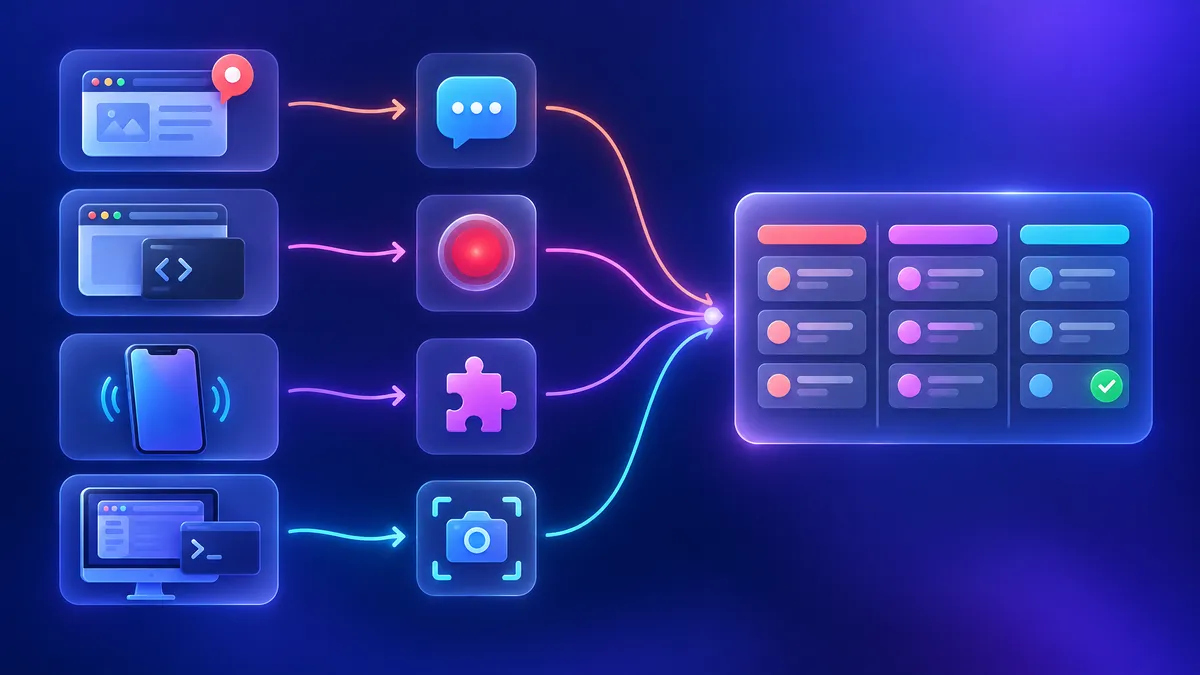
A bug reporting tool captures the evidence: a screenshot, a video, console logs, device data. A bug tracking tool manages what happens next: triage, assignment, priority and status. Most teams pair one of each, and the best setups send the capture straight into the tracker.
So, is Jira a bug reporting tool? No, Jira is a tracker, and reports land there as issues, filed by an integration or with screenshots attached by hand. The same goes for Linear and GitHub Issues.
That split is why this list is grouped by workflow. Pick the capture tool that fits where your bugs live, then check that it files into the tracker you already use.
How we picked and grouped these tools
We compared each tool on six points, using vendor docs and pricing pages:
- Context captured automatically: screenshot, video, console, network, device data
- Reporter friction: an account, an extension, or nothing
- Where it works: website, web app, mobile app or desktop app
- Privacy controls: masking, private views, redaction
- Tracker integrations: and which plan includes them
- Price: checked on each vendor's own page on the same day
Desktop capture tools for any app (no widget or SDK)
Widgets and extensions only see the browser, and SDKs need a code change plus a release. But QA also tests desktop apps, Electron apps, terminals, installers, games, and builds on localhost or behind a VPN.
A desktop capture tool grabs whatever is on screen with nothing installed on the product, and you attach the files to the ticket. The tradeoff: no automatic console logs and no tracker integration. For CLI bugs, see how to record a terminal session.
1. ScreenSnap Pro: best for annotated screenshots and repro clips from any app
Best for: QA engineers and developers who file bugs from any Mac or Windows app, including builds a widget can't reach.
Price: $39 one-time. 1 license, 2 seats (2 computers, Mac or Windows). 30-day money-back guarantee.
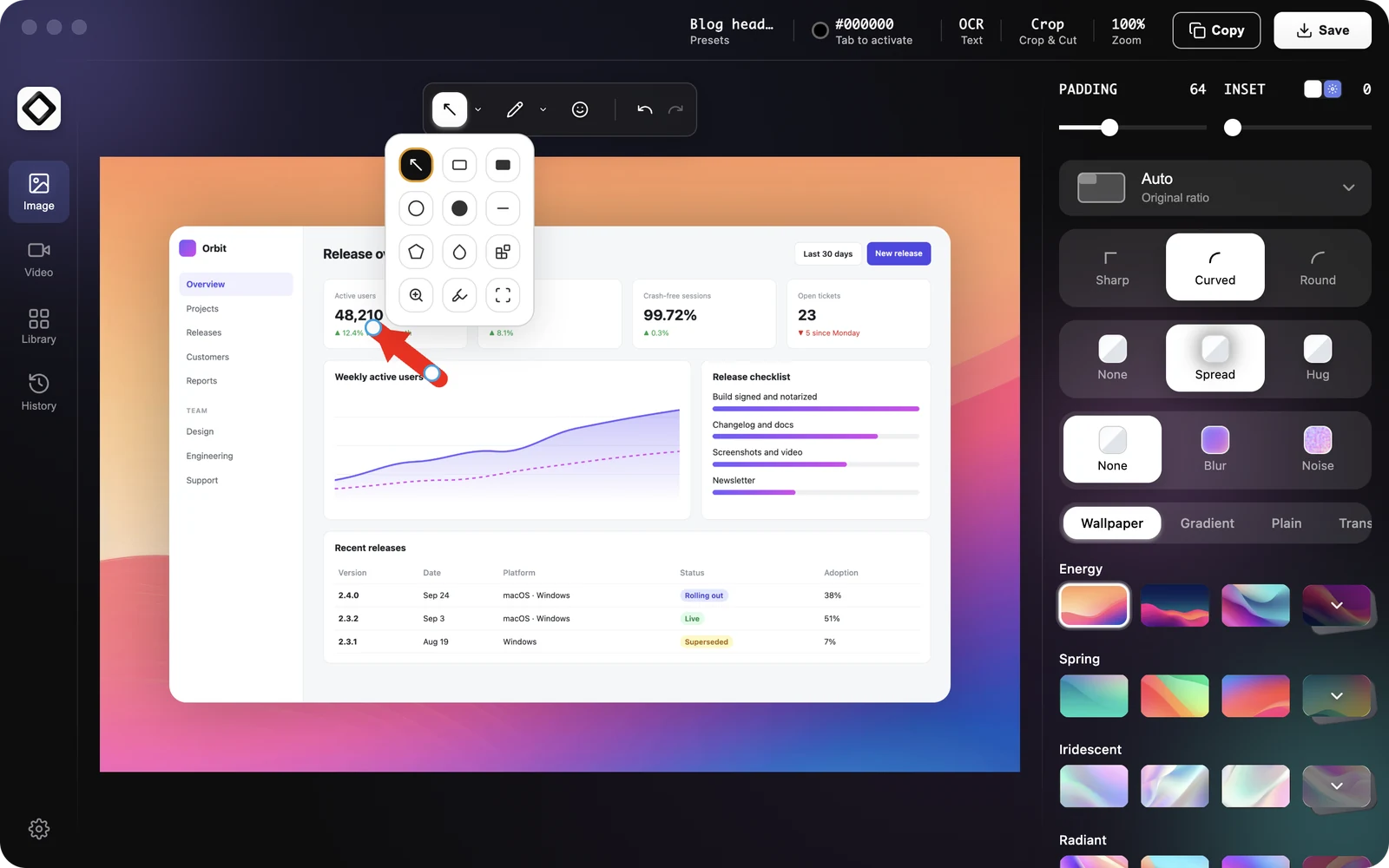
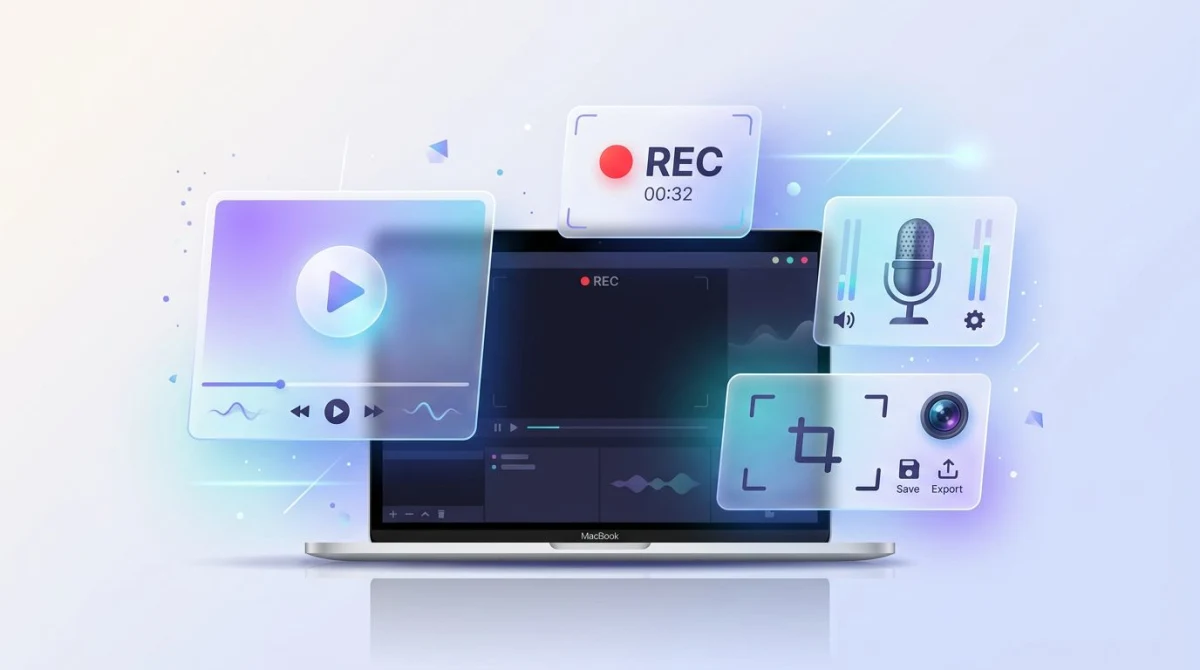
ScreenSnap Pro covers the evidence side of a bug report in one desktop app: capture, annotate, record and edit. It works on whatever is on your screen, so the bug can live in a browser, a desktop app, a terminal or a build on localhost. Nothing gets installed on the product, but each reporter needs the app on their own Mac or PC.
What it does for bug reports:
- Capture a region, a window or the full screen. Scrolling Capture stitches a long page, log or chat thread into one image while you scroll by hand, even behind a login.
- Annotate with 17 tools. The counter tool adds numbered callouts that match your repro steps, and arrows, text and the highlighter point at the problem.
- Redact tokens, emails and customer data with a Filled Rectangle, a solid box. Blur and pixelate are there too, but they can be reversed, so redact text with solid boxes.
- Record a silent GIF of up to 1 minute (on Mac or Windows), or a video with mic and system audio to narrate the repro (Mac, Windows).
- Edit in the built-in video editor: trim and split down to the failing steps, cut dead air with Remove silence, speed up long waits, and zoom in on the error. Export an MP4 with audio or a GIF.
- Copy error text with OCR, so the ticket title matches the real message and duplicates are easy to find.
- Pin a screenshot of the expected design on screen while you reproduce.
Website Capture also renders a full public page from a URL (Mac, Windows). It can't reach localhost or logged-in pages, so use region capture or Scrolling Capture for staging.
Honest limits: it is not a tracker and has no Jira, Linear or GitHub integration. There is no website widget, SDK or browser extension, no console or network log capture, and no team collaboration features, so you drag or paste the file into the ticket yourself.
Cloud share links are for quick sharing in chat, so attach the real file to the ticket.
Why it is #1: it is the one pick here that captures, annotates, records and edits video on both Mac and Windows for a single one-time price. Snagit bills every year, and ShareX runs on Windows only.
Pick something else if: clients report on a website (Marker.io or BugHerd), developers need console and network data (Jam), or you want in-app mobile reporting (Luciq or Shake). If you only need markup, compare the best markup tools.
2. Snagit: best for step-by-step guides and automatic redaction
Best for: teams that turn bug repros into written guides and need automatic redaction.
Price: $39 per user per year (Individual), subscription.
Snagit, now sold as Camtasia Snagit, runs on Windows and macOS. Step Capture records your clicks and turns them into a numbered guide, which doubles as a clean repro. It also has Scrolling Capture, screen recording with audio, and Screencast hosting.
Smart Redact finds emails, phone numbers and card numbers and can blur them or block them completely. For secrets, pick the full block, because blur can be reversed.
Honest limits: it is a yearly subscription per user, and like any desktop tool it captures no console logs. See the full Snagit pricing breakdown, or compare Snagit alternatives for Windows and for Mac.
3. ShareX: best free option on Windows
Best for: Windows users who want free capture and don't mind dense settings.
Price: Free and open source.
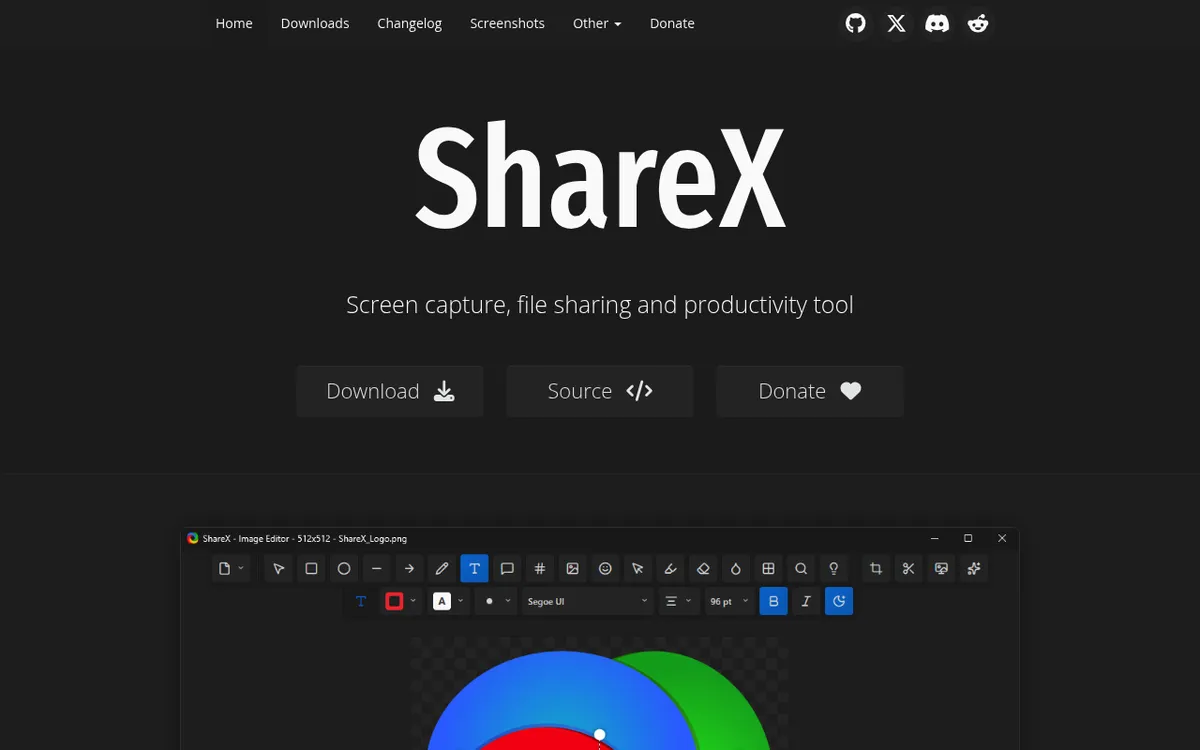
ShareX captures a region, window, monitor or scrolling page, records video and GIFs, and reads text with OCR. Its editor has annotation tools plus blur and pixelate. For tokens and customer data, draw a solid box instead.
Honest limits: Windows only, and the settings take time to learn. Read our ShareX review, or see ShareX options for Mac if you switch machines.
Free built-ins for occasional reports: the macOS Screenshot toolbar (⌘ + Shift + 5) can take screenshots and record the screen, and Windows has the Snipping Tool (Win + Shift + S). See our Mac screenshot shortcuts, the Snipping Tool guide and Snipping Tool screen recording.
Visual feedback widgets for websites
Visual feedback tools add a script or browser extension to the site. Reporters click an element, pin a comment and annotate, and a screenshot plus browser data is captured for them. They are best when clients or non-developers report bugs.
They need the script on the site (or an extension per reporter) and can't see desktop apps. If you only need to mark up a page, see how to annotate a website.
4. Marker.io: best for filing client and QA reports straight into your tracker
Best for: dev teams that want website reports to land in Jira, Linear or GitHub with context attached.
Price: Starter $39/mo billed annually ($59 monthly). Team $149/mo billed annually ($199 monthly). 15-day free trial, no free plan.
Marker.io adds a feedback widget to your site. Clients and end users send feedback without an account or a paid seat, and only team members cost money.
Starter includes 3 team members and sends issues to Trello, Asana, ClickUp, GitHub, GitLab, Linear and Notion. Team adds 15 members, session replay, the Jira integration, and developer tools that capture console logs, network requests and environment details with every report. Business is custom and adds SSO and sensitive data masking.
Marker.io also now scans pages for accessibility issues and broken links.
Honest limits: Jira users need Team, and console logs only arrive when the widget runs on the site.
5. BugHerd: best for agencies collecting client feedback on live sites
Best for: agencies and freelancers who want clients to point, click and comment.
Price: Standard $42/mo billed yearly ($50 monthly). Studio $67/$80. Premium $125/$150.
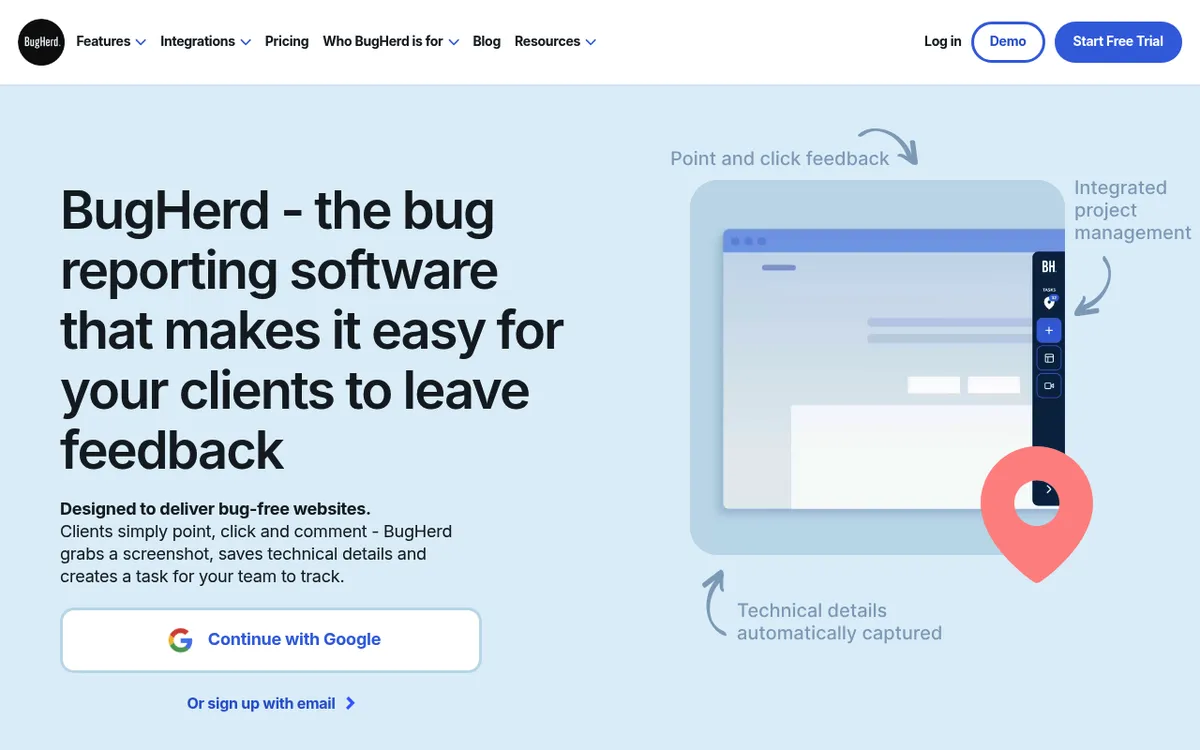
BugHerd pins feedback to elements on a live page, grabs a screenshot with technical metadata, and creates a task on a Kanban board. Clients can also leave video feedback, and comment on Figma designs, PDFs and images.
Standard covers 5 members with unlimited client users and projects, plus integrations with Trello, Slack, GitHub and 12 more. Jira, Linear, Asana, ClickUp and monday.com need Premium. There's a free trial and a 60-day money-back guarantee.
Honest limits: it is built around websites, and the pricing page doesn't list console logs. If you are weighing BugHerd alternatives, Marker.io is the closer fit for dev-led teams.
6. Usersnap: best for bug reports plus product feedback in one place
Best for: product teams that want QA reports, surveys and feature feedback in one inbox.
Price: Starter $49/mo billed yearly ($59 monthly) with 2 seats and 2 projects. Growth $129/mo billed yearly ($159 monthly) with unlimited seats.
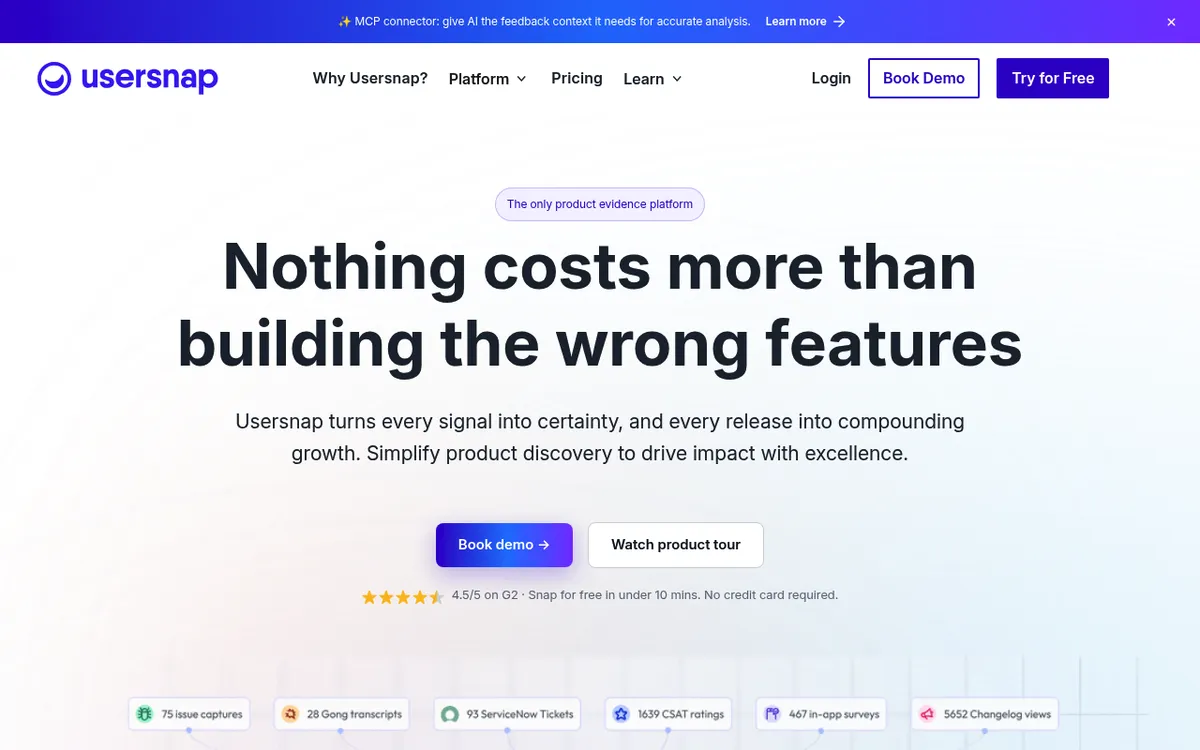
Usersnap now calls itself a product evidence platform, but its widget still handles bug reports well. Every plan includes annotated screenshots, screen and audio recording, browser console error capture, and environment data such as browser, device and URL. Jira, Linear and Azure DevOps integrations, including two-way sync, are on all plans.
There is no permanent free plan. The trial unlocks a free month of Premium once you set up 2 channels and collect 20 feedback items.
Honest limits: priced for product teams, so it is heavy for occasional QA reports.
Also consider: Userback has a Free Forever plan with 2 seats. Team is $39/mo billed annually, and console logs, network requests and session replay start on Business at $89/mo billed annually.
Browser recorders that capture console and network logs
A browser extension records the tab or screen and bundles DevTools data with the video. These tools are best when developers need technical context for web-app bugs. The logs come only from browser tabs where the extension runs, so a desktop app shows up in the video at most.
7. Jam: best for one-click repros with console and network data
Best for: developers and QA who want a repro that already includes DevTools data.
Price: Free (30 jams/mo, 5 creator seats, unlimited viewers). Team $14 per creator/mo billed yearly, with a 14-day trial.
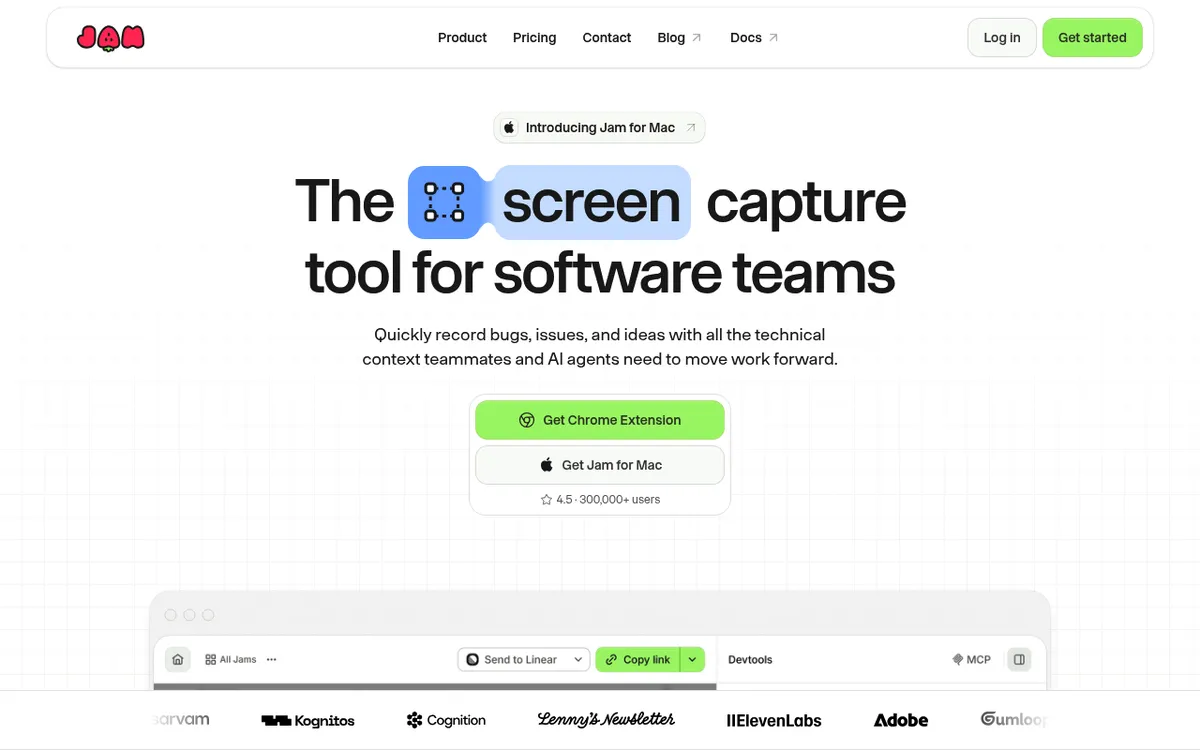
Jam records a screenshot or video and attaches console logs, network requests, device data and user actions. Its pricing table lists console and network logs on every plan, including Free. Instant replay saves the last moments after a bug happens, so you don't have to reproduce it twice.
The Free plan already connects to Jira and Linear. Jam ships a browser extension, Jam for Mac and Jam for iOS. Per Jam's recording docs, desktop recording can capture a window or the full monitor, but console and network data come only from tabs with Jam installed.
Honest limits: the technical capture is browser-only, and there is no Windows desktop app listed. Free recordings stop at 5 minutes.
8. BrowserStack Bug Capture: best for teams already on BrowserStack
Best for: QA teams that run cross-browser tests on BrowserStack and want reports in the same place.
Price: Free plan in BrowserStack's Testing Toolkit. Essentials (one user) is $25/mo billed annually.
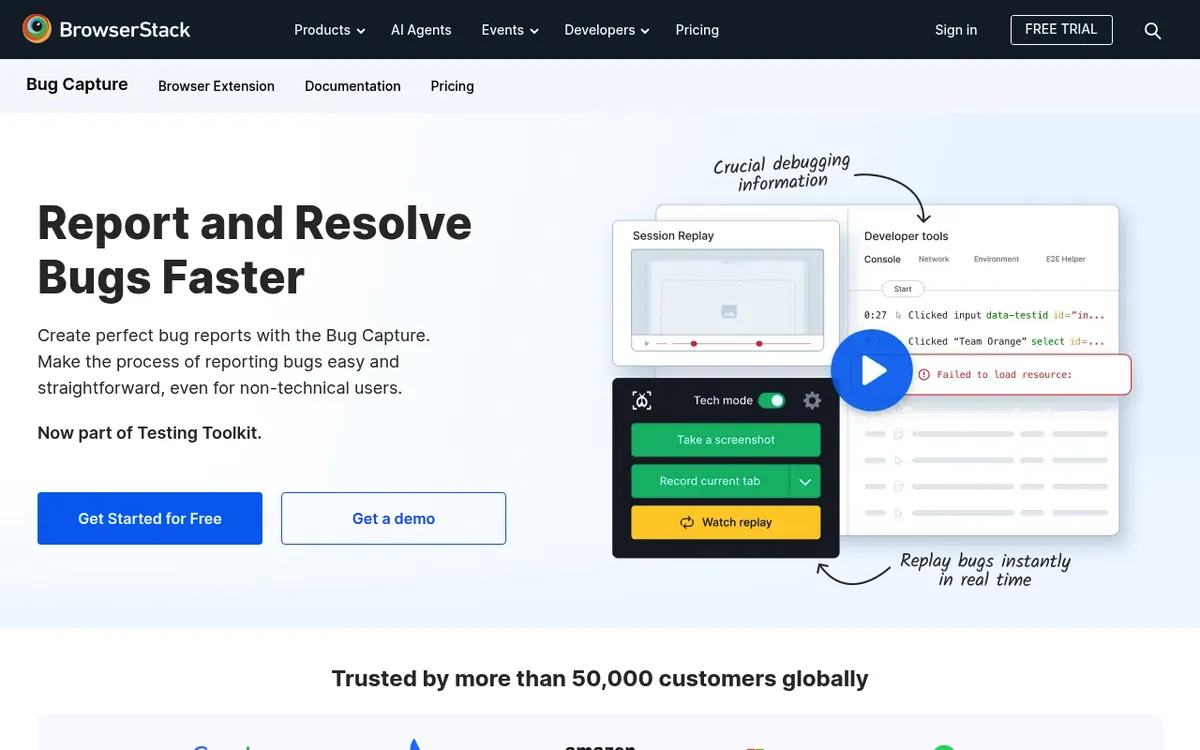
BrowserStack bought Bird Eats Bug in August 2024 and relaunched it as Bug Capture. It now ships inside the Testing Toolkit Chrome extension. Every recording includes click and key events, console logs and network logs, and on Team plans and up, a web SDK lets users report without installing anything.
Paid plans file into GitHub, Jira Cloud, Slack, Linear and Trello. As a Jam alternative, it makes most sense when you already pay for BrowserStack.
Honest limits: the old birdeatsbug.com pricing page still shows legacy plans, so trust BrowserStack's pricing instead.

Tired of plain screenshots? Try ScreenSnap Pro.
Beautiful backgrounds, pro annotations, GIF recording, and instant cloud sharing, all in one app. Pay $39 once, own it forever.
See pricing and featuresIn-app SDKs for mobile apps (bug reporting apps)
A developer adds an SDK to the app, and testers or users report from inside it with device data attached. That needs a code change and an app release. It suits beta programs and production feedback, where you can't ask users to install anything else.
9. Luciq (formerly Instabug): best for bugs, crashes and performance in one SDK
Best for: mobile teams that want bug reports, crash reports and performance data from one vendor.
Price: not public. One plan priced on daily active users and seats, sold through a demo.

Instabug became Luciq in September 2025, and instabug.com now redirects to luciq.ai, with SDKs for iOS, Android, React Native and Flutter. By default, users shake the device to report. You can switch to a screenshot gesture, a floating button or a swipe.
The report attaches the current screen, which users can mark up, plus device data and repro steps. Views you tag as private appear as black boxes in screenshots.
Honest limits: it is sales-led, with no self-serve plan, so it is heavy for a small team. If you need an Instabug alternative with a free tier, look at Shake.
10. Shake: best for small mobile teams that want a free start
Best for: indie and small mobile teams that want in-app bug reports without a sales call.
Price: Free plan. Starter $160/mo. Premium $200/mo billed annually ($250 monthly).
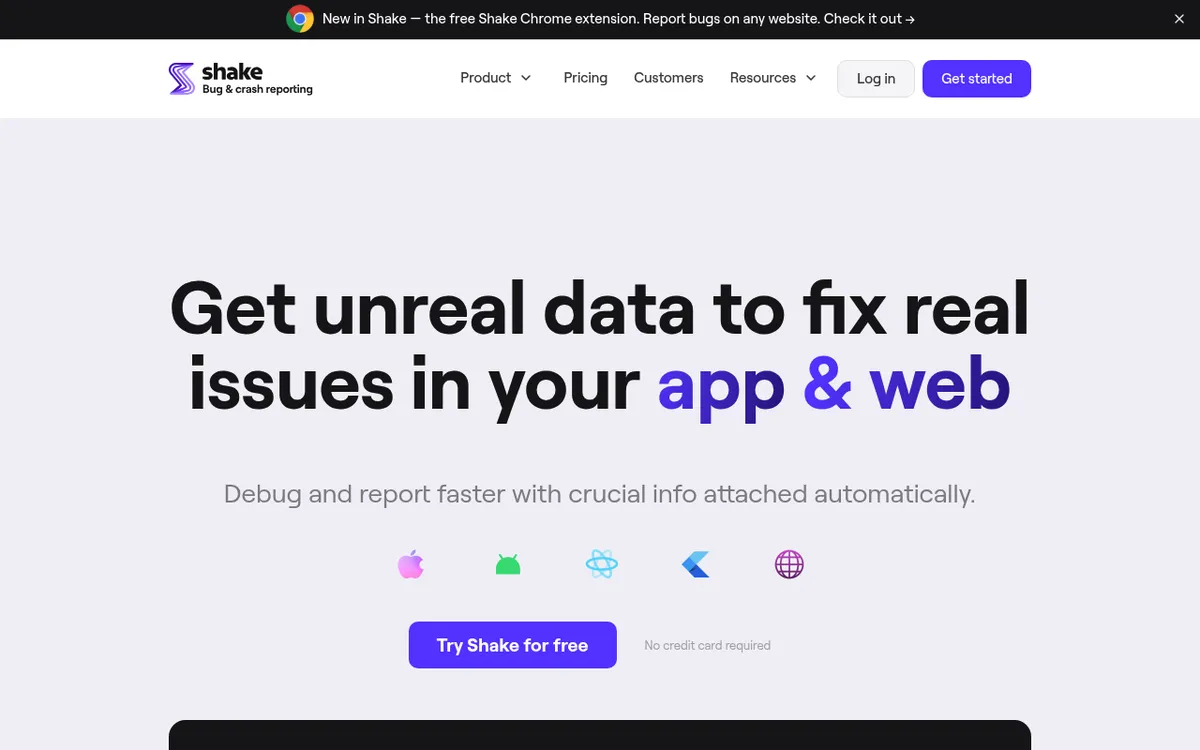
Shake has SDKs for iOS, Android, React Native, Flutter and web, plus a free Chrome extension for any website. Users shake the device to report. Each report carries 50+ data points, including HTTP logs and steps to reproduce, and data obfuscation hides sensitive fields.
The Free plan covers 1 app, 3 team members, 10,000 app installs and 1 month of data retention. Premium raises that to 5 apps, 25 members and 1 year.
Honest limits: paid plans jump to $160 a month, which is a lot for a side project.
The trackers your bug reports feed
Trackers handle triage, assignment and status. Every capture tool above files into one of these, by integration or by attachment, and you need one either way.
11. Jira: best for larger teams with custom workflows
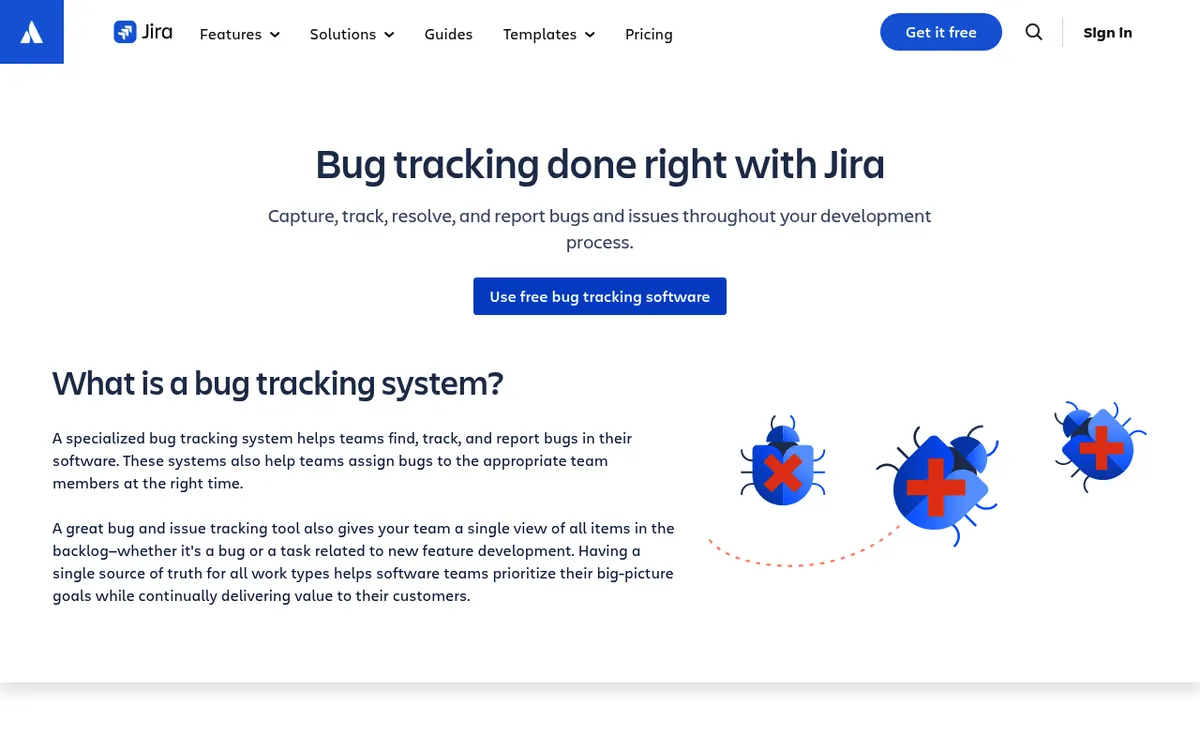
Jira handles custom workflows, fields and permissions better than anything here. It is free for up to 10 users with 2 GB of storage.
Per Atlassian's pricing page, Standard is $9.70 per user per month for teams up to 100 users, with lower rates for bigger teams. To attach evidence by hand, see how to add a screenshot in Jira.
12. Linear: best for fast-moving product teams
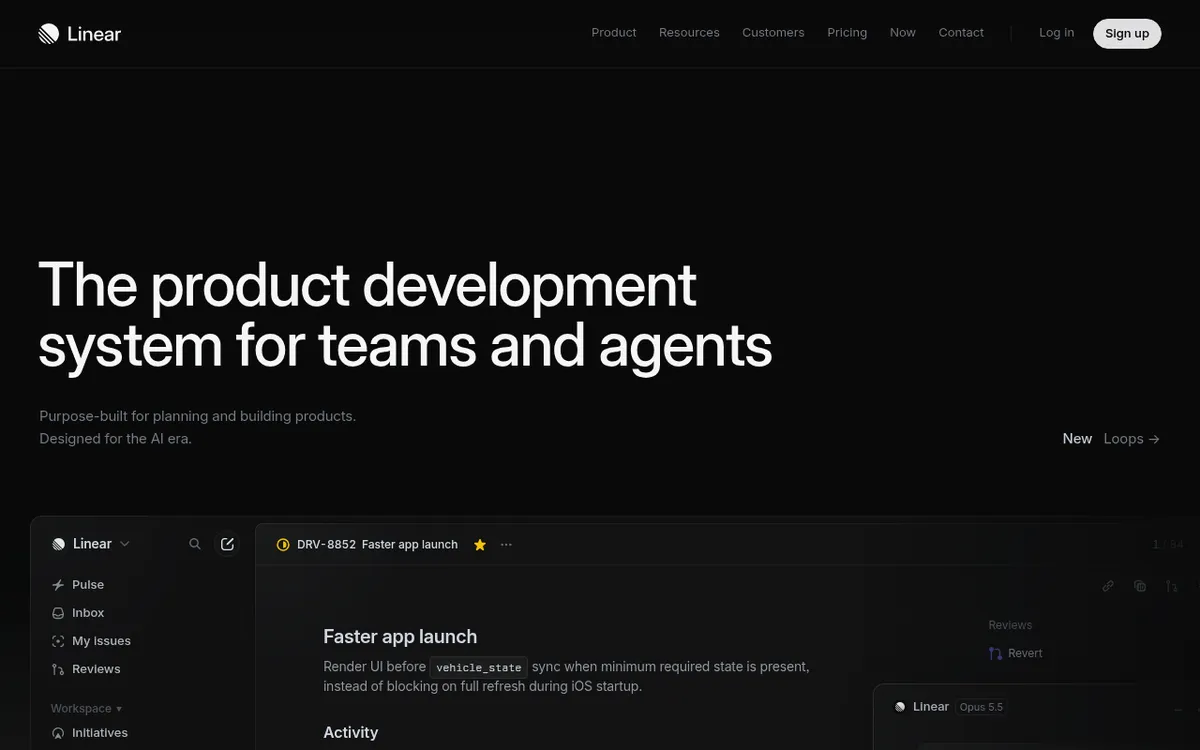
Linear is fast, keyboard-first and opinionated, which small product teams love. Per Linear's pricing, Free gives you unlimited members, 2 teams and 250 issues. Basic is $10 and Business $16 per user per month, billed yearly.
13. GitHub Issues: best for code-adjacent and open-source teams
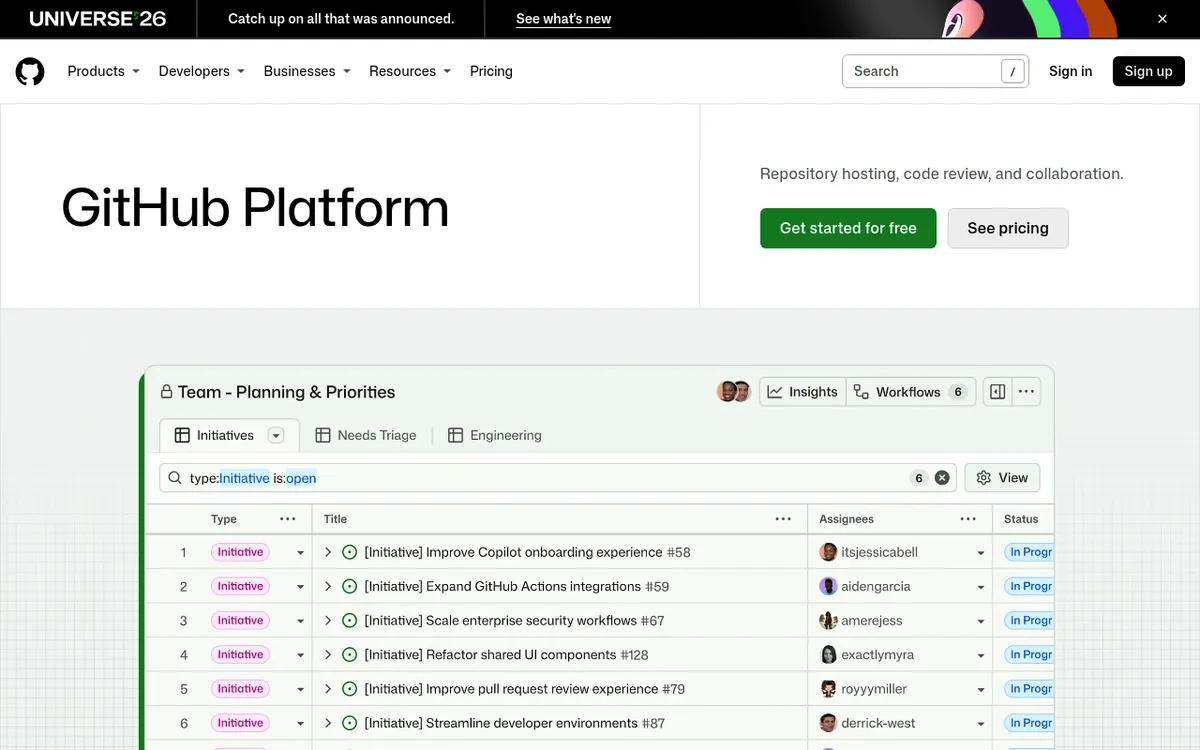
GitHub Issues is included in GitHub Free, and Team is $4 per user per month on GitHub's pricing page. Bugs sit next to the code and pull requests that fix them. Issue forms can require repro fields and a screenshot upload, as shown in our GitHub issue template.
Self-hosted option: Bugzilla and MantisBT are free, open-source trackers you host yourself. Bugzilla 5.2 shipped in 2024 and Mozilla still runs bugzilla.mozilla.org, while MantisBT is on version 2.28.
How to choose a bug reporting tool: 5 questions
- Who reports? Clients and non-technical testers need a widget. Developers and QA can use a recorder or a desktop tool. Mobile users need an SDK. This matters most in UAT testing, a bug bash or exploratory testing, where many people file at once, and when a test case fails.
- Where does the bug live? Match it in the table below.
- What context do developers need? For console or network data, use Jam or Bug Capture, or attach a DevTools HAR export. HAR files can hold cookies and tokens, so sanitize them first. For layout bugs, an annotated screenshot works; for timing bugs, a GIF or short video. Visual regression testing catches layout changes before anyone files a report.
- What must not leave the building? Check third-party scripts on production, data masking (Marker.io Business, Luciq private views, Shake obfuscation) and solid-box redaction on screenshots.
- Where do reports go? Confirm the integration is on the plan you will buy. Marker.io's Jira link needs Team, BugHerd's needs Premium, and Bug Capture's integrations need a paid plan.
| Where the bug lives | Tool type | Start with |
|---|---|---|
| Desktop or Electron app, terminal, game, localhost or VPN build | Desktop capture | ScreenSnap Pro (ShareX if free on Windows) |
| Public website under client review | Website widget | Marker.io or BugHerd |
| Web app where logs matter | Browser recorder | Jam or Bug Capture |
| iOS or Android app | In-app SDK | Luciq or Shake |
| Any of the above, after capture | Tracker | Jira, Linear or GitHub Issues |
What every bug report needs, whatever the tool
The tool only gathers evidence. The report still has to be clear:
- Numbered steps that match numbered callouts on the screenshot
- Expected vs actual, one line each
- Environment: OS, app or browser version, build number
- One bug per report, so each gets its own owner
- Exact error text, copied with OCR instead of retyped (on Mac, on Windows, or with our free text extractor)
- A short GIF or video for anything timing-related
- Secrets covered with a solid box before upload
For a one-off report, the free image annotation tool adds solid boxes, arrows and text in the browser. The full template lives in our bug report template, and the same screenshots fit a pull request template when you ship the fix.
Common bug reporting problems and fixes
- The widget doesn't appear on staging. A login wall, a strict Content Security Policy or a VPN can block it. Use the vendor's browser extension or a desktop capture tool instead.
- The report arrives without console logs. Jam wasn't installed in that browser window, or the Marker.io widget wasn't running on the site.
- The screenshot shows customer data or tokens. Cover it with a solid box and export again, or turn on SDK masking or private views.
- The recording is too big to attach. Trim it to the failing steps (5 to 15 seconds) and export a small GIF. You can also convert an MP4 to GIF and compress the GIF in the browser.
- Developers still can't reproduce it. Add the environment and numbered steps, and split it if it covers more than one bug.
Frequently asked questions
Wrapping up
There is no single best bug reporting tool for every team, but there is a best fit for each workflow. Websites with client reviewers point to Marker.io or BugHerd. Web apps that need logs point to Jam, mobile apps to Luciq or Shake, and the fix itself belongs in Jira, Linear or GitHub Issues.
If your bugs live outside the browser, or you want annotated screenshots and trimmed repro clips without installing anything on the product, ScreenSnap Pro is a one-time $39 purchase: 1 license, 2 seats (2 computers, Mac or Windows). See the pricing.

Morgan
Indie DeveloperIndie developer, founder of ScreenSnap Pro. A decade of shipping consumer Mac apps and developer tools. Read full bio
@m_0_r_g_a_n_